

A good smart-home dashboard should do more than display a collection of switches. It should make the house easier to understand and control at a glance. I wanted one permanent interface for Realm Labs, so I repurposed an older tablet as a dedicated Home Assistant wall control panel.
The result brings lighting, heating, cameras, doors, system health and the interactive models around the house into one touch-friendly interface. The tablet is only the front end: Home Assistant, running in Docker on my local infrastructure, does the real work behind it.
Why I Built a Dedicated Home Assistant Control Panel
Home Assistant already works well from a phone, but a shared household display solves a different problem. Nobody needs to find a phone, open an app and navigate through several views just to check a door, adjust the heating or turn off a light.
An older tablet was ideal for the job. It still had a perfectly usable screen, Wi-Fi connection and touch interface, even though it was no longer useful as a main mobile device. Giving it one permanent purpose kept it out of a drawer and created a much more natural interface for the house.
- Always available: the dashboard stays in a known location rather than moving around with somebody’s phone.
- Shared access: anyone in the house can use the essential controls without installing or configuring an app.
- At-a-glance status: doors, cameras, temperatures and system health are visible before anything is touched.
- Local-first control: the interface talks to my locally hosted Home Assistant instance rather than becoming another isolated cloud dashboard.
How the System Fits Together
The tablet does not directly control every device. It opens a full-screen Home Assistant dashboard over the local network, while Home Assistant brings the different platforms together. Native integrations handle supported hardware, HACS adds community cards and integrations where useful, and MQTT carries several of my custom sensor and model-control messages.
My Home Assistant installation is containerised alongside the rest of the Realm Labs services. That keeps the automation logic, entity history and dashboard configuration on the server. If the tablet is replaced, the control panel itself does not need to be rebuilt; a new screen simply opens the same dashboard.
If you are building something similar, start with the server side first. My guide to running Home Assistant Container on a Synology NAS covers the underlying deployment, while the broader Home Assistant setup at Realm Labs explains how it fits into the house.
Designing for a Tablet Instead of a Desktop
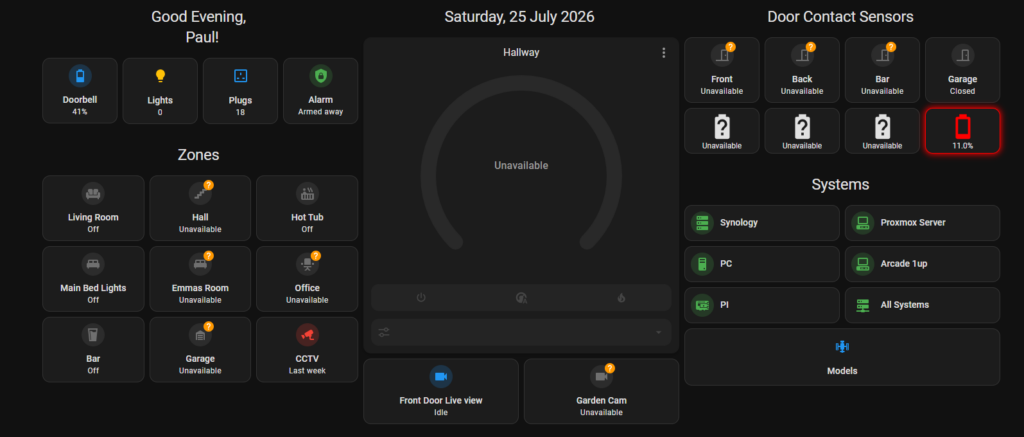
The biggest design decision was to treat the tablet as an appliance rather than a small computer. A dashboard that looks impressive on a desktop can become awkward when every action is performed with a finger. I therefore kept the main screen in a simple three-column landscape layout, with large targets and the most frequently used information visible immediately.
The home view is deliberately a summary rather than a complete list of every entity. Room and system buttons act as navigation points into more detailed sub-views. This prevents the landing screen from turning into an endless wall of controls while still keeping deeper information only one tap away.
Left Column: Quick Status and Room Navigation
The left side answers the everyday questions first. A greeting makes the display feel part of the house, while compact status chips show useful totals and warnings such as the doorbell battery, active lights, plug count and alarm state.
Below those indicators are the main zones: Living Room, Hall, Hot Tub, Bedrooms, Office, Bar, Garage and CCTV. These are intentionally broad navigation controls. Tapping one opens the relevant room or function without forcing the main screen to hold every individual lamp, socket and sensor.
Centre Column: Heating and Cameras
The centre is reserved for information that benefits from more screen space. The heating control is large enough to read and adjust comfortably, and the Front Door and Garden camera previews provide immediate visual context. Putting these in the centre also stops the live feeds from being squeezed into small, less useful tiles.
Right Column: Doors and Infrastructure
The right side combines physical security with the health of the technology behind the house. Contact sensors show the Front, Back, Bar and Garage doors, with battery levels visible so a weak sensor does not quietly disappear from the system.
System buttons provide routes into the Synology NAS, Proxmox host, main PC, Arcade 1Up, Raspberry Pi and the combined infrastructure view. This turns the wall tablet into a lightweight operations panel as well as a smart-home remote.
A Separate View for Interactive Models
One of the more unusual parts of Realm Labs is the collection of models with lighting, sound and physical automation. These controls deserved their own screen because they are fun to use but do not need to occupy space on the main household dashboard.
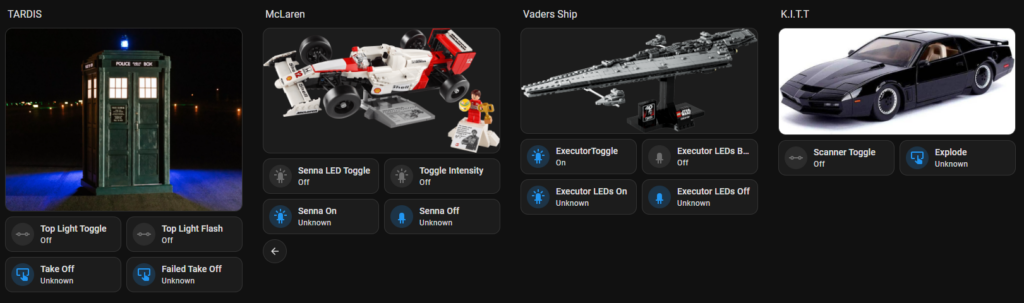
- TARDIS: controls for the beacon, lighting sequences and take-off sound effects.
- Ayrton Senna McLaren: headlight, underglow and intensity controls.
- Executor Super Star Destroyer: engine and bridge lighting with quick scene controls.
- K.I.T.T.-inspired display: control of the scanner-style lighting and related effects.
Several of these projects use Raspberry Pi or ESP32 hardware with MQTT and Node-RED providing the bridge into Home Assistant. I also built a separate mobile MQTT control panel for the Realm Labs models, which provides another way to operate them outside Home Assistant.
Monitoring the Synology NAS
The dedicated Synology view shows why I wanted infrastructure monitoring on the same screen as the home controls. The DS224+, named Seido, hosts important services and storage, so CPU load, memory use, capacity and temperatures are useful household information—not just statistics for a server dashboard.
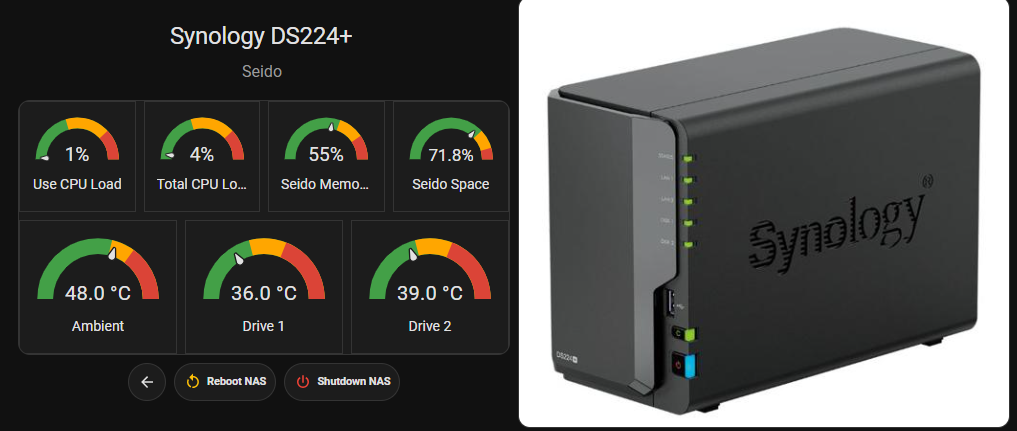
The view includes CPU and memory gauges, overall storage use, chassis temperature and individual drive temperatures. Reboot and shutdown controls are also available, but they are kept on this deeper system page rather than the home screen to reduce the chance of an accidental press.
One View for the Entire Home Lab
The All Systems page brings the core infrastructure together. Instead of opening separate tools to check whether a problem belongs to the Raspberry Pi, Synology or Proxmox host, I can compare their condition from one display.
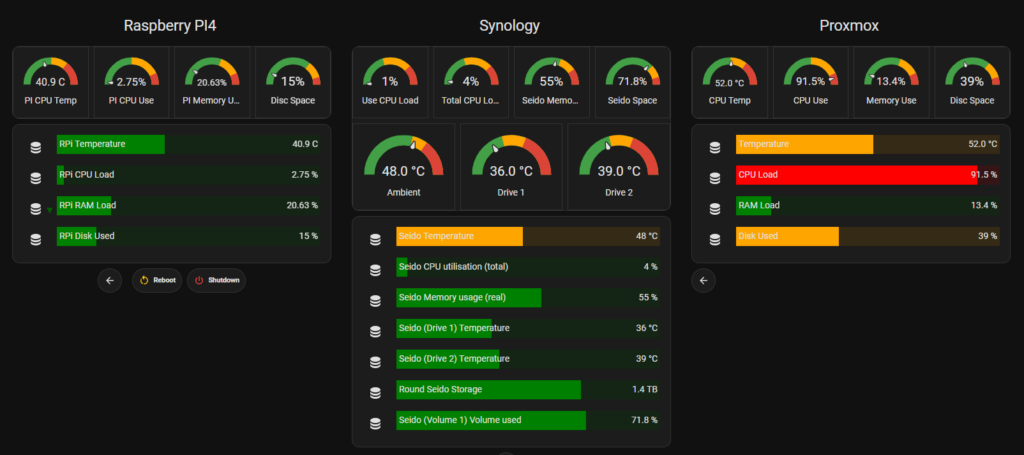
- Raspberry Pi 4: CPU temperature and load, memory, storage and power controls.
- Synology DS224+: CPU, memory, capacity, chassis temperature and both drive temperatures.
- Proxmox VE: processor temperature, CPU load, memory and allocated storage.
The data is gathered from the same monitoring stack used elsewhere in the lab. For a deeper look at that side of the project, see monitoring the home lab with Home Assistant, Prometheus and Grafana.
Making a Wall Tablet Reliable
A permanent control panel needs to behave differently from a normal tablet. It should return to the dashboard after a restart, avoid unnecessary notifications and remain readable without constant interaction. I configured the device around that single purpose: a full-screen dashboard, a fixed landscape layout and a stable local-network connection.
Power and screen behaviour also need some thought. Leaving a bright display on continuously is unnecessary and can be hard on an older panel, while allowing it to sleep too deeply makes the dashboard frustrating to use. The useful compromise is a screen that dims or sleeps when idle but wakes quickly when somebody approaches or taps it. The exact options will depend on the tablet and kiosk software being used.
What I Learned from the Build
- Design around common actions: the main page should answer the questions people ask every day, not expose every entity Home Assistant knows about.
- Use sub-views: model controls and server telemetry are valuable, but separating them keeps the household screen clear.
- Make warnings visual: low batteries, open doors and high system usage should stand out without requiring close inspection.
- Keep the tablet disposable: all important logic belongs in Home Assistant. The display should be easy to replace without rebuilding the automation system.
- Be cautious with power controls: shutdown and reboot actions are useful, but they should sit away from frequently tapped lighting and room controls.
The Result
Repurposing the old tablet gave Realm Labs a proper shared interface without adding another specialised device. More importantly, it joined two sides of the project that are often kept separate: day-to-day home automation and the infrastructure that makes it reliable.
From one screen I can check doors and cameras, adjust heating, move between rooms, trigger effects on the models and inspect the health of the servers behind everything. The tablet may be the simplest piece of hardware in the system, but it has become one of the most useful.