
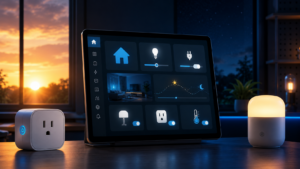

A Tuya Home Assistant automation is a useful way to bring inexpensive Smart Life and Tuya devices into the same system as the rest of a smart home. Instead of opening a separate manufacturer app, the device can appear on a Home Assistant dashboard, respond to another brand’s sensor or button, and follow sunrise and sunset automatically.
In Realm Labs, Home Assistant acts as the common control layer between otherwise separate platforms. This guide covers linking a Tuya account, checking the imported entities, adding a dashboard control, triggering the device from a physical button and creating a seasonal lighting automation that does not depend on a fixed time.
Before Adding Tuya to Home Assistant
You need a working Home Assistant installation and a Tuya device already paired in either the Smart Life or Tuya Smart mobile app. Confirm that the device responds correctly in that app before introducing Home Assistant; otherwise it becomes difficult to tell whether a fault belongs to the device, Tuya account or integration.
- Home Assistant must have internet access for the official Tuya integration.
- The device must be associated with the Smart Life or Tuya Smart account you intend to link.
- Your Home Assistant time zone and home location should be correct before using sun triggers.
- Not every feature exposed in the Tuya app is necessarily supported as a Home Assistant entity.
If you are starting from scratch, see my guide to running Home Assistant Container on a Synology NAS and the wider overview of Home Assistant at the heart of Realm Labs.
Add the Official Tuya Integration
Find the Tuya user code
Open the Smart Life or Tuya Smart app on your phone and go to:
Me → Settings → Account and SecurityLocate the User Code shown for the account. This identifies the Tuya account during the Home Assistant linking process; it is not the password or an individual device ID.
Link the account in Home Assistant
In Home Assistant, open:
Settings → Devices & Services → Add IntegrationSearch for Tuya, select the official integration and enter the User Code when prompted. Home Assistant will display a QR code. In the Smart Life or Tuya Smart app, tap the scan option, scan the QR code and confirm the connection.
Supported devices should then appear under the Tuya integration. Their entities may look similar to:
switch.living_room_plug
light.patio_light
Open each imported device and check the entity names before building automations. Renaming them now is easier than trying to understand several generic IDs later. I prefer names that describe the physical purpose of the device rather than its manufacturer.
Add the Tuya Device to a Dashboard
For direct manual control, open the required Home Assistant dashboard and choose:
Edit Dashboard → Add Card → TileSelect the Tuya entity, give it a clear name and set the tap action to Toggle. A Tile card normally provides a clean status indication and a large touch target, although a Button card works just as well for a simple on/off device.
Dashboard placement matters on a permanent display. Put frequently used devices on the main view and move occasional controls into the relevant room. My Home Assistant wall tablet control panel uses this approach to keep the home screen useful without showing every entity at once.
Control Tuya with a Physical Button
Once the Tuya device exists as a Home Assistant entity, a button from another ecosystem can control it. A Zigbee remote, for example, can toggle a Tuya Wi-Fi plug even though those devices have no direct relationship. Home Assistant receives the button event and sends the required service call.
A basic automation can look like this:
alias: Button - Toggle Tuya Plug
description: Toggle Tuya plug on physical button press
mode: single

trigger:
  - platform: device
    domain: button
    device_id: YOUR_PHYSICAL_BUTTON_DEVICE_ID
    type: pressed

action:
  - action: switch.toggle
    target:
      entity_id: switch.tuya_socket
Replace the device ID and entity ID with the values from your installation. Where the button exposes events rather than a device trigger, create the automation through the visual editor first and then inspect its YAML. That avoids guessing the event type or payload.
Create a Sunrise and Sunset Automation
Lighting rarely suits one fixed clock time throughout the year. Home Assistant calculates sunrise and sunset from the configured home location, so a sun trigger naturally moves with the seasons.
In the visual editor, create a new automation under Settings → Automations & Scenes. Choose Sun as the trigger and select sunrise or sunset. An offset changes when the action occurs relative to that event:
-00:15:00This means 15 minutes before the selected sun event. A positive offset runs after it. For the action, select Switch: Turn on, Light: Turn on or the matching service for the entity.
Complete Tuya Home Assistant Automation YAML
The following example turns a Tuya switch on 15 minutes before sunset and switches it off at sunrise. Both triggers live in one automation and use IDs to select the correct action:
alias: Solar Control - Tuya Device
description: Turn on Tuya device before sunset and off at sunrise
mode: single

trigger:
  - trigger: sun
    event: sunset
    offset: "-00:15:00"
    id: turn_on_event

  - trigger: sun
    event: sunrise
    offset: "00:00:00"
    id: turn_off_event

action:
  - choose:
      - conditions:
          - condition: trigger
            id: turn_on_event
        sequence:
          - action: switch.turn_on
            target:
              entity_id: switch.tuya_socket

      - conditions:
          - condition: trigger
            id: turn_off_event
        sequence:
          - action: switch.turn_off
            target:
              entity_id: switch.tuya_socket
Replace switch.tuya_socket with the actual entity ID. If the imported device is a light, change the service to light.turn_on and light.turn_off.
Test the Automation Without Waiting for Sunset
Waiting until the evening is a slow way to discover a typo. Save the automation, open its menu and use the option to run an individual action or the full sequence. Also test the entity directly from Developer Tools or its dashboard card.
Running an automation manually may not provide the same trigger ID as a real sun event, so a choose block based on trigger IDs might not select a branch. In that case, test each service action separately and temporarily move the trigger to a time a few minutes ahead. Restore the sun trigger after verification.
Troubleshooting Tuya in Home Assistant
The device does not appear
Confirm that the device belongs to the same Smart Life or Tuya Smart account linked to Home Assistant. Reload the Tuya integration and check whether the particular device type is supported. If it works in the manufacturer app but still exposes no useful entities, integration support may be the limitation.
The entity is unavailable
First check the device in the Tuya app. If it is offline there as well, investigate power and Wi-Fi. If only Home Assistant reports it unavailable, reload the integration and inspect the Home Assistant logs for authentication or cloud communication errors.
Sunrise or sunset happens at the wrong time
Check the Home Assistant time zone, latitude and longitude under system settings. Also read the offset carefully: a minus sign means before the event, while a positive value means after it. The automation trace is useful for confirming which trigger fired and which action path ran.
The dashboard updates slowly
The official integration communicates through Tuya’s cloud, so state changes are not always as immediate as a fully local device. Check the device’s wireless signal and internet connection before changing the automation. If cloud latency becomes a genuine problem, local control may be worth investigating.
Official Tuya Integration or Local Control?
The official integration is the easiest route and is the sensible starting point for most installations. It avoids extracting local keys and generally requires less maintenance, but it depends on Tuya’s cloud service and internet connectivity.
Community integrations such as LocalTuya and Tuya Local can communicate with compatible devices over the local network. That can reduce latency and preserve control during an internet outage, but compatibility varies and setup is more involved. I would move to local control only where the benefit justifies the additional maintenance.
Why Bring Tuya into Home Assistant?
The Tuya app can already provide schedules and basic scenes. The advantage of Home Assistant is that the Tuya device can react to the rest of the house: motion, presence, temperature, MQTT messages, doors, network state, custom scripts and buttons from unrelated manufacturers.
That same cross-platform approach powers the custom hardware around Realm Labs. My guide to Raspberry Pi MQTT monitoring with Home Assistant shows how locally published data can sit alongside integrations such as Tuya in a single interface.
The Result
After linking the account, the Tuya device no longer feels like an isolated product. It has a clear dashboard control, can respond to a physical button from another platform, and automatically follows daylight throughout the year.
The most valuable part is not the on/off command itself; it is having one automation layer for the entire house. Home Assistant turns a collection of separate devices into a system.
Download the Example Files
RealmLabs example pack v1.0
Ready-to-adapt Home Assistant YAML for sunrise/sunset control and a physical-button toggle, plus an entity setup checklist.
Sanitised examples: replace any YOUR_* placeholders and entity IDs before use. No account credentials or private environment details are included.