
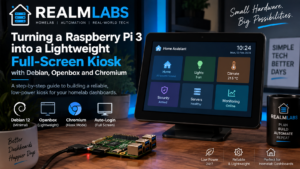

A spare Raspberry Pi 3 is not especially powerful by modern standards, but that does not make it useless. In this case I wanted something much simpler than a general-purpose desktop: a device that could boot, launch one local web dashboard full-screen and then stay out of the way.
The end result was a lightweight kiosk appliance built around Debian 12, X, Openbox and Chromium. There is no full desktop environment to maintain, no mouse-driven workflow once it is running, and no need for someone to log in manually after a reboot.
This post documents the complete approach, including the small problems that turned a seemingly simple “open a web page at startup” job into something more interesting: automatic login, starting X without a display manager, preventing screen blanking, keeping Chromium alive, and removing the keyring password prompt without breaking SSH or PAM.
Why build a kiosk instead of using a normal desktop?
The machine only had one job: display a browser-based dashboard on a screen. Installing a full desktop environment would work, but it would also add more packages, more background services and more opportunities for pop-ups or desktop behaviour that I did not need.
I already had several web interfaces around RealmLabs, including the custom homelab dashboard, Home Assistant wall-tablet interface and Grafana monitoring. A dedicated Pi kiosk was a natural way to turn one of those browser interfaces into something that behaved more like an appliance than a computer.
The design goal was therefore deliberately narrow:
- Boot directly into a graphical session.
- Launch Chromium automatically.
- Open one dashboard in full-screen kiosk mode.
- Disable screen blanking and power-management behaviour.
- Recover automatically if Chromium crashed.
- Keep remote SSH administration available.
- Avoid installing a heavy desktop environment just to run a browser.
The software stack
The kiosk was built around a small set of components, each with one job.
| Component | Purpose |
|---|---|
| Debian 12 | Base operating system |
| Xorg | Provides the graphical display server |
| Openbox | Minimal window manager |
| Chromium | Displays the dashboard |
| xset | Disables screen saver and DPMS blanking |
| unclutter | Optionally hides the mouse pointer |
| systemd | Keeps the kiosk process supervised |
The important part is what is not there. I did not need GNOME, KDE or another complete desktop. X and Openbox were enough to give Chromium somewhere to run.
Installing the graphical pieces
Starting from a minimal Debian installation, the required packages were kept intentionally small. The exact Chromium package name can vary between distributions, but the structure of the setup is the same:
sudo apt update
sudo apt install xserver-xorg xinit openbox chromium unclutter
On some systems Chromium may be installed under a slightly different package or executable name. It is worth confirming the command first:
which chromium
which chromium-browser
This is a small detail, but it matters later when systemd is trying to launch the browser without anyone watching the terminal.
Starting X automatically
I did not want a traditional graphical login manager. The kiosk user should log in automatically on the local console and start X immediately.
The first stage is console autologin. Once that is working, the user shell can start X automatically when logging in on the primary TTY.
A simple pattern in the user profile is:
if [ -z "$DISPLAY" ] && [ "$(tty)" = "/dev/tty1" ]; then
    startx
fi
The TTY check is important. Without it, an SSH session can accidentally try to start the local X server as well. The kiosk should start X only on the physical console, while remote SSH sessions remain ordinary shells.
This separation was one of the things I wanted to preserve throughout the project: automate the screen aggressively without making remote administration fragile.
Using Openbox as the window manager
Once X starts, Openbox provides just enough window management for Chromium. It is lightweight, predictable and does not add the panels, notifications or desktop widgets that would otherwise appear on a dedicated display.
The kiosk does not need a rich desktop session. It needs Chromium to occupy the screen and stay there.
The kiosk launch script
The browser itself was started from a small shell script rather than putting a long Chromium command directly into systemd. That makes the behaviour easier to test manually and easier to change later.
The script follows this pattern:
#!/bin/bash

# Give X/network services a moment to settle
sleep 10

# Keep the display awake
xset s off
xset -dpms
xset s noblank

# Optional: hide the pointer after inactivity
unclutter -idle 1 -root &

# Launch the dashboard
exec chromium \
  --noerrdialogs \
  --disable-infobars \
  --kiosk \
  --incognito \
  --disable-session-crashed-bubble \
  http://dashboard.local/
I have replaced the real local dashboard address here with a generic hostname. There is no value in publishing private LAN addressing in a public guide.
The flags each solve a specific kiosk annoyance. --kiosk removes normal browser chrome, --noerrdialogs avoids modal error windows, and --disable-session-crashed-bubble stops Chromium asking whether I want to restore a previous session after an unexpected power loss.
Why the display kept trying to blank
A kiosk that goes black after ten minutes is not much use. X has its own screen-saver behaviour, while DPMS can also power down the display.
These three commands became part of the startup sequence:
xset s off
xset -dpms
xset s noblank
The combination disables the normal X screen saver, turns off Display Power Management Signalling and prevents blanking. It is one of those tiny configuration details that makes the difference between a dashboard that works during testing and an appliance that can be left running all day.
Supervising the kiosk with systemd
Launching Chromium at boot is only half the job. If the browser exits, the screen should not remain on an empty Openbox desktop until somebody notices.
A systemd service gives the browser a supervisor:
[Unit]
Description=RealmLabs Kiosk Browser
After=graphical.target network-online.target
Wants=network-online.target

[Service]
User=kiosk
Environment=DISPLAY=:0
Environment=XAUTHORITY=/home/kiosk/.Xauthority
ExecStart=/home/kiosk/kiosk.sh
Restart=always
RestartSec=5

[Install]
WantedBy=graphical.target
The user and paths should obviously match the local account. The useful parts are DISPLAY=:0, the X authority file, and Restart=always. If Chromium dies, systemd waits briefly and launches the kiosk again.
This is much closer to appliance behaviour than relying on a desktop autostart folder.
The Chromium keyring prompt problem
One of the more irritating problems appeared after the automatic login was working: Chromium could launch successfully and then stop at a password/keyring prompt.
On a normal desktop this is merely annoying. On an unattended kiosk it defeats the entire point of automatic startup.
The tempting solution is to start ripping authentication modules out of PAM or to weaken the login configuration until the prompt disappears. I did not want to do that. SSH still needed to behave normally, and the cure should not be worse than the problem.
The better approach was to treat the kiosk browser as a browser appliance and prevent it from depending on a desktop keyring for saved credentials. One practical method is to launch Chromium with a basic password store:
--password-store=basicFor this type of kiosk, Chromium was not being used as somebody’s personal desktop browser, so losing desktop-keyring integration was not a meaningful disadvantage. The important part was that it could start unattended while SSH/PAM remained intact.
Putting the pieces together
At boot, the completed flow is intentionally simple:
- Debian starts.
- The kiosk account logs in automatically on the local console.
- The profile starts X on TTY1.
- Openbox provides the minimal graphical session.
- The kiosk service launches the shell script.
- The script disables blanking and opens Chromium full-screen.
- Chromium loads the local dashboard.
- If Chromium exits, systemd starts it again.
SSH remains available independently, so maintenance does not require connecting a keyboard to the display.
Why I prefer this to a full desktop image
There are easier ways to create a Raspberry Pi kiosk. Installing a desktop image, setting Chromium to auto-start and hiding the panels will get a screen working quickly.
What I like about the minimal approach is that every part exists for a reason. There is less background software, fewer desktop notifications, fewer update prompts and fewer layers to troubleshoot when the screen does not start.
It also fits the wider way I build RealmLabs. The Pi is not a little desktop computer that happens to show a dashboard; it is infrastructure. The operating system and browser are simply the components required to deliver that one service.
Where this fits in RealmLabs
The kiosk is only useful because the interfaces behind it already exist. The RealmLabs homelab dashboard provides a central view of services, while Home Assistant dashboards handle smart-home controls and Prometheus and Grafana provide the deeper monitoring layer.
In other words, the Raspberry Pi kiosk is the physical presentation layer for systems that already live elsewhere.
That is also why an older Pi 3 is still perfectly adequate. It is not running the monitoring stack, databases or home-automation logic. It is rendering a web page.
What I would change if I rebuilt it now
I would keep the same basic architecture: minimal Linux, X, a tiny window manager and Chromium. The biggest improvement would be to make the dashboard hostname independent of a hard-coded IP address so the kiosk configuration can survive infrastructure moves without being edited.
I would also keep the kiosk launch script and systemd service under version control. They are small files, but together they define the behaviour of the appliance and make rebuilding the SD card much easier.
For displays where a browser is genuinely the only user interface, I would still choose this approach over installing an entire desktop environment.
Final thoughts
This project is a good example of why old hardware is still useful in a home lab. A Raspberry Pi 3 would be a poor choice for a heavy modern desktop, but that is not what I asked it to do.
By reducing the job to Debian, X, Openbox and Chromium, the Pi becomes a dedicated dashboard terminal that boots unattended, stays awake, recovers from browser failures and can still be administered remotely.
It is not complicated infrastructure, but it turns an otherwise spare board and display into something genuinely useful — which is exactly the kind of project RealmLabs exists for.