
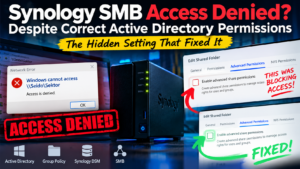

One of the most frustrating homelab problems is an Access Denied error when every permission screen says the user should have access. That’s exactly what happened with the Sektor share on my Synology DS224+ in the OrderRealm Active Directory lab.
The account ORDERREALM\shaokahn belonged to the appropriate administrator groups, the mapped-drive GPO applied, and Synology reported full folder access. Yet Windows refused to open \\Seido\Sektor. After checking Group Policy, Kerberos, SMB sessions and the Synology ACL, the fix came down to Advanced Share Permissions.
Symptoms: GPO applied but the drive was missing
On the Windows 11 workstation VAETERNUS, gpresult /r /scope:user showed that Folder Redirection & Drive Maps was applied. whoami /groups confirmed membership in ORDERREALM\Admins and Domain Admins. Other Seido shares mapped successfully.
PS> Test-Path "\\Seido\Sektor"
Test-Path : Access is denied
False
The same test against the NAS IP returned Access Denied. That helped rule out a simple DNS issue. Because direct SMB access failed, remaking the GPO drive mapping was unlikely to help.
Step 1: Check the Windows identity and mapped drives
whoami
whoami /groups
gpresult /r /scope:user
net use
Get-SmbConnection
These commands separate a policy-targeting problem from an SMB access problem. A GPO being listed as applied does not guarantee every drive mapping within it succeeded. In this case, existing Seido connections also demonstrated that the NAS was reachable and domain authentication generally worked.
Step 2: Inspect Synology filesystem permissions
On Seido over SSH I checked the Synology ACL:
sudo synoacltool -get /volume1/SektorBoth the AD administrator group and the affected user had an Allow entry:
group:ORDERREALM\Admins:allow:rwxpdDaARWc--:fd--
user:ORDERREALM\shaokahn:allow:rwxpdDaARWc--:fd--
Then I checked the effective permissions for that domain identity:
sudo synoacltool -get-perm /volume1/Sektor 'ORDERREALM\shaokahn'Final permission: [rwxpdDaARWc--]Synology correctly resolved ShaoKahn’s AD group membership and granted full effective filesystem permissions. That meant the problem was somewhere above the filesystem ACL.
Step 3: Compare Samba’s actual share restrictions
Synology’s Samba status showed sessions for both ShaoKahn and another working account, but the successful Sektor connection belonged to the other account:
sudo smbstatusThe breakthrough was reading the effective Samba share definition:
sudo testparm -s --section-name=Sektor[Sektor]
path = /volume1/Sektor
read only = No
valid users = nobody,@docker,ORDERREALM\turokhan,ContainerManager,turokhan,nobody
write list = nobody,turokhan,ContainerManager,@docker,ORDERREALM\turokhan,nobodyThe valid users and write list entries did not include ORDERREALM\shaokahn or ORDERREALM\Admins. This was different from the filesystem ACL.
The Synology share configuration confirmed the discrepancy:
sudo synoshare --get SektorDeny list ..[]
RW list ....[turokhan,ContainerManager,@docker,ORDERREALM\turokhan]
RO list ....[]Key finding: Having full folder ACL permissions is not sufficient when the SMB share’s separate access restrictions deny the connection.
Step 4: The fix — Advanced Share Permissions
In DSM, navigate to Control Panel → Shared Folder → Sektor → Edit → Advanced Permissions and inspect Enable advanced share permissions.
In this case, unticking that option and applying the change restored access. Back on the Windows client:
PS> Test-Path "\\Seido\Sektor"
True
That was it. No GPO rebuild, no recursive ACL rewrite and no need to disconnect the other working shares.
Important: don’t blindly disable advanced share permissions on a production NAS. They may intentionally enforce a second access-control layer. First review the intended access policy, and only change that setting if removing those additional restrictions is appropriate.
Why this was so confusing
Several distinct controls were involved: the domain user’s security groups, GPO drive-map targeting, DSM shared-folder permissions, Synology’s filesystem ACL and Samba’s effective SMB share restrictions. The first four looked correct. Only the latter showed the missing account.
We confirmed that changing the Advanced Share Permissions setting fixed the issue, although we did not establish exactly why the share permission configuration had become inconsistent in the first place.
Quick troubleshooting checklist
gpresult /r /scope:user— is the intended user GPO applying?whoami /groups— does the user have the expected AD groups?Test-Path "\\NAS\Share"— can Windows access the share directly?Get-SmbConnection— which credentials are being used?sudo synoacltool -get-perm /volume1/Share 'DOMAIN\user'— what does the effective folder ACL permit?sudo testparm -s --section-name=Share— which identities can Samba actually admit?sudo synoshare --get Share— what does DSM store at share level?- In DSM, check Advanced Permissions before replacing working ACLs.
Final thoughts
If your Synology share reports Access Denied despite seemingly correct Active Directory permissions, inspect the Samba valid users list before blaming Group Policy. In this OrderRealm case study, one additional Synology permission setting was the difference between a missing drive and a working share.
For related OrderRealm troubleshooting, see Cleaning Up Years of Mapped Drive GPOs with %USERNAME% and Samba Active Directory: Troubleshooting Windows GPOs, RDP and Logon Rights.