
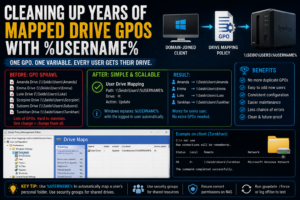

One of the things I like about running Active Directory at home is that it gives me somewhere to experiment with the same sort of problems that appear in much larger environments.
Mapped drives are a perfect example.
They start simple.
One user needs a personal drive.
Then another user gets one.
Then somebody needs access to a shared folder.
Then another GPO gets created.
A few months later, what should have been a simple drive-mapping setup has turned into a collection of nearly identical Group Policies.
That was exactly what happened in Realm Labs.
I had separate mappings for different users and machines, all doing roughly the same thing.
They worked.
But they were becoming unnecessarily difficult to maintain.
The eventual solution was much cleaner:
\\Seido\Users\%USERNAME%
One policy.
One variable.
Every user gets the correct personal folder automatically.
How the Drive Mapping Started
The original setup grew organically.
I had several domain users with their own directories on the Synology NAS.
Conceptually:
\\Seido\Users\Amanda
\\Seido\Users\Emma
\\Seido\Users\Luke
\\Seido\Users\Scorpion
\\Seido\Users\Subzero
\\Seido\Users\Turokhan
Each user needed their own mapped drive when they logged into a domain-joined Windows machine.
The obvious way to do that was to create individual mappings.
For example:
Amanda Drive
Path: \\Seido\Users\Amanda
Then:
Emma Drive
Path: \\Seido\Users\Emma
And so on.
Nothing was technically wrong with it.
It just didn’t scale very well.
The GPO Sprawl Problem
Over time, the setup started to resemble this:
GPO - Amanda Drive
GPO - Emma Drive
GPO - Luke Drive
GPO - Scorpion Drive
GPO - Subzero Drive
GPO - Turokhan Drive
Each policy contained almost identical configuration.
The only meaningful difference was the username in the UNC path.
That meant every new user required another policy or another mapping item.
If I wanted to change:
Drive letter
Reconnect behaviour
Action type
Share location
I had to remember everywhere it had been configured.
This is exactly the sort of thing Group Policy is supposed to help avoid.
The Better Approach: Use an Environment Variable
Windows already knows who the logged-in user is.
You can see it from a command prompt with:
echo %USERNAME%
For example:
Turokhan
So instead of hard-coding:
\\Seido\Users\Turokhan
I could use:
\\Seido\Users\%USERNAME%
When Windows processes the policy for Turokhan, the variable becomes:
\\Seido\Users\Turokhan
When Emma logs in, the same policy becomes:
\\Seido\Users\Emma
And for Luke:
\\Seido\Users\Luke
Suddenly I didn’t need separate personal-drive mappings at all.
The New Design
The old design was:
User
 |
 +--> User-specific GPO
         |
         v
    User-specific path
The new design became:
Any Domain User
       |
       v
Single Drive Mapping GPO
       |
       v
\\Seido\Users\%USERNAME%
That is much easier to maintain.
Creating the New GPO
In Group Policy Management, I created a single policy for user drive mappings.
Something like:
User Drive Mappings
Then edited it under:
User Configuration
   |
   v
Preferences
   |
   v
Windows Settings
   |
   v
Drive Maps
This is an important distinction.
Mapped drives are generally a user setting, so they belong under:
User Configuration
rather than:
Computer Configuration
Creating the Personal Drive
Inside Drive Maps:
New
  |
  v
Mapped Drive
The location could then be entered as:
\\Seido\Users\%USERNAME%
For the drive letter, I could choose something consistent such as:
H:
The basic configuration became:
Action: Update

Location:
\\Seido\Users\%USERNAME%

Drive Letter:
H:
Using Update is useful because Group Policy will create the mapping if it doesn’t exist and update the settings if it does.
Replace vs Update
Group Policy Preferences gives several actions:
Create
Replace
Update
Delete
For drive mappings, I generally prefer:
Update
for an ongoing configuration.
Replace can work, but it effectively removes and recreates the mapping during policy processing.
That can be more disruptive than necessary.
With Update, Windows maintains the mapping while still allowing changes to be applied.
Creating the Folder Structure
For the %USERNAME% method to work cleanly, the share needs a predictable directory layout.
For example:
Users
├── Amanda
├── Emma
├── Luke
├── Scorpion
├── Subzero
└── Turokhan
The folder name needs to match what Windows returns for:
echo %USERNAME%
If the logged-in username is:
Scorpion
then Group Policy will attempt to map:
\\Seido\Users\Scorpion
If that folder doesn’t exist, the mapping will fail.
Permissions Still Matter
Using %USERNAME% only solves the mapping logic.
It doesn’t provide security.
Each user still needs the appropriate permissions on their personal directory.
For example:
Amanda
  -> Amanda only

Emma
  -> Emma only

Luke
  -> Luke only
The exact permissions depend on whether the backend is:
- Windows Server
- Synology SMB
- Samba
- Another NAS
In Realm Labs, the shares were provided by the Synology.
The important point is that users should not gain access to somebody else’s files simply because they know the UNC path.
What About Shared Drives?
Not every mapping can use %USERNAME%.
Some shares are deliberately common.
For example:
\\Seido\The Nexus
or another shared data location.
Those are better mapped separately.
The policy might therefore contain:
H:
\\Seido\Users\%USERNAME%

S:
\\Seido\Shared
The personal drive uses a variable.
The common drive doesn’t need one.
Item-Level Targeting
Things get more interesting when only certain users should receive a shared drive.
Group Policy Preferences supports:
Item-level targeting
This means the drive mapping can exist inside the same overall GPO while only applying when particular conditions are met.
For example:
Map Engineering Drive
only if
user is a member of Engineering
That avoids creating another entire GPO just for one drive.
Using Security Groups
Rather than targeting individual usernames, I prefer targeting security groups.
For example:
RealmLabs-SharedAccess
Then Group Policy can say:
Apply this drive mapping
if user is a member of
RealmLabs-SharedAccess
The resulting architecture is much cleaner:
User
 |
 v
Security Group Membership
 |
 v
Group Policy Preference
 |
 v
Mapped Drive
If somebody needs access later, I only change their group membership.
The GPO doesn’t need editing.
Why Groups Are Better Than Individual Users
Imagine a shared drive is needed by:
Amanda
Emma
Luke
Turokhan
I could create four separate targeting rules.
But that creates the same maintenance problem again.
Instead:
Group: RealmLabs-Shared
Members:
Amanda
Emma
Luke
Turokhan
Then the drive mapping checks only:
Is the user a member of RealmLabs-Shared?
That’s much easier to manage.
The Resulting GPO
The new policy could therefore contain several mappings without becoming messy.
For example:
H:
\\Seido\Users\%USERNAME%
Applies to all normal domain users
Then:
S:
\\Seido\Shared
Target: RealmLabs-Shared
Then perhaps:
P:
\\Seido\Projects
Target: RealmLabs-Projects
One GPO can manage all of them.
What Happened to the Old GPOs?
Once the new drive mapping had been tested successfully, the old per-user policies became redundant.
But I didn’t immediately delete everything.
I first disabled or unlinked the old mappings.
Then logged onto several machines and checked that the new policy worked.
Only after that did I remove the old configuration.
The migration path was:
Create new consolidated GPO
        |
        v
Test with one user
        |
        v
Test multiple users
        |
        v
Disable old mappings
        |
        v
Run gpupdate
        |
        v
Verify drives
        |
        v
Remove old policies
That gave me an easy rollback if anything went wrong.
Testing the New Mapping
On a Windows client:
gpupdate /force
Then log out and back in if necessary.
To inspect the current drive mappings:
net use
You should see something similar to:
H:
\\Seido\Users\Turokhan
for that particular user.
Another account should see:
H: \\Seido\Users\Emma
without any change to the GPO.
That’s the whole point.
Checking Which Policies Applied
If the drive doesn’t appear, one of the first tools to use is:
gpresult /r
This shows the Group Policies applied to the current user and computer.
For a more readable report:
gpresult /h C:\Temp\gpresult.html
Open the generated HTML file and inspect the user policy section.
This helps answer:
Did the drive-mapping GPO actually apply?
before troubleshooting SMB permissions or the NAS.
Check the UNC Path Manually
Another very simple test is to manually open:
\\Seido\Users\Turokhan
or whatever the user’s directory should be.
If Windows cannot access the path manually, Group Policy isn’t going to magically fix it.
That immediately separates:
GPO problem
from:
Share / permission / DNS problem
Check Username Expansion
You can also verify what Windows thinks %USERNAME% is:
echo %USERNAME%
If the result is:
turokhan
but the NAS folder is:
Paul
then:
\\Seido\Users\%USERNAME%
will obviously point to the wrong directory.
The folder structure needs to match the account naming scheme.
Update vs Delete Old Mappings
One thing to be careful about during migration is old drive mappings lingering on machines.
If the old GPO created:
H:
\\Seido\Users\Turokhan
and the new policy also manages H:, things can become confusing.
That’s why I like to ensure the old policy is no longer applying and then run:
gpupdate /force
If necessary, the old mapping can also be removed manually:
net use H: /delete
Then log back in and let the new GPO recreate it.
DNS Matters Here Too
As with most Active Directory features, DNS sits underneath all of this.
The path:
\\Seido\Users\%USERNAME%
depends on Windows being able to resolve:
Seido
If DNS is broken, you can end up troubleshooting a perfectly good drive-mapping policy for no reason.
A useful test is:
ping seido
or:
nslookup seido
In my setup, Seido is also part of the Realm Labs domain infrastructure, so reliable internal DNS is essential.
Using the FQDN
Where appropriate, I can also use the fully qualified name:
\\seido.order.realm\Users\%USERNAME%
This makes the intended DNS namespace explicit.
Whether I use the short name or FQDN depends on the environment and how the shares are normally referenced.
The important thing is consistency.
Don’t Hard-Code What Windows Already Knows
The %USERNAME% trick is part of a broader rule that applies to Group Policy.
If Windows already exposes a variable for something, use it rather than copying the same configuration over and over.
Useful variables include things such as:
%USERNAME%
%USERPROFILE%
%COMPUTERNAME%
%HOMEDRIVE%
%HOMEPATH%
They allow policies to adapt to the current user or machine.
That’s much more powerful than creating dozens of nearly identical GPOs.
The Before and After
The old Realm Labs setup effectively looked like this:
Amanda
  |
  v
Amanda GPO
  |
  v
\\Seido\Users\Amanda

Emma
  |
  v
Emma GPO
  |
  v
\\Seido\Users\Emma

Luke
  |
  v
Luke GPO
  |
  v
\\Seido\Users\Luke
The new setup became:
Amanda ─┐
Emma   ─┤
Luke   ─┤
Paul   ─┤
        |
        v
Single User Drive GPO
        |
        v
\\Seido\Users\%USERNAME%
Much better.
Adding a New User Became Easier
Previously, adding a user potentially meant:
Create AD account
Create NAS folder
Create new drive mapping
Create or edit GPO
Link policy
Test policy
After the cleanup:
Create AD account
Create matching NAS folder
Set permissions
Done
The existing policy automatically handles the drive mapping.
That is exactly the sort of automation I wanted from Active Directory in the first place.
A Cleaner Active Directory
The biggest improvement wasn’t necessarily visible to the users.
Their H: drive still appeared exactly as before.
The improvement was inside Group Policy Management.
Instead of a growing pile of policies:
Amanda Drive
Emma Drive
Luke Drive
Scorpion Drive
Subzero Drive
Turokhan Drive
I could have:
User Drive Mappings
One clear policy with predictable behaviour.
That makes future troubleshooting much easier.
A Sensible Troubleshooting Order
If a mapped drive deployed through Group Policy isn’t appearing, I now check:
1. Does the share work manually?
\\Seido\Users\username
2. Does DNS resolve the server?
nslookup seido
3. Is the user’s folder named correctly?
echo %USERNAME%
4. Does the user have permission?
Try opening the folder manually.
5. Did the GPO apply?
gpresult /r
6. Refresh policy
gpupdate /force
7. Check existing drive mappings
net use
That avoids randomly changing the GPO when the actual problem may be somewhere else.
The Realm Labs Takeaway
The old system wasn’t broken.
It was just repetitive.
That can be just as important to fix.
The original approach was:
One user
=
One hard-coded drive mapping
The better approach became:
One policy
+
%USERNAME%
=
Personal drive for every user
For shared resources:
Security groups
+
Item-level targeting
=
Only the right users get the drive
Restricted shares: combine NAS permissions with item-level targeting
One more cleanup became obvious later. A few drive-map items were intentionally protected by Synology permissions, so users without access correctly received 0x80070005 when Group Policy tried to map them. The NAS ACL was doing its job, but the GPO was still asking every user to create the drive.
The cleaner design is to keep the NAS permissions as the real security boundary and add Item-level targeting to the drive-map preference. That way only the intended user or security group receives the mapping in the first place.
Drive Map Properties
  Common
    Item-level targeting
      Security Group
        User is a member of ORDERREALM\Admins
This removes pointless Access Denied results without weakening the share permissions. If an old mapping remains after changing the targeting, remove the stale local connection once with net use M: /delete, then sign out and back in.
The final result was fewer policies, less duplication and a much cleaner Group Policy structure.
And perhaps the most satisfying part is that adding another user no longer means adding another GPO.
Windows already knows who logged in.
I just needed to let Group Policy use that information.