
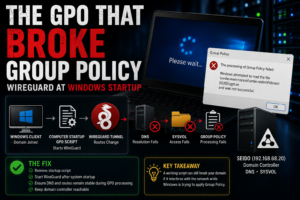

This one was painful because the symptoms made it look like the entire domain was falling apart.
I had a Windows domain environment running in Realm Labs and wanted domain-joined machines to automatically bring up a WireGuard tunnel at startup.
On paper, it sounded straightforward.
Use Group Policy.
Run a startup script.
Import the WireGuard configuration.
Done.
Instead, machines began hanging at:
Please wait...
gpupdate started failing.
Windows reported problems reading gpt.ini from SYSVOL.
At one point it looked like I had broken Group Policy, DFS and possibly the domain controller itself.
The actual cause turned out to be much simpler.
The WireGuard startup configuration was interfering with Group Policy processing.
The Original Goal
I wanted a domain-joined Windows machine to bring up a WireGuard tunnel automatically during startup.
The configuration file was stored centrally on the network:
\\Seido\The Nexus\Wireguard\DecoVPN.conf
The plan was to use a computer startup script delivered through Group Policy.
Conceptually:
Windows starts
    |
    v
Computer GPO applies
    |
    v
Startup script runs
    |
    v
WireGuard tunnel imports
    |
    v
VPN becomes active
That would mean I didn’t need to configure every machine manually.
It seemed like exactly the kind of thing Group Policy was made for.
The First Sign Something Was Wrong
After applying the policy, machines began taking much longer to log in.
Some sat at:
Please wait...
for an unusually long time.
Then gpupdate started failing.
Running:
gpupdate /force
returned an error similar to:
Computer policy could not be updated successfully.

The processing of Group Policy failed.

Windows attempted to read the file:

\\order.realm\sysvol\order.realm\Policies\{GUID}\gpt.ini

and was not successful.
The message suggested several possible causes:
Name Resolution / Network Connectivity
File Replication Service latency
DFS-related access problems
That sent the troubleshooting in a completely different direction.
It Looked Like SYSVOL Was Broken
Group Policy relies heavily on SYSVOL.
The client needs to access paths such as:
\\order.realm\SYSVOL
to retrieve policy files.
So the obvious checks were:
dir \\order.realm\sysvol
and:
dir \\seido\sysvol
The interesting part was that access through the domain path was behaving differently from direct access to the server.
The Synology-based domain controller itself was still online.
DNS was still responding.
The SYSVOL share existed.
This didn’t look like a complete domain-controller failure.
Checking the Domain Controller
I also checked which domain controller the client believed it was using.
For example:
nltest /dsgetdc:order.realm
That confirmed the client could still locate the domain controller.
DNS resolution was working.
The DC was reachable.
So why was Group Policy suddenly unable to process correctly?
The DFS Rabbit Hole
Because the error referenced SYSVOL and domain paths, DFS became an obvious suspect.
I checked the relevant registry area:
reg query HKLM\SYSTEM\CurrentControlSet\Services\Mup /v DisableDFS
The result was:
ERROR: The system was unable to find the specified registry key or value.
That looked suspicious at first.
But it still didn’t explain why everything had been working before the WireGuard GPO was introduced.
That timing turned out to be the most important clue.
What Had Actually Changed?
Before the WireGuard policy:
Domain login works
Group Policy works
SYSVOL works
gpupdate works
After the WireGuard startup configuration:
Slow boot
"Please wait..."
gpupdate fails
SYSVOL-related errors
The domain infrastructure hadn’t suddenly changed.
The new startup script had.
That shifted the investigation back towards the VPN.
The WireGuard Startup Script
The script was designed to import a WireGuard configuration and start the tunnel.
The tunnel used the home network range:
192.168.68.0/22
The WireGuard service eventually appeared as something like:
WireGuardTunnel$DecoVPN
and could be checked with:
sc query "WireGuardTunnel$DecoVPN"
or through PowerShell:
Get-Service *WireGuard*
The service itself could run.
The problem was when it ran.
Why Startup Timing Matters
Computer startup scripts run very early in the Windows boot process.
At that point, Windows may still be:
- establishing network connectivity
- locating the domain controller
- resolving domain DNS
- processing Group Policy
- accessing SYSVOL
- applying computer settings
Introducing a VPN interface during that process changes the routing table and potentially DNS behaviour while Windows is still trying to reach the domain.
The sequence could effectively become:
Windows boots
    |
    v
Find domain controller
    |
    v
Start applying GPO
    |
    v
WireGuard script runs
    |
    v
Routes / interfaces change
    |
    v
Windows tries to continue Group Policy
    |
    X
Domain path behaves differently
That is a recipe for extremely confusing symptoms.
The Important Detail: AllowedIPs
The WireGuard configuration included the local home network within its AllowedIPs.
For example:
192.168.68.0/22
In WireGuard, AllowedIPs isn’t just a permission list.
It also affects routing.
That means bringing up the tunnel can create or modify routes for the same network the machine is physically attached to.
If the client is already sitting on:
192.168.68.0/22
and the VPN also claims:
192.168.68.0/22
Windows now has competing ideas about how to reach that network.
That includes the domain controller.
The Domain Controller Was on the Same Network
The Realm Labs domain controller lived at:
192.168.68.20
So when WireGuard started claiming routes for:
192.168.68.0/22
it was also affecting the path to:
192.168.68.20
That machine happened to be the Synology domain controller and DNS server.
So suddenly this made much more sense.
Group Policy wasn’t necessarily broken.
The client was changing its network path to the machine providing Group Policy while Group Policy was still being processed.
DNS Could Also Be Affected
The WireGuard script also interacted with network settings.
At one point, I had logic to reset the interface DNS configuration back to automatic.
That matters because domain-joined Windows clients need to use DNS capable of resolving the Active Directory domain.
For Realm Labs, that includes:
order.realm
If the VPN or startup script changes DNS before Group Policy finishes processing, the client might lose the ability to correctly resolve:
order.realm
or:
seido.order.realm
The result can look exactly like a domain failure.
The Breakthrough
The decisive test was simple.
I removed the WireGuard startup scripts from the GPO and restored the policy settings.
Then I ran:
gpupdate /force
again.
It worked.
The machines stopped getting stuck in the same way.
Group Policy began processing normally.
That confirmed the underlying domain configuration hadn’t been the real problem.
The WireGuard startup automation was.
Why This Was So Misleading
The error appeared inside Group Policy:
Unable to read gpt.ini
So naturally I investigated:
SYSVOL
DFS
DNS
Domain Controller
Permissions
Replication
All of those are reasonable things to check.
But the actual dependency chain was:
WireGuard starts
      |
      v
Routing / DNS changes
      |
      v
Client loses clean path to DC
      |
      v
SYSVOL access fails
      |
      v
Group Policy fails
The GPO error was the symptom.
The VPN was the cause.
Removing the Policy Safely
Because machines could still log in under some circumstances, I was able to remove the startup scripts and force the policy back into a known-good state.
The recovery path was essentially:
Remove WireGuard startup script
        |
        v
Restore normal network behaviour
        |
        v
Run gpupdate
        |
        v
Verify SYSVOL
        |
        v
Confirm normal boot
That was much safer than continuing to change DFS or domain-controller settings.
What I Should Have Done Instead
A VPN startup script should not casually alter routes during the exact phase when Windows is trying to find and talk to its domain controller.
There are several better approaches.
Start WireGuard after Group Policy
The VPN doesn’t necessarily need to come up during computer-startup policy processing.
A delayed task is often safer.
For example:
Boot
  |
  v
Network ready
  |
  v
Group Policy complete
  |
  v
Start WireGuard
That removes the timing conflict.
Use Task Scheduler
Rather than a Group Policy startup script, a scheduled task can run:
At logon
or:
After a delay
This gives Windows time to establish normal domain connectivity first.
Avoid Overlapping Routes
If the local LAN and the remote VPN network use the same subnet, routing becomes much harder.
For example:
Local:
192.168.68.0/22

Remote:
192.168.68.0/22
is inherently ambiguous.
It’s much cleaner if the remote side uses a different range.
Keep Domain DNS Reachable
If the client needs:
192.168.68.20
for Active Directory DNS, make sure the VPN does not interfere with that route or replace it with an unsuitable DNS server.
Troubleshooting Group Policy Before Changing the Domain
This experience gave me a much better troubleshooting order.
If Group Policy suddenly stops working after introducing a networking change, I now check the network change before touching the domain controller.
Start with:
ipconfig /all
Then:
route print
Then:
nslookup order.realm
Then:
nltest /dsgetdc:order.realm
Then test SYSVOL:
dir \\order.realm\sysvol
and:
dir \\seido\sysvol
Only then would I start assuming the domain infrastructure itself was broken.
Check the Routing Table
The routing table is particularly important when a VPN is involved.
Use:
route print
and look for routes to the local subnet.
If multiple interfaces claim:
192.168.68.0
you need to understand which one Windows will actually use.
Metric values matter.
So does interface priority.
A VPN tunnel unexpectedly becoming the preferred path to your local domain controller can cause all kinds of strange behaviour.
Check DNS
Run:
ipconfig /all
and identify the DNS servers assigned to each interface.
Then test:
nslookup seido.order.realm
and:
nslookup order.realm
If those don’t resolve correctly, Group Policy is unlikely to work properly.
Active Directory depends heavily on DNS.
Check the Domain Controller
Use:
nltest /dsgetdc:order.realm
A healthy result should identify the expected DC.
You can also use:
echo %LOGONSERVER%
to see which server authenticated the user.
Check Group Policy
Once the underlying network looks normal:
gpupdate /force
Then:
gpresult /r
can help show which policies were applied.
For more detail:
gpresult /h C:\Temp\gpresult.html
This produces a report that’s much easier to inspect.
The Biggest Lesson
Startup scripts run inside a much bigger system.
A script can execute perfectly and still break something else.
In this case, WireGuard itself wasn’t malfunctioning.
The tunnel came up.
That was part of the problem.
It came up at the wrong time and changed networking while Windows was still dependent on the original network path.
The difference is important:
Script works
does not necessarily mean:
System works
The Realm Labs Takeaway
The original symptom looked serious:
Group Policy failed
SYSVOL couldn't be read
Machines stuck at "Please wait..."
The temptation was to start repairing the domain.
But the domain hadn’t suddenly broken.
I had introduced a startup VPN that changed the route to the domain controller during policy processing.
The real chain was:
Startup GPO
    |
    v
WireGuard starts
    |
    v
Routes / DNS change
    |
    v
Domain controller becomes unreliable
    |
    v
SYSVOL request fails
    |
    v
gpupdate reports Group Policy failure
Once the WireGuard startup configuration was removed, policy processing returned to normal.
It’s a useful reminder that when something breaks immediately after you change another system, start with the thing you changed.
Even if the error message is pointing somewhere completely different.