
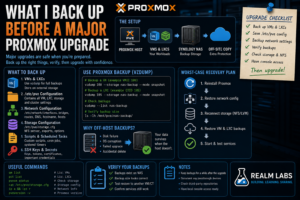

Proxmox updates are usually straightforward.
A few package updates, a reboot, and everything comes back.
But major upgrades are different.
When the hypervisor is hosting virtual machines, containers, storage mounts and parts of the home network, the last thing I want is to discover after the upgrade that the only copy of something important was sitting on the machine I just broke.
So before touching a major Proxmox version change in Realm Labs, I stopped and worked out exactly what I needed to protect first.
The goal wasn’t to back up every byte on the server.
It was to make sure I could rebuild the Proxmox host and recover the important workloads if the upgrade went badly.
The Realm Labs Proxmox Host
My Proxmox host is part of the core Realm Labs infrastructure.
At various points it has hosted:
- Linux virtual machines
- Windows test systems
- LXCs
- Pi-hole
- Uptime Kuma
- WireGuard experiments
- Home-lab services
- NFS-backed storage from the Synology
That means the machine itself is relatively easy to reinstall.
The guests and configuration are the valuable part.
The basic relationship is:
Proxmox Host
    |
    +-- VM
    +-- VM
    +-- LXC
    +-- LXC
    +-- Network configuration
    +-- Storage configuration
If Proxmox itself disappeared, I wanted enough information to recreate that structure.
First Rule: Don’t Upgrade Before You Have a Rollback
It sounds obvious, but it’s easy to get into this situation:
New Proxmox release available
        |
        v
Looks interesting
        |
        v
apt update
apt full-upgrade
        |
        v
Something breaks
        |
        v
Now think about backups
That is backwards.
The safer order is:
Understand current system
        |
        v
Back up guests
        |
        v
Back up host configuration
        |
        v
Verify backups
        |
        v
Then upgrade
The backup isn’t the final step.
It’s the prerequisite.
Step One: Check What Is Actually Running
Before backing anything up, I want an inventory.
For virtual machines:
qm list
For LXC containers:
pct list
That immediately tells me what the host is responsible for.
I also check the Proxmox UI and make sure there isn’t an old test VM or container I’ve completely forgotten about.
The point is to avoid upgrading first and discovering later that:
"Oh yes. That container was actually important."
Record the Proxmox Version
Before changing anything:
pveversion
For more detail:
pveversion -v
This gives me a record of the exact versions currently installed.
If something behaves differently after the upgrade, I know where I started.
I also record the kernel:
uname -r
and Debian version:
cat /etc/os-release
It is surprisingly useful to have those details when troubleshooting afterwards.
Back Up Every Important VM
Proxmox already has a good built-in backup system.
For a VM, the backup captures the guest disk and configuration in a form that can later be restored.
From the web interface, this is available under:
Datacenter
   |
   v
Backup
or directly against a guest.
From the command line, Proxmox uses:
vzdump
For example:
vzdump 100 --storage backup-storage --mode snapshot
The exact VM ID and storage depend on the environment.
Snapshot vs Stop Mode
There are several backup modes.
Snapshot
VM keeps running
This is convenient and often appropriate.
Suspend
VM pauses temporarily
Stop
VM shuts down for the backup
For important infrastructure, I care more about a recoverable backup than saving a few minutes of downtime.
If a clean shutdown is practical, I may prefer it for critical guests.
The right choice depends on the workload.
Back Up LXC Containers Too
Containers are easy to forget because they feel lightweight.
But a small LXC may contain:
- DNS
- Monitoring
- VPN configuration
- Application data
- Scripts
So they get backed up just like VMs.
For example:
vzdump 105 --storage backup-storage --mode snapshot
A two-minute LXC can still take hours to recreate if nobody remembers how it was configured.
Store the Backup Somewhere Else
This is one of the most important parts.
A backup stored only on the same Proxmox disk doesn’t protect me from:
- Failed disk
- Broken filesystem
- Failed reinstall
- Accidental partition change
- Host hardware failure
So my preferred destination is storage outside the Proxmox host.
In Realm Labs, that naturally means the Synology.
Conceptually:
Proxmox
    |
    v
Backup
    |
    v
Synology NAS
If the Proxmox host completely disappears, the backup still exists.
Check the Synology Storage Before You Need It
The Proxmox host uses NFS storage from the Synology.
That means I don’t just assume the backup target is available.
I check:
pvesm status
This shows the configured storage and current state.
I want the relevant backup target to show:
active
before starting the backup.
There is little value in discovering halfway through that an NFS mount isn’t actually available.
Remember the NAS IP Dependency
This became especially relevant after moving the Synology to:
192.168.68.20
Proxmox storage configuration can contain direct references to the NAS address.
So part of my pre-upgrade check is confirming that:
cat /etc/pve/storage.cfg
contains the correct storage server details.
That file is important enough to back up separately too.
Verify the Backup Completed
A green job entry is good.
A backup file existing is better.
I check the destination and make sure the expected files are actually there.
A Proxmox backup might look something like:
vzdump-qemu-100-2026_08_18-220000.vma.zst
or for an LXC:
vzdump-lxc-105-2026_08_18-220500.tar.zst
The exact format may vary, but the principle is simple.
Don’t assume the backup exists.
Look at it.
A Backup Isn’t Proven Until You Can Restore It
The ideal test is restoring a backup.
That doesn’t necessarily mean overwriting the production VM.
You can restore to another VM ID or test environment if capacity allows.
The question I want answered is:
Can Proxmox actually read this backup and reconstruct the guest?
A backup job completing successfully is reassuring.
A test restore is stronger evidence.
Back Up /etc/pve
The guests are only half the story.
The Proxmox host also has important configuration under:
/etc/pve
This contains cluster and Proxmox-specific configuration such as:
- VM configuration
- LXC configuration
- Storage configuration
- Datacenter settings
- Firewall configuration
Useful areas include:
/etc/pve/qemu-server/
/etc/pve/lxc/
/etc/pve/storage.cfg
I want a copy of those before a major upgrade.
Be Careful Copying /etc/pve
/etc/pve isn’t an ordinary directory.
It is backed by Proxmox’s configuration filesystem.
So I don’t treat it like a random Linux folder without understanding what I’m doing.
For backup purposes, a simple archive of important readable files is useful.
For example:
tar -czf /root/pve-config-backup.tar.gz /etc/pve
I then copy that archive somewhere outside the host.
Back Up Network Configuration
Networking is one of the things most likely to turn a reinstall into a headache.
The main file I care about is:
/etc/network/interfaces
So:
cp /etc/network/interfaces /root/interfaces.backup
I also record:
ip addr
and:
ip route
That tells me:
- Management IP
- Bridge names
- Gateway
- Interface names
- Subnet
If Proxmox comes back with a different interface name after reinstall, the old configuration is still a very useful reference.
Record the Bridge Configuration
A Proxmox setup commonly contains a bridge such as:
vmbr0
For example:
Physical NIC
    |
    v
vmbr0
    |
    +-- Proxmox host
    +-- VM
    +-- LXC
If that bridge configuration is wrong after recovery, the host might work locally while every guest appears offline.
So I treat network configuration as essential recovery information.
Back Up /etc/hosts
I also save:
/etc/hosts
and:
/etc/hostname
These are simple files, but getting host identity wrong can create unnecessary problems during recovery.
For example:
cp /etc/hosts /root/hosts.backup
cp /etc/hostname /root/hostname.backup
Record DNS Configuration
DNS has caused enough strange problems in Realm Labs that I don’t leave this to memory.
I check:
cat /etc/resolv.conf
and Proxmox’s DNS configuration.
The host needs to be able to resolve:
- Package repositories
- NAS names
- Domain resources
- Other infrastructure
A failed upgrade followed by broken DNS makes recovery much less enjoyable.
Back Up Storage Configuration
As mentioned earlier:
/etc/pve/storage.cfg
is particularly valuable.
It tells Proxmox where storage lives.
For example:
local
local-lvm
Synology NFS
backup storage
If I reinstall Proxmox, I can recreate those storage entries manually.
Having the old configuration available makes that much easier.
Record NFS Mount Details
For NFS-backed storage I note:
Server
Export
Storage ID
Content type
NFS version
Especially because I’ve already encountered cases where the Synology worked reliably only when NFSv3 was explicitly used.
So if the storage needs to be recreated, I know whether settings such as:
vers=3
were important.
Check /etc/fstab
If the host has any manual mounts:
cat /etc/fstab
gets added to the recovery notes.
Proxmox-managed storage doesn’t necessarily use fstab, but anything I added manually might.
Again, the goal is to capture the things that would otherwise live only in my memory.
Record PCI and USB Passthrough
If any VM uses hardware passthrough, I want that documented too.
Check hardware:
lspci
and USB:
lsusb
Then inspect the VM configuration:
qm config <VMID>
If a VM depends on:
PCI GPU
USB dongle
Serial adapter
Network card
that’s important recovery information.
Check Guest Configuration Individually
For a VM:
qm config 100
For an LXC:
pct config 105
This shows details such as:
- CPU
- Memory
- Network interface
- Storage
- Boot settings
- Mount points
Even though this information exists in /etc/pve, I like having an explicit human-readable reference for important guests.
Record Any Bind Mounts
LXC containers can use mount points that reference storage outside the container.
For example:
mp0:
Those won’t necessarily be useful after restore unless the same host paths exist.
So a container may successfully restore but still be missing its data.
Check:
pct config <CTID>
and look for:
mp0
mp1
or similar entries.
If they point to NAS storage, that dependency needs to be restored too.
Don’t Forget Secrets and SSH Keys
If I use SSH keys from the Proxmox host:
/root/.ssh/
I make sure I know whether they are important.
Examples might include:
- Backup scripts
- Remote management
- Automation
- Git access
I don’t necessarily copy every key blindly.
But I don’t want to discover later that a backup job depended on one.
Check Custom Scripts
Anything custom under places such as:
/usr/local/bin
/root/scripts
deserves a look.
Long-lived Linux machines tend to collect little scripts.
A major upgrade or rebuild is exactly when forgotten automation surfaces.
So I check:
find /usr/local/bin -maxdepth 1 -type f
and any directories I know I’ve used for scripts.
Record Scheduled Jobs
Check root cron:
crontab -l
and:
/etc/cron.d/
Also check systemd timers:
systemctl list-timers
If something performs:
- Backups
- Cleanup
- Monitoring
- Synchronisation
I want to know about it before changing the host.
Check Free Disk Space
A major package upgrade needs free space.
Before starting:
df -h
I pay particular attention to:
/
and:
/boot
A nearly full root filesystem can turn an otherwise routine upgrade into a much bigger problem.
Check Package Health
Before a major upgrade, the current package state should already be clean.
I run:
apt update
Then inspect:
apt list --upgradable
I don’t want to start a major release upgrade on top of an already broken package manager.
Commands such as:
dpkg --audit
can also reveal incomplete package states.
Check the Proxmox Repositories
One of the easiest ways to break a major Proxmox upgrade is using the wrong repository configuration.
I inspect:
/etc/apt/sources.list
and:
/etc/apt/sources.list.d/
I want to know whether the host is using:
- Enterprise repository
- No-subscription repository
- Debian repository
- Third-party repositories
Before changing versions, I understand what is currently enabled.
Third-Party Repositories Are Worth Suspecting
If anything fails during a major upgrade, third-party repositories are high on my suspicion list.
A package source that was fine under one Debian release may not support the next one.
So I record or temporarily disable anything non-essential before the upgrade.
A clean base system is easier to upgrade.
Take Screenshots
This is low-tech but useful.
I take screenshots of:
- Proxmox node summary
- Storage
- Network
- Guest list
- Important VM hardware
- LXC settings
If I end up rebuilding from scratch, those screenshots provide a very fast visual reference.
Not every backup has to be elegant.
It just has to help recovery.
What I Don’t Worry About Backing Up
I don’t need to preserve:
Package caches
Temporary files
Old ISO files
Logs I don't care about
Downloaded container templates
if they can be recreated easily.
This is the distinction I use:
Can I download or regenerate this?
If yes, it is lower priority.
If the answer is:
This exists because I configured it manually.
then it gets backed up.
My Pre-Upgrade Recovery Folder
I like collecting the host information into one folder before a major change.
For example:
QuanChi-Proxmox-Backup/
├── pveversion.txt
├── network/
│   ├── interfaces
│   ├── hosts
│   └── hostname
├── proxmox/
│   ├── pve-config-backup.tar.gz
│   └── storage.cfg
├── guests/
│   ├── qm-list.txt
│   ├── pct-list.txt
│   └── configs/
├── packages/
│   └── repositories.txt
└── notes/
    └── recovery-notes.txt
That folder then goes to the Synology.
A Simple Host Information Script
Rather than typing everything manually, a few commands can create useful records.
For example:
mkdir -p /root/proxmox-preupgrade

pveversion -v > /root/proxmox-preupgrade/pveversion.txt
qm list > /root/proxmox-preupgrade/qm-list.txt
pct list > /root/proxmox-preupgrade/pct-list.txt
ip addr > /root/proxmox-preupgrade/ip-addresses.txt
ip route > /root/proxmox-preupgrade/ip-routes.txt
pvesm status > /root/proxmox-preupgrade/storage-status.txt
Then copy configuration files into the same folder.
It isn’t a full backup solution.
It’s a useful recovery reference.
Shut Down What Doesn’t Need to Run
Before the actual major upgrade, I also think about whether every guest needs to remain running.
Shutting down non-essential VMs and containers reduces activity on the host.
It also gives me a clean understanding of what needs to come back afterwards.
For a VM:
qm shutdown 100
For a container:
pct shutdown 105
Have Console Access
This is one of the most important practical points.
A major hypervisor upgrade isn’t something I want to perform with remote access as my only way back in.
If networking fails, SSH disappears.
If the bridge configuration changes, the web UI disappears.
So before upgrading, I want a way to access the machine locally.
For example:
Monitor + keyboard
or another reliable console method.
This can turn:
Proxmox has disappeared
into:
The interface didn't come up. I can fix it locally.
Huge difference.
The Worst-Case Recovery Plan
The most reassuring question is:
What if the upgrade completely destroys this installation?
My recovery path would be:
Reinstall Proxmox
        |
        v
Restore network configuration
        |
        v
Reconnect Synology storage
        |
        v
Restore VM/LXC backups
        |
        v
Recreate any host-specific configuration
If I can do that, the upgrade is no longer particularly scary.
The Proxmox installation itself isn’t precious.
The workloads are.
Why Synology Makes This Much Easier
Having the DS224+ available as separate storage changes the risk considerably.
The Proxmox host and backup target are independent.
So:
Proxmox fails
does not mean:
Backups fail with it
The NAS remains available with the recovery files and guest backups.
That separation is exactly what I want.
Check the Backup Target Isn’t Actually Dependent on Proxmox
There is one subtle trap here.
A backup isn’t truly separate if the storage it depends on is itself running as a VM on the same Proxmox host.
For example:
Proxmox
   |
   +-- NAS VM
          |
          +-- Proxmox backups
That isn’t much protection against host failure.
In Realm Labs, the Synology is a separate physical machine.
That makes it a much better backup target.
After the Upgrade
If the upgrade succeeds, I don’t immediately assume the job is finished.
I check:
pveversion -v
Then:
pvesm status
Then:
ip addr
I verify:
- Web UI
- Storage
- Network bridges
- VMs
- LXCs
- NFS
- DNS
Then start or check the important workloads.
Test Important Services, Not Just the Guests
A VM being marked:
running
doesn’t mean the application inside it works.
So I test actual services too.
For example:
Pi-hole DNS
Uptime Kuma
Windows RDP
Web interfaces
SSH
The correct test is:
Does the service I care about still work?
not just:
Did the VM boot?
Keep the Pre-Upgrade Backup for a While
Once everything works, I don’t immediately delete the backups.
Some problems only appear later.
Maybe:
- One old VM hasn’t been started yet
- An NFS mount is wrong
- A scheduled task fails overnight
- A rarely used USB device no longer works
Keeping the pre-upgrade state for a little while gives me a safety net.
My Practical Checklist
Before a major Proxmox upgrade, I want to have:
- A list of every VM and LXC.
- Current VM/LXC backups on external storage.
- At least one backup verified.
/etc/pveconfiguration saved.- Network configuration saved.
- Storage configuration saved.
- NFS details documented.
- Hostname, hosts and DNS configuration recorded.
- Custom scripts and cron jobs checked.
- Repository configuration checked.
- Enough free disk space.
- Local console access.
- A clear reinstall-and-restore plan.
If I have all of that, I am comfortable continuing.
The Realm Labs Takeaway
The important thing about upgrading Proxmox is not making sure the upgrade can never fail.
That’s impossible.
The important thing is making sure failure is recoverable.
The mindset changed from:
I hope this upgrade works.
to:
If this upgrade fails, I know exactly how to recover.
That is much more useful.
For me, the ideal Proxmox host is almost disposable.
I can reinstall the hypervisor.
I can recreate the bridge.
I can reconnect the Synology.
Then I can restore the workloads that actually matter.
Once you reach that point, a major upgrade stops feeling like you’re gambling the entire home lab.
It becomes a controlled maintenance job.