

Portainer had become one of those tools in Realm Labs that I used constantly but rarely thought about.
It sat there managing Docker, giving me a clean web interface for containers, images, volumes, networks and stacks.
Then one day I realised the Portainer version was getting old.
Updating it sounded simple enough.
Pull the new image.
Replace the container.
Carry on.
But there was one fairly important question first:
What happens to everything Portainer is already managing?
I had multiple Docker containers running on the Raspberry Pi and didn’t particularly fancy turning a routine update into a complete rebuild.
The good news is that Portainer itself doesn’t own your Docker containers.
Once I understood that distinction, upgrading became much less intimidating.
The Concern
My initial assumption was that deleting the Portainer container might also remove the containers it managed.
That would have been a problem.
At this point the Docker host already had several services running, and Portainer was the main interface I used to manage them.
The setup looked roughly like:
Raspberry Pi
    |
    v
Docker Engine
    |
    +-- Container A
    +-- Container B
    +-- Container C
    +-- Portainer
Portainer could see and manage those containers.
But it was important to understand that the actual Docker Engine was responsible for running them.
Portainer was only the management layer.
Portainer Is Not Docker
This is the key point.
The architecture is really:
Web Browser
     |
     v
Portainer
     |
     v
Docker Socket
     |
     v
Docker Engine
     |
     +-- Containers
     +-- Images
     +-- Networks
     +-- Volumes
Portainer talks to Docker through the Docker socket.
Usually:
/var/run/docker.sock
The containers themselves belong to Docker.
So removing the Portainer container does not automatically remove:
- Other containers
- Docker images
- Volumes
- Networks
- Bind mounts
That made the update considerably safer than I’d first assumed.
What Portainer Does Need to Keep
There is one thing that does matter.
Portainer has its own configuration data.
That includes things such as:
- Users
- Portainer settings
- Endpoint configuration
- Saved environment information
- Portainer-specific metadata
That data normally lives in a Docker volume.
A typical Portainer deployment uses something like:
portainer_data
mounted inside the container as:
/data
So the important part wasn’t preserving the Portainer container.
It was preserving the Portainer data volume.
Checking the Existing Container
Before changing anything, I checked the current Portainer container.
A useful command is:
docker ps
This shows running containers.
For more detail:
docker inspect portainer
The exact container name may vary, but I wanted to confirm:
- Which image it was using
- Which ports were exposed
- Which volumes were mounted
- Whether the Docker socket was mounted
- The restart policy
A typical configuration might contain:
/var/run/docker.sock:/var/run/docker.sock
portainer_data:/data
Those are the two most important mounts.
Checking the Portainer Volume
I also checked that the data volume existed.
docker volume ls
This might show:
DRIVER    VOLUME NAME

local     portainer_data
You can inspect it with:
docker volume inspect portainer_data
As long as that volume remains intact, the Portainer configuration can be reused by the replacement container.
Back It Up Anyway
Even though the update process is straightforward, I still prefer having something to fall back on.
Before changing Portainer, I made sure I knew exactly how it had been deployed.
At minimum, I wanted a copy of the existing docker run command or Compose configuration.
If you’re using Docker Compose, keep the Compose file somewhere safe.
For example:
services:
  portainer:
    image: portainer/portainer-ce:latest
    container_name: portainer
    restart: unless-stopped
    ports:
      - "9443:9443"
      - "8000:8000"
    volumes:
      - /var/run/docker.sock:/var/run/docker.sock
      - portainer_data:/data

volumes:
  portainer_data:
With that stored safely, recreating Portainer is trivial.
Do Not Delete the Data Volume
This is the part that matters.
Removing the container is fine.
Removing the volume is not.
There is a big difference between:
docker rm portainer
and deleting:
portainer_data
Similarly, be careful with commands that aggressively remove unused Docker resources.
For example:
docker system prune
is useful, but I wouldn’t start throwing prune commands around during an update unless I understood exactly what they were going to remove.
The goal here was a controlled replacement.
Not spring cleaning.
Stop Portainer
The first actual update step was to stop the existing container.
docker stop portainer
That stops only Portainer.
The other containers continue running.
This is a useful moment to prove the architecture to yourself.
Run:
docker ps
and you’ll see the rest of the services are still alive.
Portainer disappearing doesn’t stop Docker.
Remove the Old Portainer Container
Once it was stopped:
docker rm portainer
Again, this removes the Portainer container itself.
It does not remove the existing Docker workloads.
It also does not remove the named portainer_data volume.
At this point Portainer is gone, but Docker is still happily running everything else.
Conceptually:
Before:

Docker
 ├── App 1
 ├── App 2
 ├── App 3
 └── Portainer


After removing Portainer:

Docker
 ├── App 1
 ├── App 2
 └── App 3
Nothing dramatic happens.
You just temporarily lose the web management interface.
Pull the New Portainer Image
Next I downloaded the newer image.
For Portainer Community Edition:
docker pull portainer/portainer-ce:latest
Docker downloads the current image while leaving the existing applications alone.
You can check downloaded images with:
docker images
Recreate Portainer
The next step is to create a new container using the same settings as before.
For example:
docker run -d \
  -p 8000:8000 \
  -p 9443:9443 \
  --name portainer \
  --restart=always \
  -v /var/run/docker.sock:/var/run/docker.sock \
  -v portainer_data:/data \
  portainer/portainer-ce:latest
The crucial part is:
-v portainer_data:/data
That reconnects the new Portainer container to the existing configuration.
And:
-v /var/run/docker.sock:/var/run/docker.sock
allows it to see the existing Docker environment.
Opening Portainer Again
Once the replacement container was running, I could open the normal Portainer address in the browser.
For example:
https://<docker-host>:9443
The existing environment appeared again.
The containers were still there.
The stacks were still there.
The networks and volumes were still there.
From the user’s perspective, Portainer had simply been upgraded.
Why the Existing Containers Survived
The easiest way to understand this is to separate the layers.
Portainer is:
Management
Docker Engine is:
Runtime
Your application containers are:
Workloads
So the relationship is:
Portainer
    |
    v
Docker Engine
    |
    v
Containers
Removing the top layer doesn’t remove the layers underneath.
It’s similar to closing a management console on another system.
The thing you’re managing continues to exist.
Updating with Docker Compose
If Portainer is deployed using Compose, the process can be even easier.
First:
docker compose pull
Then:
docker compose up -d
Docker Compose detects the newer image and recreates the Portainer container while retaining the existing volume configuration.
A typical workflow becomes:
Pull image
    |
    v
Recreate Portainer
    |
    v
Reconnect portainer_data
    |
    v
Existing environment returns
This is one reason I now prefer keeping important services defined in Compose files rather than relying purely on long docker run commands.
Check the Logs
After the upgrade, it’s worth checking that Portainer started cleanly.
docker logs portainer
If everything looks normal, you can also confirm:
docker ps
The container should show as running and expose the expected ports.
What About the Old Image?
After confirming the new version works, the old Portainer image can be removed if it is no longer required.
First check:
docker images
Then remove a specific unused image with:
docker rmi <IMAGE_ID>
There is no need to rush this step.
I’d rather leave an unused image around temporarily than aggressively clean things up before I’ve confirmed the update is stable.
A More Important Lesson About Persistent Data
This exercise reinforced one of the most important Docker concepts.
Containers should be disposable.
Data should not be.
A good Docker deployment separates:
Application container
from:
Persistent data
So when the application container is upgraded or rebuilt:
Old container
      |
      X
Removed

Persistent volume
      |
      v
New container
The application comes back with its previous data.
Portainer is a perfect example of this.
Named Volumes vs Bind Mounts
Portainer commonly uses a named volume:
portainer_data
Other applications might use bind mounts instead.
For example:
/home/user/docker/app/config:/config
The principle is the same.
If you destroy and recreate the application container but keep:
/home/user/docker/app/config
the new container can reuse the old configuration.
This is why I now pay much more attention to where application data actually lives before updating anything.
What I Check Before Updating Any Docker Container
The Portainer update gave me a simple process that works for other Docker services too.
Before upgrading anything, I check:
What image is currently running?
docker inspect <container>
Where is its persistent data?
Look for:
Volumes
Bind mounts
Named volumes
What ports does it expose?
For example:
9443:9443
Does it have environment variables?
These often include passwords, database addresses and application settings.
What is the restart policy?
Such as:
unless-stopped
or:
always
Can I recreate it?
If the answer is no, I shouldn’t be deleting it yet.
Don’t Use Portainer as the Only Record of Your Configuration
There is an interesting catch with managing Docker exclusively through a graphical interface.
If Portainer itself disappears and you don’t remember how something was configured, troubleshooting becomes much harder.
That’s why I increasingly prefer storing stack definitions as Compose files.
Instead of relying on memory, you have something like:
docker-compose.yml
which becomes the documentation for the service.
That file can be:
- Backed up
- Copied
- Version controlled
- Edited
- Reused after a rebuild
Portainer then becomes the convenient management layer rather than the only place where the configuration exists.
Testing Everything Afterwards
Once Portainer was upgraded, I checked the obvious things.
First:
docker ps
All expected containers should still be running.
Then I opened Portainer and confirmed that:
- Containers were visible
- Stacks were visible
- Volumes were visible
- Networks were visible
- Container logs could be opened
- Start/stop controls worked
Finally, I opened a couple of the applications themselves.
If you are building the stack from scratch, start with Installing Docker and Portainer on Raspberry Pi. For why I use Portainer across Realm Labs rather than treating it as just a convenience layer, see Docker Is the Engine, Portainer Is the Dashboard.
That confirmed that the Portainer update hadn’t affected the services it was managing.
What Could Actually Go Wrong?
Although replacing Portainer is relatively safe, there are still a few mistakes that could make life harder.
Deleting portainer_data
This removes Portainer’s persistent configuration.
Changing the Docker socket mount
Without:
/var/run/docker.sock:/var/run/docker.sock
Portainer won’t be able to manage the local Docker engine in the same way.
Changing ports unintentionally
If the new container exposes a different management port, the old URL will stop working.
Forgetting environment or restart settings
Recreating a container with different options can change its behaviour.
Using an incompatible upgrade path
For a major application upgrade, it’s always worth checking the application’s release notes first.
A Safer Update Pattern
My preferred pattern for Docker services now looks like this:
Check existing configuration
        |
        v
Confirm persistent storage
        |
        v
Back up important data
        |
        v
Pull new image
        |
        v
Stop old container
        |
        v
Remove old container
        |
        v
Create replacement
        |
        v
Test application
        |
        v
Only then clean up old image
It’s slower than clicking random update buttons.
But it’s predictable.
The Realm Labs Takeaway
The thing I was worried about was:
"If I remove Portainer, will I lose all my containers?"
The answer was no.
The real structure is:
Docker Engine
   |
   +-- Application containers
   |
   +-- Networks
   |
   +-- Volumes
   |
   +-- Portainer
Portainer is simply another container using the Docker API to manage the others.
As long as its persistent data is preserved, replacing Portainer itself is relatively painless.
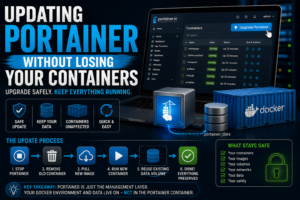
The update process ended up being:
Stop Portainer
      |
      v
Remove Portainer container
      |
      v
Pull new image
      |
      v
Recreate using same volume
      |
      v
Everything returns
No application rebuilds.
No lost containers.
No lost volumes.
And no reason to put off updating Portainer simply because it happens to be the tool managing everything else.
Sometimes understanding where the state actually lives makes an apparently risky update remarkably straightforward.