
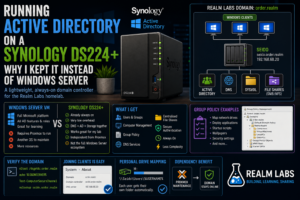

When I first started experimenting with Active Directory in Realm Labs, the obvious platform was Windows Server.
That’s what Active Directory is built around, after all.
I already had Windows Server running virtually under Proxmox, which gave me somewhere to experiment with:
- Active Directory
- DNS
- Group Policy
- Domain-joined Windows clients
- User accounts
- Computer OUs
- Software deployment
- Mapped drives
Then I tried Synology’s directory services on my DS224+.
I expected it to be a useful lightweight alternative.
What I didn’t expect was how little difference I would actually notice from the Windows client side.
Eventually, the Synology became the domain controller I left running permanently.
The Original Windows Server Setup
The first Realm Labs domain controller lived as a Windows Server VM on Proxmox.
The architecture was fairly traditional:
Proxmox
   |
   v
Windows Server
   |
   +-- Active Directory
   +-- DNS
   +-- Group Policy
   +-- Users
   +-- Computers
Then Windows 11 machines could join the domain and behave just like machines in a normal business environment.
That gave me a proper place to experiment with things such as:
order.realm
and Group Policy.
Why Active Directory at Home?
Running a domain at home is obviously not necessary.
I could quite happily use normal local Windows accounts.
But Realm Labs isn’t really about doing only what is necessary.
I wanted somewhere I could experiment with enterprise-style Windows administration without touching a real production domain.
That meant I could safely play with:
- GPOs
- Software deployment
- Startup scripts
- Drive mappings
- User permissions
- Remote Desktop policies
- Organisational Units
- DNS
- Domain joins
And when I broke something, the only person complaining was me.
Usually.
The Synology Was Already Always On
The problem with the Windows Server VM wasn’t that it worked badly.
It worked perfectly well.
The bigger question was whether I really needed an entire Windows Server VM permanently running just to provide domain services to a handful of home-lab machines.
The DS224+ was already:
Always on
and was already providing:
- Storage
- SMB shares
- NFS
- Docker services
- Backups
So using the NAS for directory services started to make a lot of sense.
Instead of:
Synology NAS
+
Proxmox
+
Windows Server VM
I could potentially have:
Synology NAS
   |
   +-- Storage
   +-- DNS
   +-- Domain Controller
One less VM to maintain.
Synology Directory Server
Synology provides its own Active Directory-compatible directory service.
After configuring it, my DS224+ became the domain controller for:
order.realm
The NAS itself became:
seido.order.realm
with the address:
192.168.68.20
The resulting layout became:
Windows Clients
      |
      v
order.realm
      |
      v
Synology DS224+
SEIDO
      |
      +-- Directory Services
      +-- DNS
      +-- SYSVOL
      +-- File Shares
From the Windows client side, it looked remarkably normal.
Joining Windows to the Synology Domain
A Windows client joins the domain in the normal way.
For example:
order.realm
Windows asks for domain credentials, joins the domain and restarts.
Afterwards, the login screen can use:
ORDERREALM\username
or:
[email protected]
Just as I would expect from a conventional Active Directory environment.
The First Thing I Checked: Domain Controller Discovery
One of the most useful commands when working with Active Directory is:
nltest /dsgetdc:order.realm
A healthy client should return information about the domain controller.
In my environment, that meant finding:
seido.order.realm
at:
192.168.68.20
Once that worked, the Synology stopped feeling like a NAS pretending to be a domain controller.
As far as Windows was concerned, it was the DC.
DNS Is Critical
Active Directory depends heavily on DNS.
That is one of the biggest lessons from running a domain in the lab.
A client shouldn’t simply use any public resolver such as:
8.8.8.8
and expect the domain to work properly.
The client needs DNS that understands:
order.realm
and the Active Directory service records behind it.
So domain clients use the Synology DNS service.
Conceptually:
Windows Client
      |
      | DNS query
      v
192.168.68.20
Synology DNS
      |
      +-- order.realm
      +-- Internet forwarding
When DNS is right, Active Directory tends to behave.
When DNS is wrong, absolutely bizarre things start happening.
Organisational Units Worked Normally
I created an OU structure to organise machines.
For example:
NetherRealm
├── Computers
├── VirtualMachines
├── LinuxPCs
└── OlderPCs
That let me target policies more logically.
Instead of applying everything to every domain machine, I could build policies around the role of the system.
This is exactly the sort of environment I wanted Realm Labs for.
Group Policy Was the Real Test
Joining a machine to the domain is one thing.
Group Policy is where I expected the Synology implementation to start feeling limited.
But for the things I wanted to experiment with, it worked surprisingly well.
I was able to use Group Policy for projects such as:
- Desktop wallpapers
- Mapped drives
- Software deployment
- Startup scripts
- Remote Desktop permissions
- Windows configuration
From the Windows client side:
gpupdate /force
worked just as expected.
And:
gpresult /r
showed the policies being applied.
Managing Group Policy
The Synology itself doesn’t replace the familiar Windows management tools.
I still use a Windows management machine with the appropriate Remote Server Administration Tools.
From there, I can use:
Group Policy Management
and the normal Windows administrative interfaces.
That is actually one of the reasons the setup feels so familiar.
The NAS provides the domain services.
Windows still provides the administrative experience.
SYSVOL
Group Policy depends on SYSVOL.
On my setup, I could access the controller directly with:
\\seido\SYSVOL
This contains the domain policy data Windows clients need.
I did encounter some interesting issues around domain paths and policy processing later, particularly while experimenting with WireGuard startup scripts.
But those problems were useful because they reinforced just how dependent Group Policy is on:
DNS
Networking
SYSVOL access
rather than exposing some fundamental limitation of the Synology DC.
Creating Users
User creation is straightforward.
A domain account then becomes available on every domain-joined machine where that user is permitted to log in.
Instead of separate local accounts:
PC1\Paul
PC2\Paul
PC3\Paul
I have:
ORDERREALM\Paul
That account follows the domain.
Even in a home lab, that’s a nice improvement.
Centralised File Shares Fit Naturally
This is where using the Synology as the domain controller became particularly convenient.
The NAS already contained the data.
So domain users could map things such as:
\\Seido\Users\%USERNAME%
through Group Policy.
The same machine now provided:
Identity
+
DNS
+
File storage
The relationship became:
Domain User
     |
     v
Synology AD
     |
     v
Group Policy
     |
     v
Synology SMB Share
For a small home environment, that’s extremely neat.
Personal Drive Mapping
Using Group Policy Preferences, I could map:
H:
to:
\\Seido\Users\%USERNAME%
One policy automatically points each user to their own folder.
For example:
Amanda
   |
   v
\\Seido\Users\Amanda
while:
Turokhan
   |
   v
\\Seido\Users\Turokhan
The domain and file server being on the same NAS made this especially tidy.
Domain-Joined Windows 11 Test Machine
I keep Windows client machines in the lab specifically for experimenting with policies.
This lets me test something like:
Deploy application
then:
gpupdate /force
and see what actually happens.
If I completely break the Windows installation:
It's a lab.
That’s considerably more relaxing than testing an unproven GPO in a real company environment.
So What’s the Difference from Windows Server?
There absolutely are differences.
A Synology directory server is not a complete replacement for every feature available in a modern Microsoft Windows Server Active Directory environment.
Windows Server offers a much broader ecosystem around:
- Active Directory Domain Services
- Advanced trusts
- Enterprise integrations
- Microsoft-specific server roles
- Deep PowerShell administration
- Complex replication topologies
- Certificate services
- Large-scale enterprise management
For Realm Labs, though, I didn’t need most of that.
I wanted:
Users
Computers
DNS
Group Policy
Authentication
File permissions
And the Synology delivered those very well.
Windows Server Still Has a Place
I haven’t suddenly decided Windows Server is pointless.
Quite the opposite.
Running a Windows Server VM remains useful when I specifically want to learn or test Microsoft server functionality.
For example:
Windows Server
   |
   +-- Test environment
   +-- Specific Microsoft roles
   +-- Server administration practice
But I no longer need that VM to be the thing keeping the home domain alive every day.
That’s the distinction.
Why I Prefer the Synology for the Permanent DC
There are several practical reasons.
It Is Already Running
The NAS is on anyway.
I’m not powering another VM simply for domain services.
Storage Is Already There
User shares and domain identity naturally sit together.
RAID
The DS224+ storage is mirrored, so the underlying data isn’t relying on a single disk.
RAID isn’t a backup, but it is useful resilience.
Simple Management
DSM gives me a straightforward interface for managing the NAS and its packages.
Lower Complexity
Fewer permanent machines means fewer things to patch and maintain.
The Proxmox Dependency Problem
There was another architectural consideration.
When the Windows DC lived on Proxmox, the domain depended on Proxmox.
So:
Proxmox offline
      |
      v
Windows Server offline
      |
      v
Domain Controller offline
      |
      v
DNS / Authentication affected
With the Synology providing the domain:
Proxmox can be offline
      |
      v
Synology remains online
      |
      v
Domain still works
That separation is useful whenever I’m performing maintenance on the hypervisor.
That’s Particularly Useful During Upgrades
If I’m upgrading Proxmox, I don’t want the machine providing:
DNS
and:
Domain authentication
to disappear at exactly the same time.
Moving those jobs onto the Synology means I can work on Proxmox while still having normal network services available.
That’s a much cleaner dependency chain.
The NAS Became Infrastructure
This is where my DS224+ gradually stopped being simply:
The place where files live
and became:
Core infrastructure
It now sat at the centre of several systems:
Synology DS224+
      |
      +-- Storage
      +-- SMB
      +-- NFS
      +-- DNS
      +-- Active Directory
      +-- Docker
      +-- Backups
That makes it an important machine.
It also means backups and configuration recovery matter even more.
Is That Too Much on One NAS?
Potentially.
There is always a balance.
Centralising services makes administration simpler, but it also creates dependencies.
If the Synology completely fails:
Storage
DNS
Domain services
are all affected.
For a business environment, I’d absolutely want stronger redundancy.
For a home lab, I’m comfortable with the trade-off because:
- It’s easy to maintain
- The NAS is reliable
- Data is backed up
- The environment isn’t mission critical
- Rebuilding it would be inconvenient rather than catastrophic
Realm Labs exists partly so I can explore these trade-offs.
Verifying the Domain
Some of the commands I use when checking the environment include:
nltest /dsgetdc:order.realm
to locate the domain controller.
Then:
echo %LOGONSERVER%
to see which DC authenticated the user.
And:
Test-ComputerSecureChannel
to verify that a client’s trust relationship is healthy.
For DNS:
nslookup order.realm
and:
nslookup seido.order.realm
These simple tools expose a surprising amount about the health of the domain.
Testing Group Policy
For policy processing:
gpupdate /force
Then:
gpresult /r
For a more detailed report:
gpresult /h C:\Temp\gpresult.html
If those work properly, the client is successfully communicating with the domain infrastructure.
What Happens If the NAS IP Changes?
I discovered the answer to this when I moved the DS224+ from its older address to:
192.168.68.20
Changing the address of a device providing:
DNS
Domain services
Storage
NFS
is considerably more interesting than changing the address of an ordinary NAS.
I had to track down references across:
- DNS
- Linux resolvers
- Proxmox
- NFS
- Scripts
- Other infrastructure
That experience eventually became its own Realm Labs troubleshooting story.
It also showed just how central Seido had become.
The Realm Labs Domain Today
Conceptually, the domain now looks like:
                      order.realm
                           |
                           v
                Synology DS224+ "Seido"
                    192.168.68.20
                           |
             +-------------+-------------+
             |             |             |
             v             v             v
            DNS       Directory       File Shares
                           |
                           v
                   Group Policy
                           |
          +----------------+----------------+
          |                |                |
          v                v                v
      Windows PC       Windows VM      Test Client
For the scale of Realm Labs, it works remarkably well.
What I Learned
The most interesting part of this project wasn’t that a Synology can technically act as a domain controller.
It was how normal the result felt.
From a Windows client:
Join domain
Log in
Run gpupdate
Map drives
Apply policies
The workflow feels very much like a conventional Active Directory environment.
For what I wanted to learn and test, that was enough.
Would I Do This in a Business?
That’s a completely different question.
For a production organisation where Active Directory is critical, I’d design around:
- Multiple domain controllers
- Proper redundancy
- Tested backups
- Microsoft support requirements
- Disaster recovery
- Business continuity
Realm Labs isn’t pretending to be that.
It’s a home lab.
And that’s exactly why the Synology solution suits it so well.
Windows Server Became the Lab Inside the Lab
Ironically, after moving the permanent directory service to the Synology, Windows Server became more useful to me.
Instead of being infrastructure I was reluctant to break, it could become:
Disposable test server
I could experiment with it.
Snapshot it.
Break it.
Rebuild it.
Meanwhile:
order.realm
kept running on Seido.
That’s a much better arrangement for learning.
The Final Decision
The comparison in my environment ended up being:
Windows Server VM

+ Full Microsoft platform
+ Excellent for learning
+ Maximum AD capability
- Requires Proxmox to be running
- Another OS to maintain
- More resources
versus:
Synology DS224+

+ Already always on
+ Very low additional overhead
+ DNS + AD + storage together
+ Works brilliantly for my lab
+ Independent from Proxmox
- Not the complete Windows Server ecosystem
For Realm Labs, the Synology won the permanent job.
The Realm Labs Takeaway
I originally expected the DS224+ directory service to be an interesting experiment.
Instead, it became permanent infrastructure.
The change was:
Before:

Proxmox
   |
Windows Server
   |
Active Directory
to:
After:

Synology DS224+
   |
Active Directory
   |
order.realm
Windows Server didn’t disappear.
Its role changed.
The Synology keeps the domain running.
Windows Server is there when I specifically want to experiment with Windows Server.
And from the Windows clients around Realm Labs?
You’d be surprisingly hard pushed to notice the difference.