

RealmLabs is a website about building, breaking, fixing and improving technology, so hosting it on somebody else’s server always felt slightly at odds with the idea.
Instead, I decided to make the website another part of the home lab.
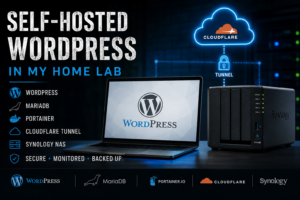
The result is a fully self-hosted WordPress installation running from my Synology NAS, deployed using containers and Portainer, published securely through Cloudflare and backed up as part of the wider lab infrastructure.
This page documents how RealmLabs itself is built.
Why Self-Host RealmLabs?
There are much easier ways to host WordPress.
A managed WordPress provider can take care of the server, database, SSL certificates, backups and much of the security without you ever needing to think about the infrastructure underneath.
But that wasn’t really the point.
RealmLabs exists to document real projects from my home lab, and hosting the site myself gives me another system to design, maintain and learn from.
It also means I control the complete stack rather than only the WordPress admin interface.
The goals were fairly simple:
- Host WordPress entirely inside the home lab
- Keep the application and database separated
- Manage everything through Portainer
- Avoid exposing unnecessary ports directly to the internet
- Use my own domain,
realmlabs.uk - Build a sensible backup and recovery strategy
- Integrate the site with the monitoring and security tools already used in the lab
Over time it has grown from a simple WordPress experiment into one of the more important services running on the network.
The Current RealmLabs Architecture
The platform now looks roughly like this:
Internet
   │
   ▼
realmlabs.uk
   │
   ▼
Cloudflare
   │
   ▼
Cloudflare Tunnel
   │
   ▼
Synology DS224+
   │
   ├── Portainer
   │
   └── WordPress Stack
        │
        ├── WordPress
        │
        └── MariaDB
The important distinction is that the WordPress server itself remains inside my network.
Cloudflare provides the public-facing connection while the actual application continues running on the NAS.
That gives me a public website without treating the NAS like a conventional internet-facing web server.
Hosting WordPress on the Synology
RealmLabs runs on my Synology DS224+.
The NAS already provides storage and several services within the lab, so using it as the host for WordPress made considerably more sense than dedicating another machine purely to the website.
Rather than installing WordPress directly onto the NAS, I run it as a containerised workload.
This keeps the website isolated from the base Synology operating system and makes the application much easier to manage.
My main WordPress instance is exposed internally on:
NAS:8082
That address is only significant inside the lab. Visitors never connect to it directly.
Why I Use Portainer
Although the underlying platform is Docker-compatible containers, I manage the environment using Portainer.
For a home lab, I much prefer having a visual representation of what is running rather than relying exclusively on command-line Docker management.
Portainer gives me one place to manage:
- Containers
- Stacks
- Networks
- Volumes
- Environment variables
- Container logs
- Restarts
- Image updates
It also makes troubleshooting much quicker.
If WordPress stops responding, for example, I can immediately check whether the WordPress container is running, inspect its logs and verify that the database container is healthy.
For a service that I expect to keep running for years rather than days, that visibility is useful.
Separating WordPress and the Database
The WordPress application and its database are kept as separate containers.
WordPress handles the application itself, while MariaDB stores the persistent site data.
That includes things such as:
- Posts and pages
- WordPress settings
- Users
- Plugin configuration
- Comments
- Site metadata
Uploaded images and other WordPress files are stored persistently outside the disposable container layer as well.
This separation is important.
If I replace or update the WordPress container, I don’t want the website content disappearing with it.
Containers should be replaceable. The data shouldn’t be.
Publishing the Site with Cloudflare
Hosting a website from home immediately introduces another question:
How do you safely make it available to the internet?
I didn’t want to simply forward HTTP and HTTPS ports from the router directly towards the NAS.
Instead, RealmLabs uses a Cloudflare Tunnel.
The tunnel establishes an outbound connection from my network to Cloudflare. Requests for:
https://realmlabs.uk
are then carried through that tunnel to the local WordPress service.
Conceptually:
Visitor
   │
   ▼
Cloudflare
   │
   ▼
Encrypted Tunnel
   │
   ▼
WordPress :8082
This means I don’t need conventional inbound port forwarding for the website.
It also gives me Cloudflare’s DNS and edge services in front of the locally hosted installation.
Using My Own Domain
The realmlabs.uk domain is managed through Cloudflare and points towards the tunnel rather than directly exposing my home IP address as a conventional web server.
I’ve since extended the same approach to other services in the lab.
For example, monitoring services can live behind their own subdomains while still being hosted internally.
This has become one of the most useful patterns in the lab:
Public hostname
      ↓
Cloudflare
      ↓
Tunnel
      ↓
Internal service
Once the underlying tunnel infrastructure was working, publishing additional services became much easier.
WordPress Security
Self-hosting also means taking responsibility for the security of the application.
There is no hosting company quietly maintaining the server behind the scenes.
My WordPress installation therefore uses several layers rather than relying on WordPress alone.
Cloudflare sits in front of the site, while WordPress itself uses Wordfence for application-level protection and monitoring.
Normal WordPress maintenance still matters as well:
- Keep WordPress updated
- Keep plugins updated
- Remove unused plugins
- Remove unused themes
- Use strong administrator credentials
- Keep backups separate from the live installation
- Review unexpected login attempts and activity
Self-hosting gives you control, but it also gives you responsibility.
SEO and Site Management
The original goal was simply to document projects for myself, but RealmLabs has gradually developed into a much more structured site.
WordPress now also uses tools including:
- Rank Math for SEO and metadata
- Google Site Kit for search and site statistics
- Wordfence for security
The site itself has also evolved into several distinct areas including Projects, Guides and Lab Notes.
That organisation became increasingly important as the number of documented builds grew.
A homelab documentation site quickly becomes difficult to use if everything is simply dumped into a single chronological blog feed.
Monitoring the Infrastructure
One advantage of hosting the site inside the home lab is that it can be treated like any other service.
My wider monitoring stack includes:
- Home Assistant
- Prometheus
- Grafana
- Uptime Kuma
That infrastructure can be used to monitor both the systems hosting RealmLabs and the availability of the services themselves.
This is where self-hosting becomes particularly interesting.
WordPress isn’t sitting on some abstract server owned by a hosting company. I can see the NAS, network, containers and supporting services that actually make the site work.
It turns the website into another measurable part of the lab.
Backups Matter More Than RAID
The Synology uses mirrored storage, but RAID is not a backup.
If I accidentally delete something, corrupt the database or break the WordPress installation, both disks are perfectly capable of preserving that mistake.
The important data therefore needs to exist somewhere other than only inside the live WordPress stack.
For RealmLabs, the important components are:
WordPress files
Database
Uploads
Container configuration
Environment/configuration information
Backing up the database is particularly important.
The WordPress container itself can be recreated relatively easily. Years of posts, configuration and uploaded media cannot.
My wider Synology backup strategy uses Hyper Backup to external storage so that recovery is possible even if the active installation is lost.
Why This Became More Than a Website
Ironically, RealmLabs started as somewhere to document the home lab but gradually became one of the home lab projects itself.
Building it touched almost every part of the infrastructure:
- Synology
- Containers
- Portainer
- MariaDB
- DNS
- Domains
- Cloudflare
- Reverse proxies and tunnels
- Security
- Monitoring
- Backup and recovery
- WordPress
- SEO
It is a good example of why I enjoy self-hosting.
A seemingly simple objective such as “host a website” quickly becomes a practical lesson in how multiple systems interact.
What I Would Do Differently
The biggest lesson has been to think about persistence and recovery from the beginning.
Getting WordPress running is easy.
Getting it running in a way that you are happy maintaining indefinitely takes considerably more thought.
If I were starting again, my priorities would still be:
- Keep the application containerised.
- Keep the database separate and persistent.
- Avoid unnecessary inbound port forwarding.
- Put Cloudflare in front of the service.
- Build backups before the site contains anything valuable.
- Monitor the service rather than assuming it is working.
- Document the configuration while building it.
The last point is particularly relevant.
RealmLabs now documents the system that runs RealmLabs.
There is something pleasingly circular about that.
The Result
RealmLabs now runs as a genuine part of my home infrastructure rather than simply being a website describing it.
The Synology hosts the workload, Portainer manages the containers, MariaDB holds the data, Cloudflare provides the public route into the service, and the rest of the home lab provides monitoring, storage and backup.
Could I pay somebody else a few pounds a month and avoid most of this?
Absolutely.
But then I wouldn’t have learned nearly as much from building it.
And that is really the point of RealmLabs.