
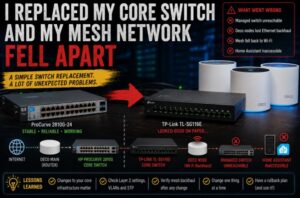

Sometimes a network change looks so simple that you don’t expect it to cause any trouble.
This was one of those changes.
I had an older HP ProCurve 2810G-24 acting as the core switch in Realm Labs. It had been reliable, but I wanted something smaller, simpler and more power-efficient, so I decided to temporarily replace it with a TP-Link TL-SG116E.
The job should have been easy:
Unplug old switch
        |
        v
Connect new switch
        |
        v
Reconnect cables
        |
        v
Network carries on as normal
That was the theory.
What actually happened was much more interesting.
Devices disappeared.
One of my managed switches became unreachable.
My Deco mesh stopped using Ethernet backhaul and silently switched to Wi-Fi.
Home Assistant started behaving strangely.
And suddenly a simple switch swap had turned into a network troubleshooting session.
The Original Network
The HP 2810G had been sitting at the centre of the network for a long time.
The general layout looked something like this:
Virgin Media
     |
     v
Deco X55
Main Router
     |
     v
HP ProCurve 2810G
     |
     +------------------+
     |                  |
     v                  v
Office Switch       Bar Switch
     |                  |
     v                  v
Devices             Devices
     |
     +---- Deco Nodes
     |
     +---- Servers
     |
     +---- Home Assistant
     |
     +---- Synology
The HP wasn’t doing anything especially exotic at this stage.
It was primarily acting as the central Layer 2 switch connecting the rest of Realm Labs together.
So replacing it with another gigabit switch shouldn’t have fundamentally changed the network.
Or so I thought.
The Replacement
The replacement was a TP-Link TL-SG116E.
It’s a 16-port Easy Smart switch, which made it attractive for the home lab.
Compared with the old HP, it is:
- Smaller
- Fanless
- Lower power
- Gigabit
- Managed enough for basic VLANs and monitoring
- Much easier to tuck away
I configured it with an address on the management network:
192.168.68.5
Then I moved the network cables across.
At first, everything looked fine.
Link lights came up.
Devices appeared to have connectivity.
Then the odd behaviour started.
First Problem: Another Managed Switch Disappeared
One of the first things I noticed was that I could no longer reach another TP-Link managed switch further down the network.
That was strange.
The switch was still physically connected.
Its link lights were on.
Devices connected through it were not necessarily completely offline.
But its management interface had vanished.
That immediately raised a few possibilities:
Wrong VLAN?
Management IP conflict?
Bad uplink?
Loop prevention?
Link negotiation?
Switch configuration?
None of those were immediately obvious.
Then the Deco Backhaul Changed
The bigger clue came from the Deco mesh.
My Deco X55 nodes normally use Ethernet backhaul wherever possible.
That means the remote Deco units communicate back to the main Deco through the wired network rather than using wireless mesh links.
The expected path is:
Main Deco
    |
    v
Core Switch
    |
    v
Remote Deco
After replacing the HP switch, one of the Deco units silently fell back to Wi-Fi.
The network still worked.
But the topology had changed.
Instead of:
Main Deco
    |
 Ethernet
    |
Remote Deco
I now effectively had:
Main Deco
    |
   Wi-Fi
    |
Remote Deco
That was a major clue.
Something about the wired Layer 2 path was no longer behaving the way the Decos expected.
Why This Was Easy to Miss
A mesh system falling back to wireless doesn’t necessarily look like a failure.
That’s one of the clever things about systems like Deco.
If Ethernet backhaul disappears, the mesh can continue operating over Wi-Fi.
From the user’s perspective:
Internet still works
Wi-Fi still works
Devices still connect
So it can appear as though nothing is wrong.
But performance and topology may have changed significantly underneath.
In my case, the fallback actually helped hide the problem.
Home Assistant Also Started Behaving Strangely
Around the same time, Home Assistant became inaccessible or started returning unexpected authentication behaviour.
At first, this looked unrelated.
But whenever multiple apparently unrelated devices and services become strange immediately after changing the core network, that network change deserves attention.
The pattern was starting to look like this:
Replace core switch
       |
       +--> Managed switch unreachable
       |
       +--> Deco Ethernet backhaul disappears
       |
       +--> Home Assistant behaves strangely
       |
       +--> Network topology changes
The chances of those all being independent failures were getting very small.
The Important Realisation
I had initially treated the old HP switch as a simple collection of Ethernet ports.
But it had been part of the network for years.
Other devices had effectively grown around it.
The core switch wasn’t just connecting endpoints.
It was connecting:
- Mesh nodes
- Secondary switches
- Servers
- NAS storage
- Home Assistant
- Proxmox
- Management interfaces
- Potentially tagged and untagged traffic
Even when a replacement switch appears equivalent on paper, the behaviour doesn’t have to be identical.
Layer 2 Problems Are Weird
One reason these issues are difficult to troubleshoot is that Layer 2 failures don’t always look like normal network failures.
If routing breaks, devices often become obviously unreachable.
If DNS breaks, names stop resolving.
But switching problems can produce much stranger symptoms:
Some devices work
Some don't

Internet works
Local management doesn't

Wi-Fi works
Ethernet backhaul doesn't

A device responds from one path
but not another
That’s exactly what made this problem interesting.
Was It a VLAN Problem?
The TL-SG116E supports VLAN configuration.
That means one obvious suspect was whether VLAN settings were interfering with traffic between ports.
A managed switch can treat traffic very differently depending on whether a port is configured as:
Tagged
Untagged
Excluded
If a device sends normal untagged Ethernet frames but the switch expects something different, communication can disappear without the physical link dropping.
That makes link lights particularly misleading.
A port showing:
LINK UP
only proves the physical connection exists.
It doesn’t prove the required traffic is crossing the switch correctly.
Checking the Basics
Before changing anything complicated, I went through the basic checks.
Link State
Were the ports actually linked at gigabit speed?
IP Addressing
Were the devices still on the expected subnet?
For Realm Labs, most of the core network was using:
192.168.68.0/22
Management IPs
Could I still reach devices such as:
192.168.68.x
directly?
Gateway
Was the main Deco still acting as the correct gateway?
DNS
Could devices still reach the Synology DNS service?
Switch Configuration
Were any VLAN or port isolation settings active on the replacement switch?
Nothing immediately screamed “this is broken”.
Swapping the HP Back In
Eventually I did the most useful test of all.
I reverted the change.
The TL-SG116E came out.
The HP 2810G went back in.
The original wiring was restored.
And the network returned to normal.
The previously unreachable equipment came back.
The Deco wired backhaul returned.
The strange behaviour disappeared.
That was a fairly decisive result.
HP switch installed
      |
      v
Network healthy

TP-Link installed
      |
      v
Network problems

HP restored
      |
      v
Network healthy
Whatever the exact low-level reason, the replacement had changed Layer 2 behaviour in a way that mattered to the existing topology.
The Most Useful Lesson: Reversible Changes
The thing that saved a huge amount of time here was that the change was reversible.
I hadn’t:
- Reset the old HP
- Deleted its configuration
- Rewired the entire rack
- Changed every device
- Renumbered the network
I had simply replaced the switch.
That meant I could put the known-good device back in and immediately answer an important question:
Is the new switch actually causing this?
Yes.
That is much more useful than spending hours changing unrelated settings.
Don’t Change Five Things at Once
This is particularly important in a home lab.
It’s tempting to make several upgrades during the same maintenance session:
Replace switch
Update router
Change VLANs
Change IP addresses
Move DNS
Update firmware
Then when something breaks, you have no idea which change caused it.
In this case, because the core switch was the major change, reverting it gave me a clear A/B test.
Why Mesh Networks Complicate Troubleshooting
The Deco system introduced another layer of complexity because it actively works around failures.
That’s normally a good thing.
But from a troubleshooting perspective, automatic recovery can hide the original problem.
For example:
Ethernet backhaul fails
        |
        v
Deco detects loss
        |
        v
Wi-Fi backhaul starts
        |
        v
Users still have internet
The network hasn’t really recovered.
It’s changed architecture.
Unless you check the Deco app or monitor link behaviour, you might never notice.
Wired Backhaul Is Worth Monitoring
After this incident, I became much more conscious of whether the Deco nodes were actually using Ethernet.
A remote node simply showing:
Online
isn’t enough.
What I really want to know is:
Online via Ethernet
because that tells me the wired infrastructure underneath is healthy.
This is especially important where mesh units also act as Ethernet bridges for nearby devices.
Why a Cheap Switch Isn’t Necessarily a Bad Switch
The conclusion here isn’t that the TL-SG116E is a bad switch.
It may work perfectly in another network.
The lesson is that replacing a core switch is not always equivalent to replacing a dumb extension lead.
Different switches can behave differently around:
- VLAN handling
- Loop prevention
- Multicast
- Broadcast forwarding
- MAC learning
- IGMP snooping
- Spanning Tree
- Link negotiation
- Energy-efficient Ethernet
- Management traffic
Any of these can become important depending on what is attached to the switch.
Multicast Is Especially Worth Considering
Modern home automation and mesh systems use a surprising amount of multicast and broadcast traffic.
Protocols such as:
mDNS
SSDP
Multicast discovery
Broadcast discovery
are used throughout smart-home environments.
Home Assistant integrations also rely heavily on device discovery.
A network can therefore appear to have working IP connectivity while discovery traffic behaves differently.
That can produce symptoms like:
Device responds to ping
but Home Assistant can't discover it
or:
Internet works
but local service discovery fails
This is one reason switch features such as IGMP snooping deserve attention.
Check STP and Loop Prevention
Mesh networks with multiple wired nodes can also create unusual topologies.
If there is more than one potential Ethernet path between parts of the network, loop prevention becomes important.
Managed switches may run:
STP
RSTP
Loop prevention
with different defaults.
A switch deciding to block a port can look like a broken link even when the cable is physically fine.
Conversely, disabling loop protection where it is needed can create a broadcast storm.
Neither is particularly fun.
A Better Way to Replace a Core Switch
If I were doing the same job again, I’d take a much more structured approach.
1. Record the Existing Topology
Before unplugging anything, document:
Port
Device
IP
VLAN
Link speed
Purpose
2. Export the Existing Switch Configuration
If the switch is managed, save its configuration before replacing it.
3. Check VLAN Behaviour
Make sure the new switch matches the old switch’s:
PVID
Tagged membership
Untagged membership
Management VLAN
4. Connect the Router First
Start with:
Router
   |
New Switch
and verify basic connectivity.
5. Add Infrastructure One Device at a Time
Then add:
NAS
Proxmox
Home Assistant
Secondary switches
Deco nodes
testing after each connection.
6. Verify Deco Backhaul
Don’t assume “online” means Ethernet.
Actually verify which backhaul the mesh is using.
7. Test Local Services
Check:
DNS
Home Assistant
Synology
Proxmox
Switch management
MQTT
not just internet access.
Useful Commands
From a Windows machine, basic checks include:
ipconfig /all
arp -a
ping 192.168.68.20
tracert 192.168.68.20
For DNS:
nslookup realmlabs.uk
On Linux:
ip addr
ip route
ip neigh
These won’t directly diagnose every Layer 2 problem, but they help establish what is and isn’t reachable.
The Realm Labs Core Switch Won
For now, the HP ProCurve survived its attempted retirement.
Despite its age, it had one extremely important feature:
It worked.
The network had grown around it.
Replacing it exposed dependencies I hadn’t fully appreciated.
So the HP went back into service.
The experience also changed how I think about “simple” infrastructure upgrades.
A core switch is not just another device.
It is the thing every other device depends on.
The Failure Chain
What looked like a simple hardware swap turned into:
Replace HP core switch
        |
        v
Install TL-SG116E
        |
        v
Layer 2 behaviour changes
        |
        +--> Secondary switch unreachable
        |
        +--> Deco loses Ethernet backhaul
        |
        +--> Mesh falls back to Wi-Fi
        |
        +--> Local services behave strangely
        |
        v
Restore HP switch
        |
        v
Network returns to normal
The fastest fix turned out to be the simplest one.
Revert the change.
Final Takeaway
The biggest lesson wasn’t really about the HP or the TP-Link.
It was about dependencies.
A mature home lab gradually accumulates connections that aren’t always obvious until you disturb them.
The old switch had quietly become part of:
- My server infrastructure
- My mesh network
- My management network
- My smart home
- My storage
- My entire LAN topology
Replacing it affected all of them at once.
So if you’re planning to replace your core switch, don’t judge success by whether the internet still works.
Check everything underneath it too.
Especially the things that are clever enough to silently work around the failure.