
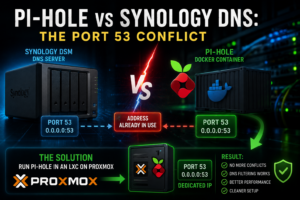

A Pi-hole port 53 conflict was not what I expected when I tried to add network-wide DNS filtering to the Realm Labs home network. The plan seemed simple: deploy Pi-hole in Docker on the Synology DS224+, point the network at it for DNS, and start filtering unwanted domains.
Instead, the container refused to start. The problem was not Pi-hole, Docker or the network; the Synology NAS was already providing DNS for the lab, so port 53 was already taken.
The Plan
I originally wanted to run Pi-hole on my Synology DS224+ using Docker.
The NAS was already hosting several services, so adding Pi-hole alongside them seemed like the obvious choice.
The basic idea was simple:
Internet
   |
Router
   |
Synology DS224+
   |
Docker
   |
Pi-hole
Pi-hole would become the DNS server for devices around the home network, allowing me to block unwanted domains and get a clearer view of what devices were querying.
The container itself was straightforward enough to configure.
Then I tried to start it.
It failed.
Diagnosing the Pi-hole Port 53 Conflict
Pi-hole is fundamentally a DNS server.
DNS normally runs on port 53, so Pi-hole needs to listen on that port for both TCP and UDP traffic.
A typical Docker configuration therefore contains something similar to:
ports:
  - "53:53/tcp"
  - "53:53/udp"
The problem was that Docker couldn’t bind port 53 on the Synology.
Something else was already using it.
At first glance, this looked like a Docker problem.
It wasn’t.
Finding What Was Using Port 53
Once I realised the failure was related to port binding, the next step was to find out what already owned port 53.
SSH access to the Synology makes this fairly easy.
Depending on the tools available on the system, you can use:
sudo netstat -tulpn | grep :53
or:
sudo ss -tulpn | grep :53
If something is already listening on:
0.0.0.0:53
then Docker cannot simply take the same port.
That was exactly what was happening.
The Forgotten Dependency: Synology Was Already Providing DNS
My DS224+ wasn’t just acting as a storage server.
Over time it had become part of the core Realm Labs infrastructure and was already providing DNS services to the network.
That meant port 53 wasn’t accidentally occupied.
It was doing something important.
This changed the problem completely.
I could have stopped the Synology DNS service and allowed Pi-hole to take over port 53, but that would have meant changing the DNS architecture for the rest of the lab at the same time.
That was far more disruptive than I wanted for what started as a simple Pi-hole deployment.
Another option would have been to map Pi-hole to a different host port.
For example:
Host 5353 -> Container 53
That would allow the container to start.
But it wouldn’t really solve the problem.
Normal network clients expect DNS to be available on port 53.
I didn’t want to introduce a workaround that made the network more complicated just to force Pi-hole onto the NAS.
I wanted Pi-hole to behave like a normal DNS server.
Docker Couldn’t Solve a Host-Level Port Conflict
This was the important lesson from the whole problem.
The same host-level limitation can affect other containers too. I ran into a related example while troubleshooting WireGuard in Docker on the Synology DS224+.
Containers provide isolation, but they still rely on resources belonging to the host.
If a container needs to expose port 53 and the host operating system already has another service listening on port 53, Docker can’t make that conflict disappear.
The realistic options were:
1. Stop the Synology DNS service
2. Move Synology DNS somewhere else
3. Give Pi-hole another IP address
4. Run Pi-hole on another machine
Option four was the cleanest. Moving a service is sometimes safer than disturbing working infrastructure, which is also the approach I used when moving MQTT to a new server without breaking existing automations.
Fortunately, I already had somewhere ideal to put it.
Moving Pi-hole to Proxmox
Rather than trying to force Pi-hole onto the Synology, I moved it into my Proxmox environment.
Instead of this:
Synology
 ├── DNS
 └── Pi-hole
      └── both want port 53
I ended up with this:
Synology
   |
   └── Existing DNS and NAS services

Proxmox
   |
   └── Pi-hole LXC
          |
          └── Dedicated IP address
Giving Pi-hole its own LXC container meant it also received its own IP address.
That was the key difference.
Pi-hole could now listen directly on port 53 without competing with the Synology.
Conceptually:
Synology
192.168.x.x
DNS :53

Pi-hole LXC
192.168.x.x
DNS :53
Both systems can use port 53 because they are listening on different IP addresses.
Why I Used an LXC Instead of a Full Virtual Machine
Pi-hole is very lightweight.
Running an entire virtual machine just for DNS filtering would have been unnecessary for my setup.
A Proxmox LXC gave me everything I needed without much overhead.
It provided:
- A dedicated IP address
- Very low resource usage
- Easy management through Proxmox
- Straightforward backup and restore
- Separation from the Synology services
- Direct access to standard DNS ports
More importantly, it meant I didn’t have to disturb something that was already working.
The Synology DNS setup could stay exactly as it was.
Pi-hole simply became another service on the network.
Updating the Network DNS
Once Pi-hole was running on its new address, the next step was to direct clients towards it.
In my setup, DNS settings are distributed through the router.
The Pi-hole IP could therefore be configured as the DNS server supplied to devices on the network.
The request path then became:
Client
   |
   | DNS request
   v
Pi-hole
   |
   | Allowed request
   v
Upstream DNS
Pi-hole receives the request first, applies its filtering rules, logs the query and forwards allowed requests to an upstream resolver.
A Small Trap with Secondary DNS
One thing worth paying attention to is the secondary DNS server.
It’s tempting to configure something like:
Primary DNS:   Pi-hole
Secondary DNS: 1.1.1.1
At first glance that seems sensible.
If Pi-hole fails, clients still have another DNS server available.
The problem is that many devices don’t treat the secondary DNS entry purely as an emergency fallback.
They may use either configured resolver.
That means some DNS requests can completely bypass Pi-hole.
If you want consistent filtering, adding an unrestricted public DNS server as the secondary resolver can undermine the whole setup.
The DNS design needs to take that into account.
Testing the New Setup
Once the network was pointing at Pi-hole, I needed to confirm clients were actually using it.
On Windows:
nslookup realmlabs.uk
The DNS server shown in the output should be the address of the Pi-hole system.
On Linux:
nslookup realmlabs.uk
or:
dig realmlabs.uk
The Pi-hole dashboard provides another easy check.
Once devices start using it, DNS queries begin appearing almost immediately.
At that point, the original Docker problem had disappeared completely.
Not because I fixed Docker.
Because Docker had never really been the problem.
What I Learned
This was another example of an application problem that turned out to be an infrastructure problem.
The initial symptom was:
Pi-hole container won't start
The real chain of events was:
Pi-hole needs port 53
        ↓
Docker tries to expose port 53
        ↓
Synology is already using port 53
        ↓
Docker cannot bind the port
        ↓
Container fails
The fix wasn’t another Docker parameter.
It was changing where the service lived.
Check the Host Before Blaming the Container
Whenever a Docker container refuses to start because it cannot expose a port, one of my first checks now is to see what the host is already listening on.
For example:
sudo netstat -tulpn
or:
sudo ss -tulpn
You can then narrow the output down to a particular port:
sudo ss -tulpn | grep :53
For web services, the same approach works with ports such as:
sudo ss -tulpn | grep :80
or:
sudo ss -tulpn | grep :443
A surprising number of seemingly complicated Docker problems come down to two services trying to own the same host resource.
The Final Realm Labs Setup
The end result was actually cleaner than the original plan.
                         ┌──────────────────┐
                         │     Internet     │
                         └────────┬─────────┘
                                  |
                         ┌────────▼─────────┐
                         │      Router      │
                         └────────┬─────────┘
                                  |
                 ┌────────────────┴────────────────┐
                 |                                 |
        ┌────────▼────────┐               ┌────────▼────────┐
        │   Pi-hole LXC   │               │ Synology DS224+ │
        │    Proxmox      │               │                 │
        │                 │               │ DNS / Storage   │
        │ DNS filtering   │               │ Other services  │
        │ Port 53         │               │ Port 53         │
        └─────────────────┘               └─────────────────┘
Rather than making the Synology do absolutely everything, Pi-hole now has its own small place in the infrastructure.
It gets a dedicated IP address, there is no port conflict, and DNS filtering remains separated from the other services running on the NAS.
This arrangement now forms part of the wider Realm Labs home network design, with DNS filtering separated from the NAS services it should not disturb.
Sometimes the best fix isn’t finding a clever way to make two services coexist.
It’s giving them somewhere more sensible to live.
Quick Troubleshooting Checklist
If you’re trying to run Pi-hole in Docker and the container refuses to start:
- Check the container logs.
- Look for errors relating to port 53 or address binding.
- Check what is already listening on port 53 on the Docker host.
- Check both TCP and UDP.
- Find out whether the existing DNS service is actually required.
- Avoid moving Pi-hole to a non-standard DNS port unless you have a specific reason.
- Consider giving Pi-hole its own IP address.
- If you already run Proxmox, a lightweight LXC is a very clean option.
In my case, moving Pi-hole away from the Synology turned out to be both the fix and the better architecture.