
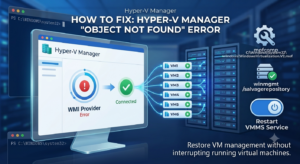

Your Hyper-V virtual machines can continue running normally while Hyper-V Manager shows an empty host, refuses to connect, or reports that an object could not be found. When the guests are still reachable through SSH, RDP or their hosted services, the fault is usually in the host’s management layer rather than in the virtual machines themselves.
This guide follows a cautious troubleshooting order: confirm the VMs are still running, test the Hyper-V services and WMI namespace, repair only the Hyper-V registration, and reserve a complete WMI reset for the last resort.
Typical symptoms
- Hyper-V Manager opens but the local server or its virtual machines are missing.
- Connecting to Local computer produces an “object was not found” or “object was deleted” error.
- The VMs remain reachable over the network and their services continue responding.
- Restarting Hyper-V Manager makes no difference.
Before repairing anything
Do not delete the missing VMs or recreate their configuration files. An empty Hyper-V Manager window does not necessarily mean the machines have been removed.
Open an elevated PowerShell window and confirm the Hyper-V Virtual Machine Management service is present:
Get-Service vmmsIf the service is running, check whether PowerShell can still query the virtual machines:
Get-VMIf Get-VM returns the machines correctly, the issue may be limited to the Hyper-V Manager console. Close and reopen it, then use Connect to Server → Local computer. If both Hyper-V Manager and Get-VM fail, continue with the management-layer checks below.
Check the Hyper-V WMI namespace
Hyper-V management tools use the root\virtualization\v2 WMI namespace. Test it directly:
Get-CimInstance -Namespace root/virtualization/v2 -ClassName Msvm_ComputerSystemA working namespace normally returns the Hyper-V host and its virtual machines. Errors such as Invalid namespace, Not found or a missing class point towards a damaged or incomplete Hyper-V WMI registration.
Restart the management service
Try the least invasive repair first:
Restart-Service vmmsImportant: restarting
vmmsrestarts the management service; it should not power off running guest VMs. Nevertheless, confirm the guests are healthy and avoid doing this during a sensitive maintenance window.
Wait a few seconds, reopen Hyper-V Manager and run Get-VM again. If the namespace remains unavailable, re-register the Hyper-V management schema.
Re-register the Hyper-V WMI schema
On Windows 10 and Windows 11, the Hyper-V management schema is defined by WindowsVirtualization.V2.mof. First confirm that the file exists:
Test-Path C:\Windows\System32\WindowsVirtualization.V2.mofIf the result is True, compile it again and restart the management service:
mofcomp C:\Windows\System32\WindowsVirtualization.V2.mof
Restart-Service vmms
A successful mofcomp run reports that the MOF file was parsed and stored in the repository. Reopen Hyper-V Manager and reconnect to the local computer.
Salvage the WMI repository
If re-registering the Hyper-V schema does not restore the namespace, check the wider WMI repository:
winmgmt /verifyrepositoryIf Windows reports that the repository is inconsistent, attempt the supported salvage operation:
winmgmt /salvagerepository
mofcomp C:\Windows\System32\WindowsVirtualization.V2.mof
Restart-Service vmms
Salvage tries to preserve readable information while rebuilding inconsistent repository data. After it completes, repeat the namespace test and check Hyper-V Manager.
Complete WMI reset: last resort only
A full WMI reset affects more than Hyper-V. Monitoring agents, management tools and other Windows components may have to re-register their providers afterwards. Do not use it as the first fix merely because Hyper-V Manager is empty.
Before continuing, create a restore point or current system backup, record the VM configuration locations and allow a maintenance window. Then run:
winmgmt /resetrepository
mofcomp C:\Windows\System32\WindowsVirtualization.V2.mof
Restart-Service vmms
Restart Windows after a repository reset, then verify Hyper-V and any third-party management or monitoring software that depends on WMI.
Verify the repair
Do not stop at seeing the server reappear in the console. Confirm each layer:
Get-Service vmmsreports Running.Get-VMlists the expected virtual machines and their correct states.- The WMI namespace query completes without an error.
- Hyper-V Manager connects to Local computer.
- SSH, RDP and hosted services inside the guests remain available.
What fixed it in this case
The virtual machines themselves had never stopped. Recompiling WindowsVirtualization.V2.mof, salvaging the repository and restarting vmms restored the link between Hyper-V Manager and the running guests.
The key lesson is to separate a management-plane failure from a VM failure. Check whether the guests are actually running before changing or recreating anything. If you are building a host from scratch, see my Hyper-V setup and virtual networking guide.