
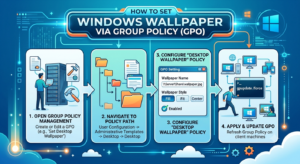

A Group Policy desktop wallpaper gives domain-joined Windows computers a consistent background while keeping deployment centrally managed. In this guide, I use PowerShell and Group Policy to copy the image from a Synology NAS share to each computer before applying it.
In my home lab, I use Active Directory Group Policy (GPO) to copy wallpaper images from a central Synology NAS share to each local computer before applying the wallpaper policy. This approach ensures the image is available locally, reducing reliance on network availability during user logon.
Prerequisites
Before getting started, ensure you have the following in place:
- Active Directory Domain Services (AD DS)
- Group Policy Management Console (GPMC)
- A shared network folder containing your wallpapers
- Domain-joined Windows computers
Step-by-Step Deployment Guide
Step 1: Create a Central Wallpaper Share
Store your wallpapers in a shared location that all domain computers can access.
- Example Path:
\\SERVER\Wallpapers
💡 Lab Note: In my environment, the wallpapers are hosted on a Synology NAS and shared across the domain.
Step 2: Establish a Local Wallpaper Folder
Rather than pointing Windows directly to a network path, it is much more reliable to stage the wallpapers locally on each PC.
- Destination Folder:
C:\ProgramData\OrderRealm\Wallpapers
Using the hidden ProgramData directory keeps the files available for all users on the machine while keeping them tucked away from normal day-to-day user browsing.
Step 3: Create a Startup PowerShell Script
Create a PowerShell script to handle the file synchronization. This ensures any updated wallpapers are pulled down to the local machine every time it boots.
PowerShell
$Source = "\\SERVER\Wallpapers"
$Destination = "C:\ProgramData\OrderRealm\Wallpapers"

# Create the directory if it doesn't exist
if (!(Test-Path $Destination)) {
    New-Item -ItemType Directory -Path $Destination -Force
}

# Copy the files
Copy-Item "$Source\*" $Destination -Recurse -Force
Step 4: Create and Link a Computer Group Policy
- Open Group Policy Management.
- Create a new GPO (e.g.,
Computer - Wallpaper Deployment). - Link it to the Organizational Unit (OU) containing your computers.
🛠️ Pro Tip: I highly recommend separating Computer settings and User settings into entirely different GPOs. Combining them often leads to replication lag and trickier troubleshooting down the line.
Step 5: Configure the Startup Script & Execution Policy
Because this script runs at the machine level, navigate to:
Plaintext
Computer Configuration
 └─ Policies
     └─ Windows Settings
         └─ Scripts (Startup/Shutdown)
             └─ Startup
Add your PowerShell script here.
If your domain blocks unsigned PowerShell scripts by default, you will also need to configure the execution policy within the same GPO:
Plaintext
Computer Configuration
 └─ Policies
     └─ Administrative Templates
         └─ Windows Components
             └─ Windows PowerShell
                 └─ Turn on Script Execution
Set the policy to Enabled and select Allow local scripts and remote signed scripts.
Step 6: Configure the Desktop Wallpaper Policy
Because wallpaper applications are tied to the user environment, create or edit a separate GPO linked to your User OU and navigate to:
Plaintext
User Configuration
 └─ Policies
     └─ Administrative Templates
         └─ Desktop
             └─ Desktop
                 └─ Desktop Wallpaper
- Set the policy to Enabled.
- Wallpaper Path:
C:\ProgramData\OrderRealm\Wallpapers\wallpaper.jpg - Wallpaper Style: Choose the style that best suits your image (Fill, Fit, Stretch, Center, or Tile).
Step 7: Apply and Test the Policy
To force immediate application on a test machine, open a command prompt and run:
DOS
gpupdate /force
Alternatively, simply restart the client computer. Once the startup script copies the wallpaper locally, the user will see the configured background upon their next sign-in.
Troubleshooting
Wallpaper Doesn’t Change
- Verify the GPOs are linked to the correct OUs (Computer GPO to the Computer OU; User GPO to the User OU).
- Ensure the user has actually received the User Configuration policy.
- Manually check
C:\ProgramData\OrderRealm\Wallpapersto confirm the startup script successfully copied the file.
Startup Script Doesn’t Run
- Verify that PowerShell script execution is explicitly enabled via GPO.
- Ensure the Computer account (not just the user account) has read permissions to the network share, as startup scripts run under the
SYSTEMcontext. - Review the Windows Event Viewer under Application/Services Logs for Group Policy or PowerShell errors.
GPO Isn’t Applying
Run the following commands in an elevated command prompt to diagnose policy blocks:
DOS
gpresult /r
or generate a clean HTML report:
DOS
gpresult /h report.html
Lessons Learned
While building Realm Labs, I discovered that keeping computer configurations (like startup file copies) completely isolated from user configurations (like desktop styles) made Group Policy drastically easier to maintain.
Furthermore, local caching completely eliminates the common “black screen” or blank wallpaper bugs that happen if a wireless network or NAS share takes a few extra seconds to wake up during the user login phase.
Next Steps
Once you have this framework established, you can easily expand your GPO environment to deploy:
- Lock screen images
- Automated drive mappings
- Folder redirection
- Targeted desktop shortcuts
- Custom registry tweaks
Taking It Further: Per-User Wallpaper Management
This guide covers the dependable Group Policy foundation: copying files locally and applying a consistent wallpaper. I later built a web-based Wallpaper and Lock Screen Manager for Active Directory on top of it. The newer system adds per-user JSON mappings, browser-based assignments, image uploads and rollback while retaining the same local caching approach.
Found this guide useful?
If this article saved you time or helped solve your problem, consider buying me a coffee. It helps keep RealmLabs running and allows me to create more free guides and projects.
