
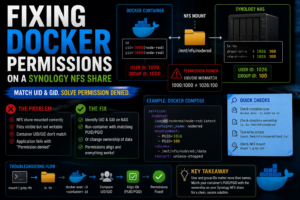

Docker permissions can be confusing enough on a normal Linux machine.
Add a Synology NAS, an NFS share and containers running under different user IDs, and things get interesting very quickly.
This particular problem appeared when I started storing application data on my Synology and mounting it into Docker containers running elsewhere in Realm Labs.
The share mounted correctly.
The files were visible.
Docker could see the directory.
But the application couldn’t write to it.
At first it looked like a container problem.
Then it looked like an NFS problem.
The actual issue was much more mundane.
The user ID inside the container didn’t match the ownership of the files on the NAS.
The Setup
The idea was straightforward.
Rather than keeping application data on the Raspberry Pi’s local storage, I wanted it stored centrally on the Synology.
The architecture looked like this:
Docker Host
    |
    v
NFS Mount
    |
    v
Synology DS224+
    |
    v
Persistent Application Data
This gave me several advantages:
- Centralised storage
- Easier backups
- Less dependence on SD cards
- Easier migration between Docker hosts
- Data surviving container rebuilds
For applications such as Node-RED, the container could simply use a directory from the NFS share as persistent storage.
That was the theory.
The Share Mounted Fine
The first thing I confirmed was that the Docker host could actually mount the Synology share.
For example:
mount | grep nfs
or:
df -h
showed the share correctly.
I could also browse the directory:
ls -la /mnt/nfs
So networking wasn’t the problem.
The Synology was reachable.
NFS was working.
The files were there.
Yet the container still couldn’t use them properly.
The Permission Error
The application would fail when trying to create or modify files in its data directory.
Depending on the application, this can appear as errors such as:
Permission denied
or:
EACCES
or the container might simply restart repeatedly because it can’t initialise its configuration.
The important clue came from looking at the directory ownership.
Running:
ls -ln
instead of:
ls -l
shows numeric user and group IDs.
That matters enormously with NFS.
The Ownership Didn’t Match
The files on the Synology-backed directory were owned by something similar to:
UID: 1026
GID: 100
That might correspond to a Synology user on the NAS.
The Docker container, however, could be running under something completely different.
For example:
UID: 1000
GID: 1000
From Linux’s point of view, those are different users.
It doesn’t matter that both might be called something friendly like:
paul
or:
node-red
Linux filesystem permissions work primarily with numeric IDs.
Names Don’t Matter as Much as IDs
This was one of the more useful lessons.
Imagine the NAS has:
Paul = UID 1026
while the Raspberry Pi has:
Paul = UID 1000
The names look identical.
But NFS sees:
1026 != 1000
So they are not the same owner.
The same applies inside containers.
The real chain looks like this:
Container process
      |
      | UID 1000
      v
NFS directory
      |
      | Owned by UID 1026
      v
Permission denied
That is why changing usernames doesn’t necessarily solve an NFS permission problem.
Checking the Container User
The next thing I needed to establish was which user the container actually used.
One method is:
docker exec -it <container> id
For example:
docker exec -it nodered id
This might return:
uid=1000(node-red) gid=1000(node-red)
Some containers run as root.
Others deliberately run as an unprivileged user.
LinuxServer.io containers often expose this through environment variables such as:
PUID
PGID
For example:
environment:
  - PUID=1026
  - PGID=100
That makes matching permissions much easier.
Checking the Synology IDs
On the Synology itself, SSH can be used to inspect the user IDs.
For example:
id username
could return something similar to:
uid=1026(username) gid=100(users)
Now the problem becomes obvious.
The Synology directory expects:
1026:100
while the container is trying to write as:
1000:1000
The fix is to make those line up.
Option One: Run the Container Using Matching IDs
Where the container supports it, one clean solution is to configure it to use the same UID and GID as the files on the NAS.
For LinuxServer.io-style containers:
environment:
  - PUID=1026
  - PGID=100
The architecture then becomes:
Synology files
UID 1026 / GID 100

        =

Container process
UID 1026 / GID 100
Now Linux sees the container process as the owner of the files.
This is much cleaner than granting permissions to everybody.
Option Two: Change the Ownership of the Data
Another option is changing the ownership of the directory itself.
For example:
sudo chown -R 1000:1000 /path/to/data
But this requires care when the directory is mounted over NFS.
Depending on the Synology NFS configuration, the server may:
- Permit the ownership change
- Reject it
- Remap root
- Map users differently
You also need to consider whether other services already rely on the existing ownership.
So I prefer understanding the IDs before running recursive chown commands.
The Tempting Fix: chmod 777
One of the first suggestions you’ll often find online is:
chmod -R 777 /path/to/data
And yes, that can make permission errors disappear.
But it does so by making the directory writable by everybody.
That hides the ownership problem rather than solving it.
For a quick diagnostic test, opening permissions temporarily can help prove that permissions are the issue.
As a permanent solution, though, I’d rather make the user IDs correct.
Understanding Docker Bind Mounts
A Docker bind mount doesn’t provide another permission layer.
If I configure:
volumes:
  - /mnt/nfs/nodered:/data
Docker presents the host directory directly inside the container.
So:
Container /data
really points to:
Host /mnt/nfs/nodered
which itself points to:
Synology NFS share
The permission chain is therefore:
Application
    |
    v
Container filesystem
    |
    v
Docker bind mount
    |
    v
Linux host
    |
    v
NFS
    |
    v
Synology permissions
Every layer needs to agree.
Testing Outside Docker
A very useful troubleshooting technique is to remove Docker from the equation temporarily.
If the host itself cannot write to the directory as the relevant user, Docker probably won’t either.
For example:
touch /mnt/nfs/test.txt
If that fails with:
Permission denied
then the problem already exists before Docker becomes involved.
You can also test using a specific UID.
For example:
sudo -u someuser touch /mnt/nfs/test.txt
That helps establish which identity can actually write to the share.
Testing Inside the Container
Then test from inside the container:
docker exec -it <container> sh
or:
docker exec -it <container> bash
Inside:
id
Then:
touch /data/test.txt
If that fails, compare the reported UID and GID with the directory ownership.
This is much more useful than randomly changing Docker settings.
Synology NFS Squash Settings Matter
Synology’s NFS permissions include options that control how users are mapped.
Depending on DSM version and configuration, you may see options relating to squash behaviour.
Conceptually these decide whether incoming users are:
Preserved
or mapped to something like:
admin
guest
anonymous
A common NFS concept is:
root_squash
This prevents a root user on a client machine from automatically becoming root on the NFS server.
That’s a good security feature.
But it can also make permission troubleshooting confusing.
A command run as:
root
on the Docker host may not be treated as root on the Synology.
Root Inside Docker Isn’t Magic Either
A Docker container running as root can give the impression that it should be able to write anywhere.
But over NFS, that depends on the server.
The path becomes:
Container root
      |
      v
Host root
      |
      v
NFS server
      |
      v
Possibly remapped user
So even:
uid=0
inside the container doesn’t necessarily override Synology permissions.
That’s another reason matching a normal service UID is often better than trying to solve everything with root.
Node-RED Was a Good Example
Node-RED is a good example because its /data directory is important.
That’s where it stores things such as:
- Flows
- Credentials
- Settings
- Installed nodes
A typical Docker configuration might include:
volumes:
  - /mnt/nfs/docker-volumes/nodered:/data
If Node-RED cannot write to /data, it may fail to initialise properly.
The fix isn’t to change Node-RED.
It’s to make sure the user running Node-RED can write to the mounted directory.
Matching the IDs
Once the ownership and container identity were aligned, the design became much cleaner.
For example:
Synology directory:

Owner UID: 1026
Group GID: 100
Then:
Container:

PUID=1026
PGID=100
Now:
Container
UID 1026
      |
      v
NFS
      |
      v
Synology directory
UID 1026
      |
      v
Write allowed
No hacks required.
Why This Matters for Backups
Using a Synology share for Docker data is useful precisely because the data survives the container.
For example:
Container deleted
      |
      v
NFS data remains
      |
      v
New container created
      |
      v
Same NFS directory mounted
      |
      v
Application returns
But that only works reliably if permissions are predictable.
Otherwise every migration turns into another round of:
Why can't this container write to my files?
A Better Way to Organise Docker Data
As Realm Labs grew, I found it useful to keep Docker data in a predictable structure.
Something like:
docker-volumes/
├── nodered/
├── mosquitto/
├── grafana/
├── portainer/
├── qbittorrent/
└── uptime-kuma/
Each application gets its own directory.
That makes it easier to:
- Understand ownership
- Back up services
- Restore them
- Move containers
- Diagnose permission problems
It also means permissions can be set per application rather than opening up the entire share.
Don’t Assume Every Container Uses the Same UID
This is another trap.
One container might use:
UID 1000
another:
UID 911
and another:
UID 1026
Some run as root.
Some expose PUID and PGID.
Some don’t.
So there isn’t one universal permission setting that works for every Docker container.
Always check the specific image.
A Good Troubleshooting Sequence
If a Docker container cannot write to a Synology NFS share, I now work through the problem in this order.
1. Confirm the NFS share is mounted
mount | grep nfs
2. Check the directory ownership numerically
ls -ln /mnt/nfs
3. Check the container’s UID and GID
docker exec -it <container> id
4. Compare the numbers
You’re looking for something like:
Directory: 1026:100
Container: 1000:1000
If they differ, you’ve probably found the issue.
5. Test writing from the host
touch /mnt/nfs/test.txt
6. Test writing from inside the container
touch /data/test.txt
7. Inspect the Synology NFS permissions
Check:
- Client IP/subnet
- Read/write access
- Squash behaviour
- Security settings
8. Match the service identity properly
Where supported, configure:
PUID
PGID
rather than simply making everything world-writable.
What Not to Do
There are a few things I’d avoid.
Don’t blindly use 777
It may fix the symptom but creates unnecessary permissions.
Don’t recursively chown huge shares without checking
You may break access for other services.
Don’t assume root bypasses NFS permissions
The server still controls access.
Don’t trust usernames alone
Check numeric IDs.
Don’t blame Docker immediately
Test the NFS mount outside the container first.
The Failure Chain
The original problem looked like:
Docker application
Permission denied
But the real chain was:
Container process
UID 1000
      |
      v
Bind mount
      |
      v
NFS directory
Owned by UID 1026
      |
      v
IDs don't match
      |
      v
Write denied
Once the identities matched:
Container UID 1026
      |
      v
NFS directory UID 1026
      |
      v
Write succeeds
The Realm Labs Takeaway
This was one of those problems that became much easier once I stopped thinking in usernames and started thinking in numbers.
NFS doesn’t particularly care that two users have the same friendly name.
What matters is:
UID
GID
Docker doesn’t remove that requirement.
It adds another layer where the identity needs to be understood.
The useful troubleshooting rule became:
Container can't write to a mounted folder?
        |
        v
Check the UID and GID.
Before changing permissions, before rebuilding the container and definitely before reaching for:
chmod -R 777
check who is actually trying to access the files.
In my case, matching the Docker container’s identity to the ownership on the Synology turned a frustrating permissions problem into a very straightforward one.