
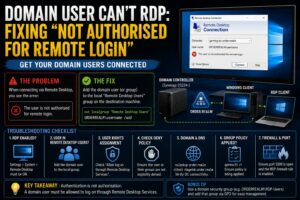

Remote Desktop is one of those Windows features that usually either works immediately or sends you down a permissions rabbit hole.
This particular problem came up in Realm Labs when I had a Windows machine joined to the order.realm domain and wanted to connect to it using a domain account.
The machine was online.
DNS worked.
The user account worked.
The password was correct.
Remote Desktop itself was enabled.
But the login was rejected.
The message was essentially:
The user is not authorised for remote login.
At first that sounds like a general RDP problem.
It wasn’t.
The machine simply didn’t consider that domain user to be allowed to log on through Remote Desktop.
The Setup
The environment was a fairly typical small Active Directory setup:
Synology DS224+
    |
    +-- Active Directory
    +-- DNS
    +-- order.realm

Windows Client
    |
    +-- Domain joined
    +-- Remote Desktop enabled
I could log into the Windows machine locally using the domain account.
What I couldn’t do was connect to that same machine remotely.
That immediately narrowed the problem.
Authentication itself was working.
The restriction was specific to Remote Desktop.
First Check: Is Remote Desktop Actually Enabled?
Before chasing permissions, it is worth checking the obvious.
On the Windows machine:
Settings
  |
  v
System
  |
  v
Remote Desktop
Remote Desktop needs to be enabled.
You can also check through PowerShell:
Get-ItemProperty `
  -Path "HKLM:\System\CurrentControlSet\Control\Terminal Server" `
  -Name fDenyTSConnections
A value of:
0
means Remote Desktop connections are allowed.
A value of:
1
means they are disabled.
In my case, Remote Desktop itself was already enabled.
So the problem was further down.
The User Could Authenticate Locally
This was an important clue.
The same domain user could log onto Windows normally.
That meant:
Domain account exists
        |
        v
Password works
        |
        v
Domain controller reachable
        |
        v
DNS basically working
So this wasn’t a case of Windows being unable to contact the domain.
The RDP service was rejecting the user after authentication.
Remote Desktop Has Its Own Permission Requirement
Windows does not automatically allow every domain user to log in over RDP.
The account generally needs to be:
A local Administrator
or a member of:
Remote Desktop Users
on the destination machine.
That is the bit I was missing.
The user was a perfectly valid domain user.
They simply weren’t in a group that was permitted to use Remote Desktop.
Checking the Local Remote Desktop Users Group
On the destination machine, open:
Computer Management
Then:
Local Users and Groups
   |
   v
Groups
   |
   v
Remote Desktop Users
The group may initially contain nobody relevant.
That means a normal domain user has no explicit RDP permission.
The same thing can be checked from the command line:
net localgroup "Remote Desktop Users"
This lists the current members.
Adding the Domain User
The fix was to add the domain account to the local Remote Desktop Users group.
For example:
net localgroup "Remote Desktop Users" ORDERREALM\username /add
Depending on how the domain is represented locally, you might also use:
net localgroup "Remote Desktop Users" order.realm\username /add
or add the user through the graphical interface.
After that:
Domain User
    |
    v
Remote Desktop Users
    |
    v
Allowed to use RDP
The connection worked.
Why This Is Better Than Making Everyone an Administrator
A tempting workaround is simply adding the user to:
Administrators
That will generally allow RDP too.
But it gives the account far more rights than are actually needed.
If the user only needs to remotely log into the machine, then:
Remote Desktop Users
is the more appropriate group.
That follows the basic principle of giving an account only the permissions it needs.
The Next Layer: User Rights Assignment
If adding the user to Remote Desktop Users does not solve the problem, Windows has another layer of control.
Open:
Local Security Policy
Then navigate to:
Local Policies
   |
   v
User Rights Assignment
Two settings are particularly important.
The first is:
Allow log on through Remote Desktop Services
The second is:
Deny log on through Remote Desktop Services
A deny rule takes precedence.
So a user can be in the correct local group and still be blocked if a policy explicitly denies RDP access.
Allow Log On Through Remote Desktop Services
A normal configuration often includes:
Administrators
Remote Desktop Users
under:
Allow log on through Remote Desktop Services
You can inspect this through Local Security Policy or through Group Policy if the machine receives centrally managed settings.
If Remote Desktop Users has been removed from this right, simply adding someone to the group may not help.
Deny Takes Priority
The other important rule is:
Deny log on through Remote Desktop Services
If the user or one of their groups appears there, Windows will block the login.
For example:
Allow:
Remote Desktop Users

Deny:
Domain Users
would be a problem because the user is probably a member of:
Domain Users
The deny permission wins.
This is one of those Windows security rules that can make an apparently correct configuration behave incorrectly.
Group Policy Can Override Local Settings
Because this was a domain-joined machine, I also had to keep Group Policy in mind.
A local setting can look correct but be overwritten by a domain policy.
To see what actually applied:
gpresult /r
For a more detailed report:
gpresult /h C:\Temp\gpresult.html
Then inspect the computer-side security settings.
If an RDP-related policy is coming from the domain, editing the local machine may only provide a temporary fix.
Checking the Effective Policy
Another useful tool is:
rsop.msc
This opens Resultant Set of Policy.
It can help show which policy actually configured a setting.
The important question is not:
What did I set locally?
It is:
What configuration did Windows end up with after Group Policy?
That distinction matters a lot on domain-joined systems.
Network Level Authentication
Another potential cause of RDP login problems is Network Level Authentication.
NLA requires authentication to occur before the full Remote Desktop session is created.
That is generally a good thing.
But if there is a problem with:
- Domain connectivity
- Credentials
- DNS
- Authentication providers
the connection may fail very early.
You can check the Remote Desktop configuration under:
Settings
  |
  v
System
  |
  v
Remote Desktop
I wouldn’t normally disable NLA permanently just to make a connection work.
If turning it off changes the behaviour, that is a clue that the authentication path needs investigating.
Make Sure You Are Using the Domain Account
Another simple problem is entering the username in the wrong format.
Windows might try to authenticate against the local computer instead of Active Directory.
For a domain account, use something like:
ORDERREALM\username
or:
[email protected]
rather than only:
username
unless Windows already knows which domain to use.
You can see what account context you are currently using with:
whoami
A domain login should return something similar to:
orderrealm\username
Check DNS Before Blaming RDP
Active Directory depends heavily on DNS.
If the destination machine cannot correctly resolve the domain controller, strange authentication behaviour can follow.
I checked:
nslookup order.realm
and:
nslookup seido.order.realm
I also verified the domain controller:
nltest /dsgetdc:order.realm
The expected DC should be returned.
In Realm Labs, that was the Synology-based domain controller.
If this fails, fix DNS before spending too much time on RDP permissions.
Check the Machine Is Still Properly Joined to the Domain
A machine can appear domain joined while having trust issues underneath.
A quick test is:
nltest /sc_verify:order.realm
Another is:
Test-ComputerSecureChannel
A healthy result should be:
True
If the secure channel is broken, RDP authentication can become much more confusing.
Check the Firewall
Windows normally creates firewall rules when Remote Desktop is enabled.
But it is still worth checking.
PowerShell:
Get-NetFirewallRule `
  -DisplayGroup "Remote Desktop"
You can also enable the standard group with:
Enable-NetFirewallRule `
  -DisplayGroup "Remote Desktop"
If the connection never reaches the login stage at all, firewall and network connectivity become much more likely causes.
In my case, the login prompt appeared, so the RDP service itself was reachable.
Test Port 3389
From another Windows machine:
Test-NetConnection <computer-name> -Port 3389
For example:
Test-NetConnection gaming-pc -Port 3389
A successful result shows that the RDP service is reachable over the network.
If:
TcpTestSucceeded : True
then the problem is probably higher up the stack.
If it is false, investigate:
Firewall
Routing
Service status
RDP configuration
before worrying about user permissions.
Check the Remote Desktop Service
The relevant Windows service is:
Remote Desktop Services
Service name:
TermService
Check it with:
Get-Service TermService
It should normally be running.
You can also use:
sc query TermService
Again, because I was reaching the authentication stage, this wasn’t the issue in my case.
The Useful Troubleshooting Order
This problem gave me a much better order for investigating RDP issues.
1. Can I reach the machine?
Test-NetConnection computername -Port 3389
2. Is Remote Desktop enabled?
Check Windows Settings.
3. Can the user log on locally?
If yes, the domain account itself is probably fine.
4. Is the user allowed to use RDP?
net localgroup "Remote Desktop Users"
5. Add the account if required
net localgroup "Remote Desktop Users" ORDERREALM\username /add
6. Check user-rights assignment
Look at:
Allow log on through Remote Desktop Services
and:
Deny log on through Remote Desktop Services
7. Check Group Policy
gpresult /r
8. Verify domain DNS
nslookup order.realm
9. Verify the domain controller
nltest /dsgetdc:order.realm
10. Verify the secure channel
Test-ComputerSecureChannel
That sequence helps isolate the problem instead of randomly changing settings.
The Actual Fix Was Very Small
After all the possible complexity, the solution in my case was simple.
The user needed to be added to:
Remote Desktop Users
That was it.
The domain account was valid.
The machine could see the domain controller.
The RDP service was running.
The firewall was fine.
Windows was simply enforcing the permissions it had been given.
Why This Is Easy to Misunderstand
When you join a Windows computer to a domain, it’s easy to assume that:
Domain user
=
Can log into every domain machine
That isn’t how it works.
The domain provides identity.
The destination machine still decides what that identity is allowed to do.
For RDP:
Active Directory
     |
     v
Who are you?
Then:
Windows client
     |
     v
Are you allowed to log in remotely?
Both checks have to succeed.
Scaling This with Group Policy
For one or two machines, adding a domain user manually is fine.
For a larger environment, I wouldn’t want to repeat it on every PC.
Group Policy can manage local group membership.
For example, you could create a domain security group:
RealmLabs-RDP-Users
Then use Group Policy Preferences to add that domain group to:
Remote Desktop Users
on selected computers.
The model becomes:
Domain User
    |
    v
RealmLabs-RDP-Users
    |
    v
GPO
    |
    v
Local Remote Desktop Users
    |
    v
RDP allowed
That’s much easier to manage.
Security Groups Make It Cleaner
Instead of adding individual users to every machine:
Paul
Amanda
Luke
you can manage one domain group.
For example:
ORDERREALM\Remote-Access
Then grant that group RDP access where required.
Adding or removing remote access becomes a simple Active Directory group-membership change.
The policy stays untouched.
The Realm Labs Takeaway
The original symptom was:
Domain user cannot RDP
The tempting diagnosis was:
Domain problem
RDP problem
DNS problem
Firewall problem
The actual problem was:
User is not in an RDP-authorised group
The real flow was:
Domain user
     |
     v
Credentials accepted
     |
     v
Windows checks RDP rights
     |
     X
Not authorised
After adding the user to:
Remote Desktop Users
the flow became:
Domain user
     |
     v
Credentials accepted
     |
     v
RDP permission granted
     |
     v
Desktop session opens
A very small fix for a problem that can look much bigger than it really is.
And another good reminder that authentication and authorisation are not the same thing.
A user can prove exactly who they are and still not be allowed to do what they’re trying to do.