
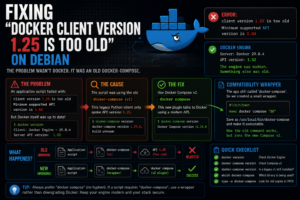

This one looked like a Docker Engine problem.
It wasn’t.
The host itself had a modern Docker installation, the daemon was running normally, and the API version was current.
But one application still refused to start with an error along the lines of:
client version 1.25 is too old

Minimum supported API version is 1.44
That was confusing because the Docker Engine itself was much newer than that.
The real culprit turned out to be an old copy of Docker Compose.
More specifically, the legacy Python-based docker-compose command was still talking to Docker using an ancient API version.
The Setup
The machine was running Debian 12 with a modern Docker Engine.
Checking the Docker version showed something in the region of:
Docker Engine: 29.0.4
API version: 1.52
So the server side was absolutely not old.
But when the application startup script ran, Docker rejected the client.
The error was effectively:
client version 1.25 is too old
That immediately raised a question.
If Docker itself supports API 1.52, why is anything trying to use 1.25?
The First Check: Docker Was Fine
The obvious place to start was:
docker version
That gives both client and server information.
The important part was that the normal Docker CLI was using a modern API.
So this:
docker ps
worked.
This:
docker images
worked.
And the Docker daemon was healthy.
That meant the problem was not:
- Docker Engine
- Docker daemon
- Docker API support
- The Debian host
Something else was making the connection.
The Hidden Old Component
The application was being started by a script that used:
docker-compose
with a hyphen.
That matters.
There are effectively two generations of Docker Compose.
The older version uses:
docker-compose
The newer Compose plugin uses:
docker compose
without the hyphen.
The old docker-compose was a separate Python application.
The newer Compose v2 is integrated into the Docker CLI.
That distinction turned out to be the whole problem.
Checking the Compose Version
Running:
docker-compose version
showed that the legacy Compose installation was still present.
Meanwhile:
docker compose version
showed the modern Compose plugin.
So the system effectively had:
Docker Engine
Modern

Docker CLI
Modern

Docker Compose v2
Modern

docker-compose v1
Ancient
The application wasn’t using the modern one.
It was explicitly calling the ancient one.
Why the API Version Was So Old
The old Python-based Compose client used an API version around:
1.25
The modern Docker Engine no longer accepted that API level.
Its minimum supported API was around:
1.44
So the failure chain was:
Application startup script
        |
        v
docker-compose
        |
        v
Legacy Compose v1
        |
        v
Docker API 1.25
        |
        X
Modern Docker Engine requires >= 1.44
That produced the misleading impression that Docker itself was outdated.
In reality, the client was.
The Obvious Fix
The first fix was to remove the old Compose installation and use Compose v2.
The modern command is:
docker compose
So instead of:
docker-compose -f docker-compose.yml up -d
the command becomes:
docker compose -f docker-compose.yml up -d
That uses the modern plugin and talks to Docker using a current API.
Problem solved.
Almost.
The Application Had Hard-Coded docker-compose
This is where things became more interesting.
The application startup script wasn’t something I wanted to rewrite extensively.
It explicitly called:
docker-compose
So even though the system had modern Compose v2 installed, the application still expected the legacy command name.
That meant simply installing the new version wasn’t enough.
The script itself still tried to execute:
docker-compose
First Attempt: A Symlink
The obvious idea was to create a symlink so that:
docker-compose
pointed to:
docker
Something along the lines of:
ln -s /usr/bin/docker /usr/local/bin/docker-compose
At first glance that looks reasonable.
If the application runs:
docker-compose
it would actually execute Docker.
But there is a subtle problem.
The argument list doesn’t magically gain the word:
compose
So the application might run:
docker-compose -f docker-compose.yml up -d
but the symlink effectively turns that into:
docker -f docker-compose.yml up -d
Docker then sees:
-f
as an option to the main Docker command.
And fails.
The resulting error looked like:
unknown shorthand flag: 'f'
That was the clue that a simple symlink wasn’t enough.
Why the Symlink Failed
The old command syntax is:
docker-compose [arguments]
The new syntax is:
docker compose [arguments]
Those are not directly interchangeable at filesystem level.
A symlink can replace:
docker-compose
with:
docker
but it cannot automatically insert:
compose
between the command and its arguments.
The difference is:
docker-compose -f file.yml up
versus:
docker compose -f file.yml up
That extra word matters.
The Better Fix: A Wrapper Script
The clean solution was to create a small compatibility wrapper.
Instead of making docker-compose a symlink, I created a script named:
docker-compose
that simply forwards everything to:
docker compose
The wrapper looked like:
#!/bin/bash

docker compose "$@"
That means when the application runs:
docker-compose -f docker-compose.yml up -d
the wrapper translates it into:
docker compose -f docker-compose.yml up -d
Exactly what we need.
Creating the Wrapper
First, remove any incorrect symlink or old binary in the replacement path.
Then create:
sudo nano /usr/local/bin/docker-compose
Add:
#!/bin/bash

exec docker compose "$@"
Save it.
Then make it executable:
sudo chmod +x /usr/local/bin/docker-compose
Now check:
which docker-compose
You want the wrapper to be found before any old copy elsewhere in the system.
Typically:
/usr/local/bin/docker-compose
comes before:
/usr/bin/docker-compose
in the PATH.
Testing the Wrapper
The first test is:
docker-compose version
Instead of invoking legacy Compose, the wrapper should effectively run:
docker compose version
and return the modern Compose v2 version.
Then try something that uses normal Compose arguments:
docker-compose -f docker-compose.yml config
If that works, the translation is behaving correctly.
Why $@ Matters
The wrapper uses:
"$@"
This means:
Pass every argument received by this script
to the new command exactly as supplied.
So:
docker-compose -f file.yml up -d
becomes:
docker compose -f file.yml up -d
without us needing to know what arguments the application will use.
That makes the wrapper compatible with most normal Compose commands.
Why exec Is Nice Here
I used:
exec docker compose "$@"
rather than simply:
docker compose "$@"
Both can work.
Using exec replaces the wrapper process with the actual Docker command.
That means:
- Cleaner process handling
- Correct exit codes
- Better signal forwarding
- Fewer unnecessary shell processes
For a compatibility shim, it is a nice fit.
Confirm Which Compose Is Actually Running
After creating the wrapper:
which docker-compose
should return the expected path.
Then:
docker-compose version
should report Compose v2 rather than the old Python implementation.
It is also useful to check:
type -a docker-compose
This shows every matching command in the PATH.
For example:
docker-compose is /usr/local/bin/docker-compose
docker-compose is /usr/bin/docker-compose
That helps identify old binaries that may still be hanging around.
Remove the Legacy Compose Package
If the old Python Compose package is no longer required, I would remove it rather than leaving two versions around.
Depending on how it was installed, that may mean:
sudo apt remove docker-compose
or removing a pip-installed version.
The exact command depends on how it got there originally.
The important thing is that:
docker-compose
should ultimately resolve to the wrapper.
Not the obsolete client.
Testing the Docker API Again
With the wrapper in place, the application startup process now became:
Application script
        |
        v
docker-compose
        |
        v
Compatibility wrapper
        |
        v
docker compose
        |
        v
Modern Docker API
        |
        v
Docker Engine
The old API 1.25 client was gone from the chain.
The startup script could continue using its original command.
And Docker stopped complaining.
The Difference Between Docker and Compose
This problem was a useful reminder that when someone says:
Docker version
that may refer to several different components.
You can have:
Docker Engine
Docker CLI
Docker Compose
Docker API
all at different versions.
A modern Docker Engine does not guarantee that every tool talking to it is modern.
That is exactly what happened here.
Useful Version Checks
When troubleshooting Docker compatibility, I now check all of these.
Docker Engine and CLI
docker version
Docker Compose v2
docker compose version
Legacy Compose
docker-compose version
Command path
which docker-compose
All matching executables
type -a docker-compose
That quickly shows whether an old binary is still getting called.
Don’t Just Downgrade Docker
One tempting fix would have been to install an older Docker Engine that still accepted API 1.25.
That would have made the legacy Compose client work.
But that would be solving the problem backwards.
The bad dependency was:
Old Compose client
not:
New Docker Engine
Downgrading the server would mean deliberately making the whole Docker platform older just to preserve one obsolete client.
Much better to fix the client.
Don’t Assume a Symlink Is Equivalent to a Command Alias
This was another useful lesson.
These look similar:
docker-compose
and:
docker compose
but they are structurally different commands.
A symlink cannot transform:
command args
into:
command subcommand args
For that, you need a wrapper.
The pattern is useful outside Docker too.
Whenever an old application expects:
old-command arguments
but the replacement requires:
new-command subcommand arguments
a compatibility wrapper can bridge the gap.
Why I Preferred the Wrapper Over Editing the Application
I could have gone into the application scripts and replaced every occurrence of:
docker-compose
with:
docker compose
But that introduces another problem.
If the application is updated later, the vendor’s script could overwrite my changes.
The wrapper allows the application to remain untouched.
From its perspective:
docker-compose
still exists.
Underneath:
docker compose
does the real work.
That’s much easier to maintain.
The Failure Chain
The initial error was:
client version 1.25 is too old
The actual chain was:
Modern Docker Engine
API 1.52
        ^
        |
Old docker-compose
API 1.25
        |
        X
Minimum API 1.44
Then the first workaround failed:
docker-compose
      |
      v
Symlink to docker
      |
      v
docker -f ...
      |
      X
unknown shorthand flag: 'f'
The final fix became:
docker-compose
      |
      v
Wrapper script
      |
      v
docker compose "$@"
      |
      v
Modern Compose v2
      |
      v
Modern Docker Engine
That worked.
A Good Troubleshooting Sequence
If you see:
client version is too old
on an otherwise modern Docker host, I would check:
1. Docker itself
docker version
2. Modern Compose
docker compose version
3. Legacy Compose
docker-compose version
4. Which binary is being called
which docker-compose
5. Search application scripts
grep -R "docker-compose" /path/to/application
If the application hard-codes the old command, decide whether to:
Update the script
or:
Provide a compatibility wrapper
The Realm Labs Takeaway
The most misleading part of this problem was that the error made Docker sound old.
It wasn’t.
The server was modern.
The command-line client was modern.
The problem was an old Compose binary hidden inside the startup path.
The useful translation of:
client version 1.25 is too old
was:
Something old is talking to your modern Docker daemon.
Find the client.
Once I found that the application was still calling legacy:
docker-compose
the problem made sense.
And when a simple symlink failed with:
unknown shorthand flag: 'f'
the wrapper script solved the final compatibility problem.
Sometimes the fix isn’t upgrading Docker.
It’s finding the ancient thing still trying to talk to it.