
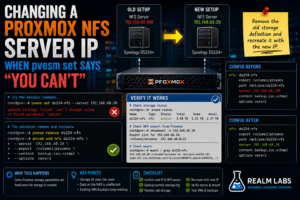

This one looked like it should take about thirty seconds.
My Synology NAS had moved to a new static IP address.
One of my Proxmox storage entries still pointed at the old address.
So I did the obvious thing:
pvesm set ds224-nfs --server 192.168.68.20
Proxmox disagreed.
Instead of updating the storage entry, it returned:
update storage failed: can't change value of fixed parameter 'server'
That was slightly annoying.
The new IP was correct.
The NFS share was still there.
The storage name was correct.
Proxmox simply would not let me change the server address.
The reason is that some Proxmox storage parameters are effectively fixed once the storage entry is created.
So the fix wasn’t to keep fighting pvesm set.
It was to remove and recreate the storage definition cleanly.
Why the NAS Address Changed
My Synology DS224+ had originally been using:
192.168.68.100
As the Realm Labs network matured, I reorganised some of the core infrastructure addresses.
The Synology moved to:
192.168.68.20
That NAS was doing quite a lot by this point:
- SMB
- NFS
- DNS
- Active Directory
- Docker
- Backup storage
So changing its IP exposed quite a few hidden references around the lab.
Proxmox was one of them.
The Existing Proxmox Storage
The Synology NFS share had already been added to Proxmox as storage.
Conceptually:
Proxmox
   |
   v
ds224-nfs
   |
   v
192.168.68.100
   |
   v
Synology NFS Export
After the NAS moved, that needed to become:
Proxmox
   |
   v
ds224-nfs
   |
   v
192.168.68.20
   |
   v
Synology NFS Export
The storage itself hadn’t fundamentally changed.
Only the server address had.
The Obvious Command
Proxmox includes the pvesm command for managing storage.
So I tried:
pvesm set ds224-nfs --server 192.168.68.20
That looked perfectly reasonable.
Instead:
update storage failed: can't change value of fixed parameter 'server'
At first I wondered whether I had used the wrong syntax.
I hadn’t.
Proxmox simply treats the NFS server parameter as fixed for an existing storage object.
Check the Existing Storage First
Before deleting anything, I wanted to see exactly how the storage was configured.
The first useful command is:
pvesm status
That shows the configured storage objects and their state.
Then:
cat /etc/pve/storage.cfg
This is the important file.
You may see something like:
nfs: ds224-nfs
        export /volume1/proxmox
        path /mnt/pve/ds224-nfs
        server 192.168.68.100
        content backup,iso,vztmpl
        options vers=3
Now I had everything needed to recreate the entry.
Why /etc/pve/storage.cfg Matters
Proxmox stores its cluster-wide storage configuration in:
/etc/pve/storage.cfg
That means the storage definition isn’t simply an ordinary Linux mount in /etc/fstab.
Proxmox manages it itself.
For each storage entry, the configuration can contain things such as:
Storage ID
Storage type
Server
Export
Path
Content types
NFS options
Before changing anything, I copied or noted those values.
Make Sure Nothing Is Using the Storage
This part matters.
If the NFS storage contains:
- Running VM disks
- Active container disks
- Mounted ISO images
- Current backups
don’t casually remove it from Proxmox without understanding the dependencies.
In my case, the storage was being used as network-backed storage rather than something I wanted to destroy.
Removing the Proxmox definition does not delete the data on the Synology.
But workloads depending on the storage obviously need it to be available.
So first:
pvesm status
Then check the guests if necessary.
For VMs:
qm list
For containers:
pct list
And inspect an important guest:
qm config <VMID>
or:
pct config <CTID>
Look for references to:
ds224-nfs
Removing the Storage Definition
Once I knew it was safe to recreate, I could remove the Proxmox storage entry.
Using:
pvesm remove ds224-nfs
This removes the storage configuration from Proxmox.
It does not go to the Synology and erase the NFS share.
That’s an important distinction.
The architecture temporarily becomes:
Proxmox
   |
   X
No storage definition

Synology
   |
   v
NFS data still exists
Confirm It Is Gone
Check:
pvesm status
The old ds224-nfs entry should no longer appear.
Also inspect:
cat /etc/pve/storage.cfg
The entry should be gone from there too.
Recreate It with the New Server Address
Now I could add the storage back using the correct server.
A typical command looks like:
pvesm add nfs ds224-nfs \
  --server 192.168.68.20 \
  --export /volume1/proxmox \
  --content backup,iso,vztmpl
If NFSv3 is required:
pvesm add nfs ds224-nfs \
  --server 192.168.68.20 \
  --export /volume1/proxmox \
  --content backup,iso,vztmpl \
  --options vers=3
The exact export and content types depend on the existing setup.
The important thing is to recreate the storage with the same settings, but with the correct server address.
Why I Kept the Same Storage ID
I reused:
ds224-nfs
rather than inventing a new name.
That matters because Proxmox guest configurations and backup jobs can reference the storage by its ID.
If a VM configuration contains something like:
ds224-nfs:...
and I recreate the storage using exactly the same ID, those references still make sense.
If instead I created:
ds224-nfs-new
I would also have to update everything that referenced the old ID.
So where possible:
Keep the storage ID
Change only what actually changed
Check the NFS Export Before Recreating
Before adding the storage back, it is worth confirming the NAS is actually exporting the expected share.
From Proxmox:
showmount -e 192.168.68.20
A healthy result might include:
/volume1/proxmox 192.168.68.0/22
That proves:
NAS reachable
NFS running
Export visible
Client subnet allowed
before Proxmox becomes involved.
Check Basic Connectivity
Also:
ping 192.168.68.20
Then, if DNS is used:
nslookup seido.order.realm
or whatever hostname is appropriate.
Again, the goal is to prove each layer separately.
The NFSv3 Detail
Realm Labs had already taught me that Synology NFS can sometimes behave much more predictably when the client explicitly uses NFSv3.
So if the existing storage configuration contained:
options vers=3
I wanted to preserve it.
This is exactly the sort of detail that’s easy to lose when recreating a storage entry from memory.
That’s why copying the old storage.cfg block first is so useful.
Verify the Recreated Storage
Once the storage was added back:
pvesm status
should show it as:
active
If it doesn’t, inspect the configuration:
cat /etc/pve/storage.cfg
and test the share manually.
You can also inspect the mounted path:
mount | grep ds224-nfs
or:
mount | grep nfs
Check the Storage Path
Proxmox normally mounts NFS storage under:
/mnt/pve/<storage-id>
So in this case:
/mnt/pve/ds224-nfs
Check it:
ls -la /mnt/pve/ds224-nfs
If the expected backup files, ISO images or other content are present, that is a very good sign.
The Data Never Moved
This is worth emphasising.
The actual NFS data on the Synology did not need moving.
The operation was:
Delete old Proxmox pointer
        |
        v
Create new Proxmox pointer
        |
        v
Same Synology data
Not:
Delete storage
        |
        v
Delete data
That’s why understanding the distinction between a storage definition and the underlying storage is so important.
Could I Just Edit storage.cfg?
Technically, the obvious question is:
Why not just edit /etc/pve/storage.cfg?
You can inspect and manage Proxmox configuration directly, but for a routine storage change I prefer using the supported management commands where practical.
The remove-and-recreate process is explicit.
It also forces me to verify that I actually know the configuration before changing it.
For a small lab, that’s preferable to casually editing cluster configuration and hoping I haven’t made a typo.
The GUI Works Too
The same idea can be done from the Proxmox web interface.
Go to:
Datacenter
   |
   v
Storage
Select the old NFS storage and record its settings.
Then remove the storage definition.
Create a new NFS storage using:
ID:
ds224-nfs

Server:
192.168.68.20

Export:
same export as before

Content:
same content types

Options:
same NFS options
Again, keeping the same storage ID is useful where other Proxmox configuration refers to it.
Why Proxmox Makes Some Parameters Fixed
At first the fixed parameter behaviour felt unnecessarily restrictive.
But there is some logic to it.
The storage entry isn’t just a label.
It represents a specific backend.
Changing fundamental properties such as the server underneath an existing storage object could potentially make a previously valid storage definition point somewhere completely different.
The remove-and-add process makes that kind of change explicit.
This Is a Good Example of Configuration vs Data
The incident also reinforced an important home-lab concept.
There are two different things here:
Configuration
and:
Data
Proxmox owns the configuration:
"ds224-nfs points here"
Synology owns the data:
"these files exist in this NFS export"
Changing one does not necessarily change the other.
That separation is useful when troubleshooting storage.
What If the Storage Contains VM Disks?
This deserves extra caution.
If a VM disk lives directly on the NFS storage, the guest depends on that storage being available.
Before removing the storage configuration, shut down or migrate affected workloads as appropriate.
For example:
qm shutdown 100
Then recreate the storage with the same ID and confirm it comes back before restarting the VM.
I wouldn’t perform this change casually on a running workload.
Check Guest References
For a VM:
qm config 100
You might see:
scsi0: ds224-nfs:100/vm-100-disk-0.qcow2
That tells you the VM depends directly on that storage ID.
Reusing:
ds224-nfs
becomes especially important.
Check Backup Jobs Too
Proxmox backup jobs can also target a specific storage ID.
So after recreating the storage, I check:
Datacenter
   |
   v
Backup
and make sure the job still points to:
ds224-nfs
If the storage ID stayed the same, there may be nothing to change.
Still worth checking.
Why I Didn’t Reboot First
When storage stops working, the classic instinct is:
Reboot Proxmox
But rebooting wouldn’t have fixed this.
The storage configuration still contained the old server address.
The machine would simply boot and try the same broken configuration again.
The problem was persistent configuration.
Not a transient state.
Useful Commands for Proxmox Storage
These are the commands I reach for most often.
List storage
pvesm status
Show storage configuration
cat /etc/pve/storage.cfg
Remove storage
pvesm remove ds224-nfs
Add NFS storage
pvesm add nfs ds224-nfs \
  --server 192.168.68.20 \
  --export /volume1/proxmox \
  --content backup
Check NFS exports
showmount -e 192.168.68.20
Check mounted NFS filesystems
mount | grep nfs
These cover most of the troubleshooting needed for a simple storage-server move.
A Better Design: DNS Instead of IPs
This problem also feeds into another recurring Realm Labs lesson.
Hard-coded IP addresses work well until something moves.
Instead of:
server 192.168.68.20
it would be nice to use a stable service name where supported and appropriate.
For example:
seido.order.realm
Then:
DNS
becomes the place where the address changes.
That can reduce the number of hidden dependencies when infrastructure is reorganised.
Whether I use names or IPs for storage depends on how much I want the storage layer to depend on DNS.
There are trade-offs either way.
Why I Still Like Static IPs for Core Storage
For something as fundamental as NFS storage, there is also a good argument for using the stable static address directly.
If internal DNS has a problem, I may still want Proxmox to reach its storage.
So:
192.168.68.20
for the NAS is not inherently a bad design.
The bigger lesson is:
If you hard-code infrastructure addresses,
document where they are used.
That is what makes future migrations manageable.
The Failure Chain
The original problem was:
Synology moved
192.168.68.100
        |
        v
192.168.68.20
but Proxmox still had:
server 192.168.68.100
Then:
pvesm set ds224-nfs --server 192.168.68.20
returned:
can't change value of fixed parameter 'server'
The fix became:
Record old storage config
        |
        v
Remove Proxmox storage definition
        |
        v
Recreate same storage ID
        |
        v
Use new server IP
        |
        v
Verify NFS storage active
Straightforward once I stopped trying to change a fixed parameter.
My Troubleshooting Checklist
If you’ve changed the IP address of an NFS server used by Proxmox:
- Confirm the NAS is reachable at the new address.
- Run
showmount -eagainst the new IP. - Run
pvesm status. - Back up or copy the relevant block from
/etc/pve/storage.cfg. - Check whether VMs or LXCs actively depend on the storage.
- Remove the old Proxmox storage definition.
- Recreate it using the same storage ID.
- Use the new server address.
- Preserve the existing export, content types and NFS options.
- Confirm the storage reports as active.
- Check
/mnt/pve/<storage-id>. - Verify affected VMs, containers and backup jobs.
The Realm Labs Takeaway
The error looked like:
can't change value of fixed parameter 'server'
which initially felt like Proxmox preventing an extremely simple change.
But the solution was equally simple once I understood how Proxmox treated the storage object.
Don’t keep trying:
pvesm set ...
for a fixed parameter.
Instead:
Remove the definition.
Recreate it correctly.
Keep the same storage ID.
Leave the actual NAS data alone.
The Synology hadn’t changed its NFS data.
Proxmox just needed to be told where that data lived now.
And after spending time tracking down old IP references across the rest of Realm Labs, this became another useful reminder:
Changing the address of core infrastructure is rarely just changing one address.