
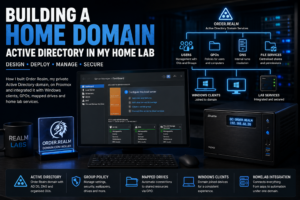

Building a home Active Directory domain was one of the bigger steps in turning Realm Labs from a collection of separate Windows PCs into something that behaves much more like a managed environment.
Originally, every computer was effectively its own island. User accounts were local, settings were configured manually, shared drives had to be mapped individually and changing something across several machines meant repeating the same work over and over again.
Active Directory changed that.
With a domain in place, user accounts, policies, mapped drives, desktop configuration and permissions can all be managed centrally.
It is probably overkill for a normal home network, but for a homelab it provides an excellent way to learn and experiment with the same concepts used in business environments.
The Realm Labs Domain
The current Realm Labs domain is:
order.realmThe domain controller is:
seido.order.realmWindows clients join the domain and use the domain controller for authentication and DNS.
The result is a proper managed Windows environment rather than a collection of unrelated PCs.
Why Build a Domain at Home?
The main reason was centralised management.
Without a domain, every Windows computer needs its own:
- local users
- passwords
- permissions
- desktop settings
- mapped drives
- software configuration
- security settings
That becomes tedious very quickly once several machines are involved.
A domain allows those settings to be controlled centrally.
For Realm Labs, that means I can configure something once and let Group Policy apply it to the appropriate users or computers.
What Active Directory Gives Me
The domain provides several useful features:
- central user accounts
- computer accounts
- Group Policy
- DNS
- organisational units
- security groups
- mapped network drives
- centralised permissions
- managed desktop configuration
- login scripts and scheduled tasks
Some of these are genuinely useful day to day.
Others are there because this is a lab and experimenting with enterprise-style Windows management is part of the point.
Domain Users
Instead of creating the same local account on several PCs, users are created once in Active Directory.
A domain user can then sign into any authorised domain-joined machine using:
ORDER\usernameor:
[email protected]The account is managed centrally, so password changes and group membership do not need to be configured separately on every computer.
Joining a Windows PC to the Domain
Before a Windows client can join the domain, DNS needs to be correct.
This is one of the most important parts of the whole setup.
The client should use the Active Directory DNS server rather than relying only on the router or a public DNS service.
For example:
DNS server: 192.168.68.20Once DNS is configured, the computer can resolve:
order.realm
seido.order.realm
The machine can then be joined to the domain through Windows System settings.
After a reboot, domain users can sign in normally.
DNS Is Critical
A surprising number of Active Directory problems are really DNS problems.
If a Windows machine cannot locate the domain controller correctly, authentication, Group Policy and other services can fail even though the domain controller itself is running perfectly.
That makes DNS one of the first things I check when a domain client behaves strangely.
Useful checks include:
ipconfig /allnslookup order.realmnslookup seido.order.realmThe client should resolve the domain using the internal DNS server.
Pointing a domain client directly at something like Google DNS can cause problems because public DNS has no knowledge of the internal Active Directory records.
Organisational Units
Organisational Units, or OUs, allow users and computers to be grouped logically.
Instead of applying every policy to the entire domain, I can target specific parts of the environment.
For example:
order.realm
│
├── Users
│   ├── Mortals
│   └── Administrators
│
└── Computers
    ├── Desktops
    ├── Laptops
    └── Lab Systems
The exact structure can evolve as the lab grows, but the principle remains the same.
OUs make Group Policy considerably easier to control.
Group Policy
Group Policy is probably the most interesting part of running a domain at home.
It allows Windows settings to be configured centrally and applied automatically.
Realm Labs uses Group Policy for things such as:
- desktop wallpapers
- lock screens
- taskbar configuration
- mapped drives
- power settings
- removing unnecessary Windows UI elements
- scripts
- account configuration
- local permissions
This means a freshly joined PC can begin configuring itself automatically rather than requiring every setting to be changed manually.
Centralised Wallpapers
One simple example is desktop wallpaper management.
Instead of manually setting the same wallpaper on each computer, Group Policy can copy or reference a centrally managed image.
The wallpaper can then be replaced centrally when required.
That makes it easy to keep domain machines visually consistent.
Realm Labs uses Mortal Kombat-inspired themes across parts of the Windows environment, so centralised wallpaper and lock-screen deployment has actually become quite useful.
Lock Screens
The same principle can be applied to lock-screen images.
A script can copy the current lock screen to a local folder such as:
C:\ProgramData\OrderRealm\LockScreensGroup Policy then points Windows at the local file.
Using a local copy is generally more reliable than making Windows retrieve the image from the network every time the lock screen is displayed.
Mapped Network Drives
The domain is also used to provide access to shared storage.
For example:
S:  Software
X:  Demo
These can be mapped automatically based on the user or group.
Instead of explaining to every user how to connect to:
\\server\shareGroup Policy can create the drive mapping during sign-in.
That also makes it easier to change the storage location later without reconfiguring every workstation manually.
Security Groups
Security groups make permissions considerably easier to manage.
Rather than granting access to individual users everywhere, access can be assigned to a group.
For example:
Demo Users
Software Users
Administrators
Users can then be added or removed from those groups as required.
The permissions remain attached to the group rather than being scattered across individual accounts.
Local Administrator Rights
One of the useful things about a domain is being able to control who has administrator rights on each computer.
Normal users do not necessarily need local administrator access.
A dedicated administrative account can be added to the local Administrators group instead.
That provides a much cleaner separation between:
normal userand:
administrative accountIt also gives me somewhere to experiment with enterprise-style privilege management without risking a production environment.
Login and Startup Scripts
Group Policy can also deploy scripts.
These can run:
- when Windows starts
- when a user signs in
- as a scheduled task
- under the SYSTEM account
I use this for tasks that are awkward or unreliable to configure using a standard policy setting.
For example, a script might copy the latest centrally managed asset to:
C:\ProgramData\OrderRealmThe policy then uses the local copy.
This gives the central management benefits of a domain while avoiding unnecessary dependency on network shares after startup.
SYSVOL
The domain controller provides the SYSVOL share, which is useful for storing scripts and files that need to be available to domain clients.
A typical path looks like:
\\order.realm\SYSVOL\order.realm\scriptsThis provides a logical location for:
- PowerShell scripts
- batch files
- configuration files
- small deployment resources
Larger files and general shared storage are better kept elsewhere, but SYSVOL works well for domain-management scripts.
Group Policy Updates
Windows automatically refreshes Group Policy periodically, but during testing I often force an update manually:
gpupdate /forceThis is useful when developing a new policy because waiting for the normal refresh cycle makes testing painfully slow.
For normal operation, however, clients should receive policies without needing this command every time.
If they do not, that usually means something else needs investigating.
Checking Applied Policies
When something does not appear to be applying correctly, gpresult is extremely useful.
For example:
gpresult /rThis shows the policies being applied to the current user and computer.
A more detailed HTML report can be created with:
gpresult /h C:\Temp\gp-report.htmlThat makes it much easier to see whether:
- the computer is in the correct OU
- the policy is linked
- security filtering is correct
- the GPO is actually being applied
The Importance of Computer and User Scope
One thing that becomes obvious quite quickly is that Group Policy has two different sides:
Computer Configuration
User Configuration
A setting placed in the wrong section may never apply, even if everything else looks correct.
Computer policies generally follow the machine.
User policies generally follow the domain account.
Understanding that distinction prevents a lot of unnecessary troubleshooting.
Policies Do Not Always Apply Immediately
One of the things I learned while building the environment is that a reboot does not automatically guarantee every user policy has refreshed.
Likewise, some policies only apply at startup or sign-in.
Others can update in the background.
When troubleshooting, it is useful to understand when the particular policy is supposed to run rather than repeatedly rebooting the machine and hoping for the best.
Active Directory and NAS Storage
The domain is also useful alongside the Synology storage environment.
Instead of treating every SMB connection as an unrelated username and password, central identities can be used to control access more consistently.
This makes the Windows domain and NAS feel like parts of the same infrastructure rather than completely separate systems.
Remote Desktop
Domain accounts can also be used with Remote Desktop.
Simply being a valid domain user does not automatically mean the account is allowed to sign in through RDP.
The user may need membership of the appropriate Remote Desktop Users group or permission granted through policy.
This is another area where a domain gives much finer control than simply making everybody a local administrator.
Building Policies Incrementally
One lesson from working with Group Policy is not to build everything at once.
It is much easier to create one policy, test it on one machine and confirm the result before applying it widely.
My normal approach is:
Create policy
     |
     v
Link to test OU
     |
     v
gpupdate /force
     |
     v
Verify result
     |
     v
Deploy more widely
That makes it much easier to identify which change caused a problem.
Do I Need Active Directory at Home?
For most households, no.
A handful of Windows PCs can be managed perfectly well using local or Microsoft accounts.
But that is not really the point of a homelab.
Active Directory provides somewhere to learn about:
- domains
- DNS
- authentication
- permissions
- Group Policy
- Windows administration
- enterprise-style management
Those skills are difficult to explore properly using a single standalone Windows PC.
What I Have Learned
The biggest lesson has been that Active Directory is not simply a user database.
DNS, Group Policy, permissions, networking and Windows configuration are all tightly connected.
A problem that appears to be:
Group Policy isn't workingmay actually be:
DNS is wrongA drive mapping failure might actually be:
share permissionsA login issue may actually be:
the computer cannot locate the domain controllerWorking through those problems in a real environment has been much more useful than simply reading about how Active Directory is supposed to work.
The Result
If you want to take the domain build further, the next useful reads are building the Samba Active Directory domain controller on Proxmox and deploying applications with Group Policy.
The Order Realm domain has become part of the wider Realm Labs infrastructure.
Windows systems can be joined to the domain, users are managed centrally and Group Policy handles much of the configuration that would otherwise need to be repeated manually.
It also gives me a safe environment for experimenting with Active Directory, DNS, Windows administration and deployment techniques.
For a normal home network it is unnecessary complexity.
For a homelab, that complexity is exactly what makes it useful.