

Some of the best home lab problems are the ones that look completely ridiculous once you finally understand what happened.
This was one of them.
During the earlier versions of my Raspberry Pi TARDIS project, Node-RED was responsible for triggering effects on the Pi.
That included:
- GPIO lighting
- Python scripts
- Timed effects
- Audio playback
One of those audio files was:
cloistr.wav
At some point during the setup, Node-RED ended up trying to treat the WAV file as though it were something Python should execute.
Predictably, Python wasn’t impressed.
What followed was a useful lesson in Node-RED’s Exec node, Linux paths, working directories and why it’s always worth testing the exact command manually before blaming the automation platform.
The TARDIS Setup
The early TARDIS architecture was much more self-contained than it is today.
The Raspberry Pi handled almost everything:
Raspberry Pi
    |
    +-- Node-RED
    +-- GPIO
    +-- Python scripts
    +-- Audio
    +-- Speakers
    +-- TARDIS hardware
Node-RED would trigger effects by running commands locally on the Pi.
For lighting effects, that might mean:
python3 /home/pi/scripts/FastStrobe.py
For audio, the idea was simply to play a WAV file.
Something like:
aplay /home/pi/audio/cloistr.wav
Simple enough.
Until the wrong command ended up in the Exec node.
The Symptom
Instead of playing the sound, Node-RED threw an error.
The audio didn’t start.
The flow appeared to execute, but something underneath was failing.
At first, this looked like one of several possible problems:
Node-RED permissions
Audio device
Wrong file path
Missing WAV file
Python error
Exec node configuration
The quickest way to narrow that down was to stop troubleshooting inside Node-RED.
Test the Command Manually
This has become one of my favourite Node-RED troubleshooting rules.
If an Exec node doesn’t work:
Copy the exact command
then run it manually over SSH.
So I connected to the Pi and tested the command from the terminal.
That immediately exposes problems that Node-RED otherwise hides behind a fairly generic failure.
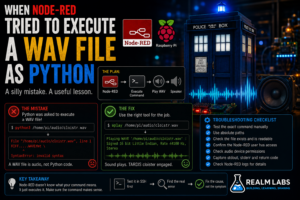
The Mistake
Somewhere in the flow, the execution had effectively become something resembling:
python3 /path/to/cloistr.wav
That makes no sense once you look at it directly.
A WAV file is audio data.
Python expects source code.
So the real execution path had become:
Node-RED
    |
    v
Python
    |
    v
cloistr.wav
    |
    X
This is not Python code
The solution wasn’t to repair Python.
It was to stop asking Python to play an audio file.
Use the Right Program for the File
On Raspberry Pi OS, one of the simplest ways to play a WAV file is:
aplay
So the correct command was closer to:
aplay /home/pi/audio/cloistr.wav
The chain then becomes:
Node-RED
    |
    v
aplay
    |
    v
WAV file
    |
    v
Audio device
    |
    v
Speaker
Much better.
Why This Kind of Error Happens in Node-RED
The Exec node is very flexible.
It can run:
- Shell commands
- Python
- Bash scripts
- System utilities
- Audio players
- Custom binaries
But Node-RED doesn’t really know what the command means.
It just executes whatever you give it.
If the command is:
python3 something
Node-RED doesn’t inspect something and decide whether it’s Python.
It passes the command to the operating system.
That means a syntactically valid but logically ridiculous command can still be executed.
Absolute Paths Matter
Another issue I encountered while working with Exec nodes was paths.
This:
aplay cloistr.wav
might work when you’re manually sitting inside:
/home/pi/audio
But Node-RED may have a completely different working directory.
So the file isn’t found.
Using the full path removes that ambiguity:
aplay /home/pi/audio/cloistr.wav
Likewise:
python3 /home/pi/scripts/FastStrobe.py
is much safer than:
python3 FastStrobe.py
The rule became:
If Node-RED is executing it, use the absolute path.
Check That the File Actually Exists
Before blaming permissions or Node-RED:
ls -l /home/pi/audio/cloistr.wav
If the file doesn’t exist at that exact path, nothing else matters.
You can also use:
file /home/pi/audio/cloistr.wav
to check that Linux recognises it as audio.
For example:
RIFF (little-endian) data, WAVE audio
That confirms you’re actually dealing with the file you think you are.
Test aplay Directly
The next check was simply:
aplay /home/pi/audio/cloistr.wav
If the sound plays over SSH, then:
Audio file       OK
Audio device     OK
aplay            OK
File permissions OK
At that point, the problem is probably how Node-RED is invoking the command.
This is why manual testing is so valuable.
Node-RED Runs as Its Own User
A command that works for your SSH account doesn’t always work for Node-RED.
For example, I might log in as:
pi
while Node-RED runs as:
nodered
or another service user.
That affects:
- File permissions
- GPIO access
- Audio access
- Environment variables
- Home directories
So if a command works manually but fails from Node-RED, check which user Node-RED is running as.
For example:
ps aux | grep node-red
or:
systemctl status nodered
depending on how it was installed.
File Permissions
Check the WAV file:
ls -l /home/pi/audio/cloistr.wav
You might see something like:
-rw-r--r-- 1 pi pi 428391 cloistr.wav
The important part is whether the Node-RED user can read the file.
For playback, it doesn’t need to modify the WAV.
It just needs read access.
Directory Permissions Matter Too
Even if the file itself is readable, Node-RED also needs permission to traverse every parent directory.
For example:
/home
/home/pi
/home/pi/audio
If /home/pi is locked down too tightly, the file can appear readable but still be inaccessible to another user.
You can inspect each part with:
namei -l /home/pi/audio/cloistr.wav
That’s an extremely useful Linux command for permission problems involving long paths.
Audio Permissions
The next possible problem is access to the audio device.
On Linux, audio access can depend on group membership.
Check:
groups
for the account running Node-RED.
There may be an:
audio
group involved.
If necessary, a service user can be added with:
sudo usermod -aG audio nodered
followed by restarting the service.
The exact configuration depends on how audio is provided on the system.
Don’t Change Everything at Once
One of the easiest ways to make a simple problem harder is:
Change Exec command
Change permissions
Change audio settings
Move file
Install new player
Restart Node-RED
all at once.
Then when it starts working, you don’t know what fixed it.
The better sequence is:
1. Does the file exist?
2. Does the command work manually?
3. Does it work as the Node-RED user?
4. Does Node-RED execute the exact same command?
One layer at a time.
Capturing the Exec Output
Node-RED’s Exec node provides multiple outputs.
Depending on the configuration, these can include:
stdout
stderr
return code
Connecting Debug nodes to all of them is extremely useful while troubleshooting.
Instead of:
Something failed
you might suddenly see:
python3: can't open file ...
or:
aplay: audio open error ...
or:
Permission denied
That immediately makes the problem less mysterious.
The Generic common.notification.error
At one point the flow also surfaced an unhelpful Node-RED message along the lines of:
common.notification.error
That didn’t tell me much.
It looked like a Node-RED problem.
But the useful error was actually underneath the node.
This is another good lesson:
UI error message
!=
root cause
When Node-RED only tells you something failed, go looking for the actual process output.
Check the Node-RED Logs
If the Debug node isn’t enough:
node-red-log
can be extremely useful on a Raspberry Pi installation.
Depending on how Node-RED is installed, you can also use:
journalctl -u nodered
or:
journalctl -u nodered -f
to watch the logs live.
Then trigger the flow and see what appears.
Python Scripts Had the Same Path Problem
The lesson carried over to the GPIO scripts.
Instead of:
python3 FastStrobe.py
I moved towards:
python3 /home/pi/scripts/FastStrobe.py
Then Node-RED didn’t care what its current working directory happened to be.
This became especially important as the number of scripts increased.
Stop Commands Need Just as Much Care
Some of the TARDIS effects launched long-running Python processes.
That meant I also needed a way to stop them.
For example:
pkill -f FastStrobe.py
Again, testing this manually was essential before putting it into Node-RED.
The control model became:
Start:
python3 /home/pi/scripts/FastStrobe.py

Stop:
pkill -f FastStrobe.py
Simple and predictable.
Audio and Lighting Became Separate Actions
Originally, it was tempting to bundle everything together in one script.
But keeping them separate made Node-RED much easier to understand.
For example:
Take-Off Sequence
       |
       +--> Start light effect
       |
       +--> Play sound
       |
       +--> Delay
       |
       +--> Stop effect
Each action can be tested independently.
If the audio fails, the lighting doesn’t need rebuilding.
Node-RED Is an Orchestrator
This was probably the bigger architectural lesson.
Node-RED didn’t need to contain all the implementation logic.
It just needed to orchestrate things.
For example:
Node-RED decides:
"Play cloister sound"
Linux decides:
Use aplay to play the WAV.
Python decides:
How to drive the GPIO effect.
Each tool does the thing it is good at.
This Eventually Led to MQTT
Later, I moved away from having the central Node-RED instance execute these commands directly.
The Raspberry Pi became a remote hardware controller.
Instead of:
Node-RED
   |
   v
aplay
the architecture became:
Central Node-RED
      |
      v
MQTT
      |
      v
Pi Agent
      |
      v
aplay
But the old troubleshooting lesson still applies.
The Pi agent ultimately has to run a real command.
So that command should still be tested locally first.
My Troubleshooting Rule for Exec Nodes
Whenever a Node-RED Exec node misbehaves, I now follow this sequence.
1. Copy the exact command
Don’t approximate it.
Copy what the node is actually trying to run.
2. SSH into the machine
Then paste the command.
3. Use absolute paths
Instead of:
aplay sound.wav
use:
aplay /home/pi/audio/sound.wav
4. Check the file
ls -l /home/pi/audio/sound.wav
5. Check the relevant user
Make sure the Node-RED service account can access it.
6. Check stderr
Attach a Debug node to the error output.
7. Check the service logs
journalctl -u nodered
Only once those checks pass do I start changing the flow itself.
What the Problem Looked Like
The original failure effectively looked like:
Node-RED
   |
   v
Execute audio effect
   |
   X
Error
But underneath:
Node-RED
   |
   v
python3 cloistr.wav
   |
   v
Python tries to interpret WAV binary data
   |
   X
Not going to happen
The corrected version became:
Node-RED
   |
   v
aplay /home/pi/audio/cloistr.wav
   |
   v
ALSA
   |
   v
Speaker
   |
   v
TARDIS sound
Much more sensible.
Why This Is Still Worth Documenting
This wasn’t the most complicated problem I’ve solved in Realm Labs.
But it’s exactly the kind of mistake that can waste a surprising amount of time when you’re building something.
Especially when you’re combining:
- Node-RED
- Python
- Linux
- GPIO
- Audio
- Multiple scripts
The error happens at one layer and appears somewhere completely different.
That is a recurring theme in home automation.
The Realm Labs Takeaway
The lesson wasn’t really:
Don't execute WAV files with Python.
Hopefully that part is fairly obvious.
The useful lesson was:
When an automation platform runs an external command,
test the command outside the automation platform first.
If this works:
aplay /home/pi/audio/cloistr.wav
from a terminal, but fails in Node-RED, you know where to investigate next.
If it doesn’t even work from the terminal, Node-RED isn’t the problem.
That simple separation has saved me a lot of troubleshooting time since.
And as for the original mistake?
Python never did learn to play cloistr.wav.
I eventually gave the job to an audio player instead.