

What started as an attempt to improve unreliable ISP Wi-Fi has gradually turned into the network backbone for the whole of Realm Labs.
The original setup was fairly typical: a Virgin Media Hub providing routing and wireless coverage for the house. As more devices appeared, along with smart home equipment, servers, consoles and eventually an entire homelab, it became obvious that asking one ISP router to handle everything was no longer going to work.
The first upgrade was a TP-Link Deco mesh using M5 units. That eventually evolved into the Wi-Fi 6 Deco X55 system used today.
But the Decos are only one part of the network.
Behind them is structured Ethernet running between the house, garage and outdoor bar, managed switches, a Synology NAS, a Proxmox virtualisation host and a growing collection of self-hosted infrastructure.
The result is effectively a small multi-zone network built around one simple principle:
Use Ethernet wherever possible and leave Wi-Fi for devices that actually need it.
The Network Today
The network covers four main areas:
- Main house
- Office and games room
- Garage and Realm Labs rack
- Outdoor bar and garden
A further Deco upstairs operates wirelessly where running Ethernet was impractical.
The Virgin Media Hub remains at the edge of the network but operates purely in Modem Mode.
That removes its routing and Wi-Fi responsibilities and hands control of the network to the main TP-Link Deco X55.
The topology below shows the important distinction between the network edge, the Deco routing layer and the wired garage core. It is not just a list of equipment: each layer has a specific job.
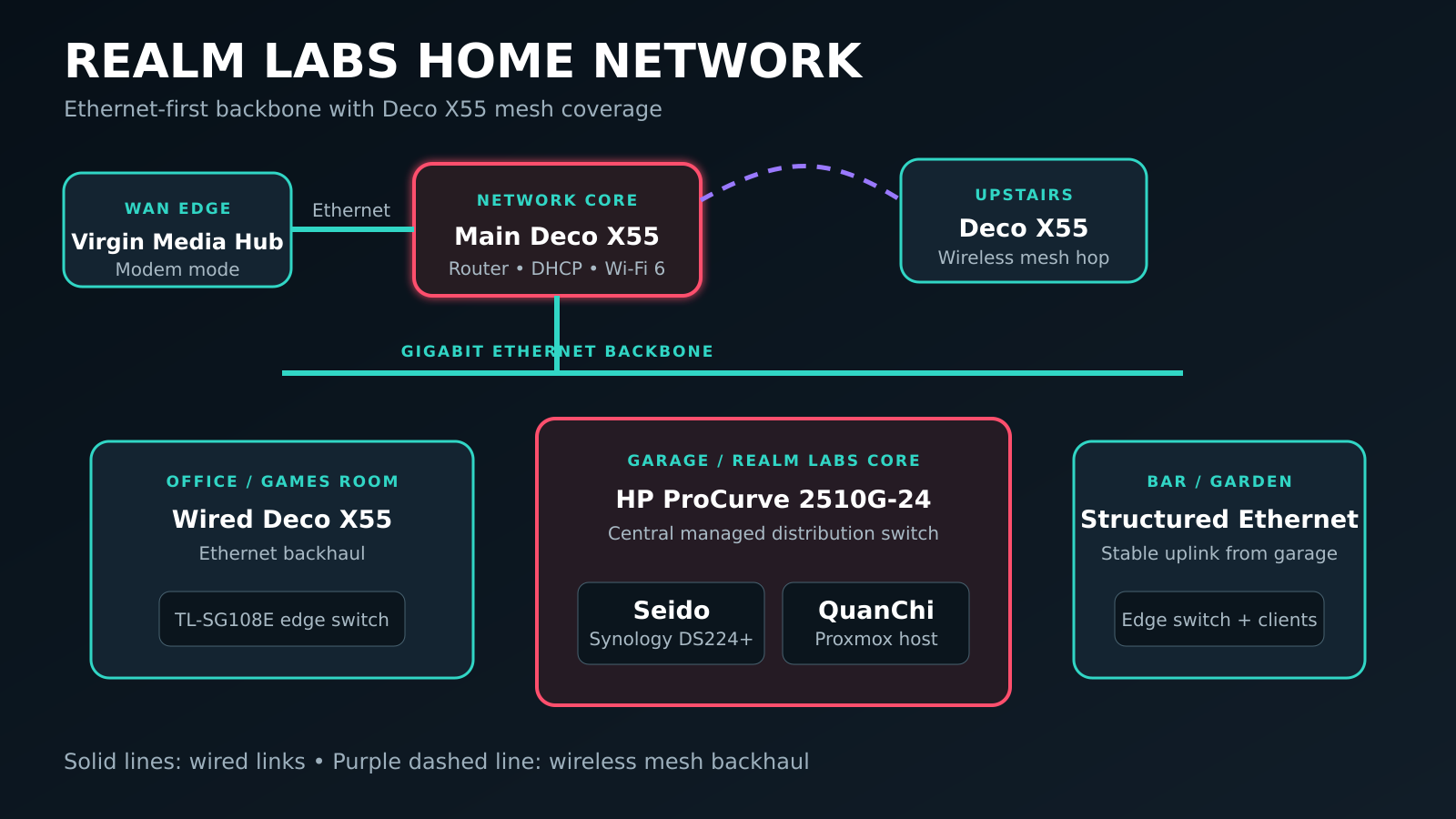
| Area | Main equipment | Primary role |
|---|---|---|
| Network edge | Virgin Media Hub | Internet connection in Modem Mode |
| Main house | Primary Deco X55 | Routing, DHCP and Wi-Fi 6 |
| Office / games room | Wired Deco X55 and TL-SG108E | Ethernet backhaul and local wired clients |
| Garage | HP ProCurve 2510G-24 | Central managed Ethernet distribution |
| Infrastructure | Seido and QuanChi | Synology storage, domain services and Proxmox compute |
| Bar / garden | Structured Ethernet and edge switching | Stable extension of the main LAN |
There are additional TP-Link Easy Smart switches at the edges of the network where several devices need to share a single structured Ethernet run.
Main House Core
The Virgin Media Hub is configured in Modem Mode.
From there, the connection passes directly into the primary Deco X55.
The Deco handles:
- Routing
- DHCP for the main LAN
- Wireless networking
- Mesh coordination
- Internet access for the rest of the network
One wired connection runs towards the office and games room while another feeds the garage infrastructure.
This means traffic heading towards the homelab does not need to depend on a wireless mesh hop.
Office and Games Room
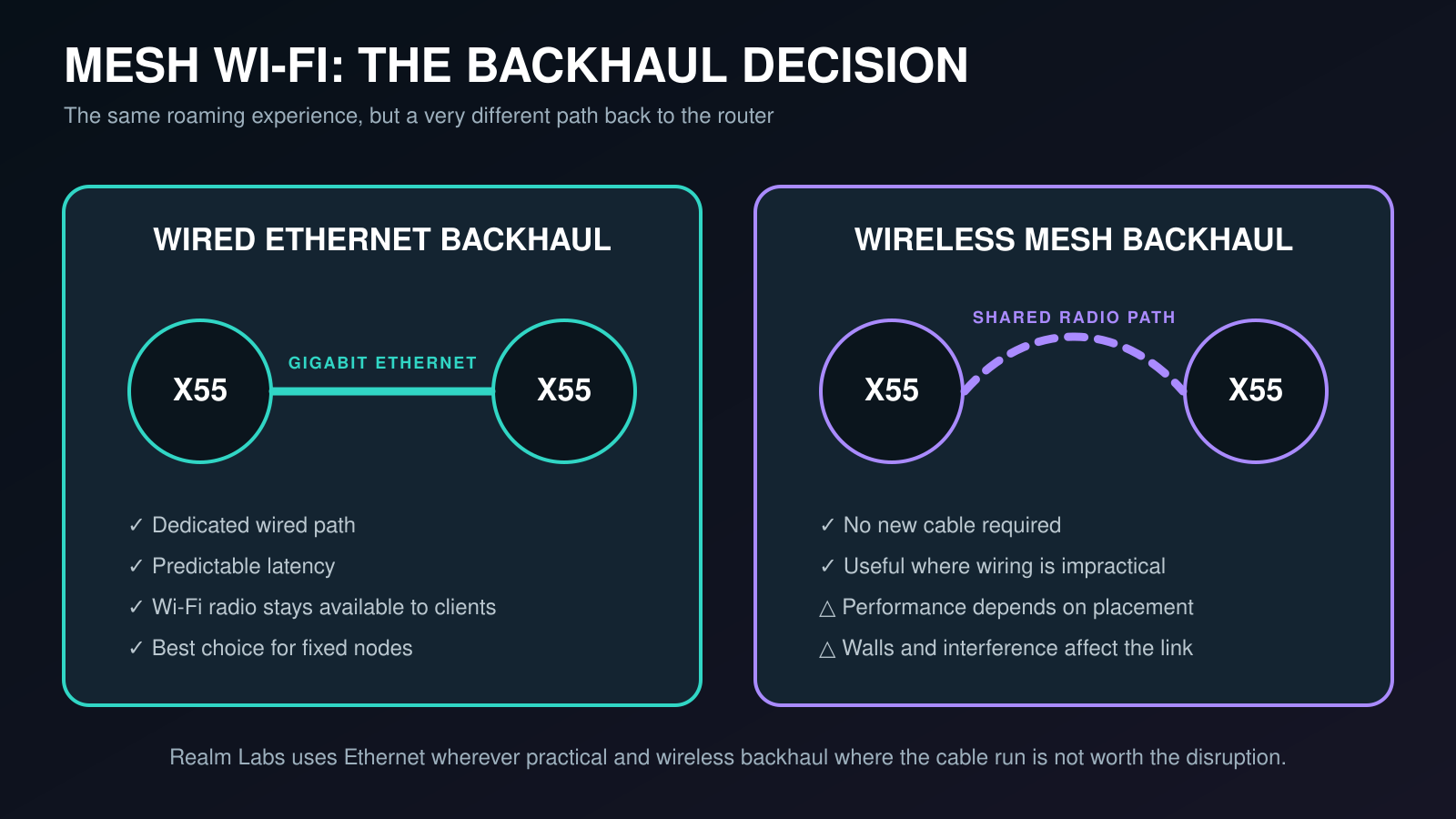
The office contains another Deco X55 connected using Ethernet backhaul.
A TP-Link TL-SG108E Easy Smart switch provides additional wired connectivity for equipment in this area.
Depending on what is currently connected, this includes devices such as:
- Gaming PC
- Xbox
- Docking station
- Raspberry Pi equipment
- Other lab hardware
The important part is that the Deco itself is wired.
Mesh systems work perfectly well using wireless backhaul, but a wired connection removes one of the biggest variables affecting performance.
The office therefore gets the roaming benefits of mesh Wi-Fi while its connection back to the network remains Gigabit Ethernet. TP-Link’s own Deco placement guidance also notes that Ethernet backhaul gives more flexibility because nodes no longer need to relay their connection wirelessly.
The Garage: Realm Labs Network Core
The garage has evolved into the real infrastructure centre of Realm Labs.
Originally this role was handled by an HP ProCurve 2810-24G.
That switch has since been replaced by an HP ProCurve 2510G-24.
The 2510G now acts as the central Ethernet distribution switch for much of the property.
Connected to it are the major Realm Labs systems, including:
- Synology DS224+ NAS
- QuanChi Proxmox host
- Garage Deco X55
- Structured Ethernet runs
- House network returns
- Outdoor bar uplink
- Monitoring infrastructure
- Various lab devices
The garage therefore acts less like another room on the home network and more like a small server room.
Synology: Seido
The Synology DS224+ has become much more than network storage.
Known within Realm Labs as Seido, it provides centralised storage while also supporting a considerable amount of the lab infrastructure. I cover that role in more depth in Building the Storage Backbone of Realm Labs.
Among the services associated with it are:
- Shared storage
- Docker workloads
- Website data
- Backups
- Application storage
- Windows domain infrastructure
- DNS
- Internal services
The local Active Directory domain is:
order.realm
with Seido providing the central domain infrastructure.
This allows Windows systems around the lab to be centrally managed rather than each machine existing as an isolated standalone installation.
Group Policy is now used for things such as:
- Desktop configuration
- Lock screens
- Mapped drives
- User configuration
- Security settings
- Account customisation
- Machine configuration
It is slightly excessive for a home network.
Which is precisely why it belongs in Realm Labs.
Proxmox: QuanChi
Alongside Seido sits QuanChi, the Realm Labs Proxmox VE host. Its virtualisation role is documented separately in Proxmox VE: The Infrastructure Foundation for Realm Labs.
Rather than installing individual applications directly onto physical machines, Proxmox provides a virtualised environment for infrastructure and experimental workloads.
Services running within the wider environment include things such as:
- Mosquitto MQTT
- InfluxDB
- Grafana
- Telegraf
- Uptime Kuma
- Homepage
- SNMP monitoring
- qBittorrent
- Other test containers and services
This keeps infrastructure modular.
A service can be created, tested, backed up, rebuilt or removed without affecting the underlying network.
The combination of Synology storage and Proxmox compute has effectively become the core platform underneath Realm Labs.
Monitoring the Network
As the network grew, simply knowing that devices were switched on was no longer particularly useful.
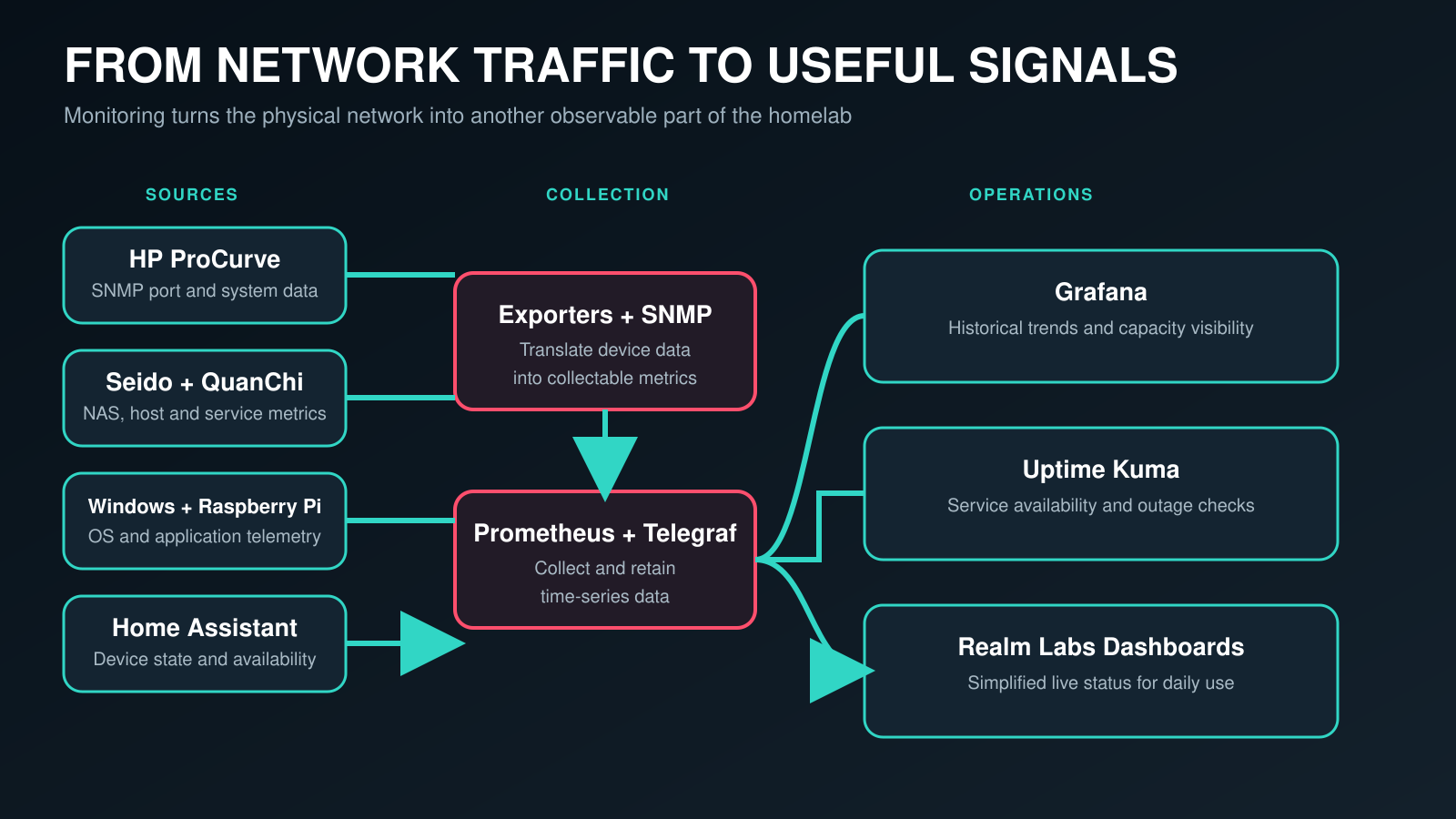
Monitoring was added across the infrastructure using several different sources.
Metrics now come from systems including:
- Proxmox
- Synology
- Raspberry Pi
- Windows
- Home Assistant
- HP ProCurve
- Prometheus-compatible exporters
Grafana provides the main historical view of the environment, while custom Realm Labs dashboards provide simplified real-time displays.
The HP ProCurve itself is monitored using SNMP, allowing information such as port state, CPU utilisation and memory usage to be visualised.
That means the physical network has effectively become another monitored component of the homelab rather than an invisible layer underneath it. The collection and dashboard stack is covered in the related guide to centralised monitoring with Prometheus and Grafana.
Structured Ethernet Around the Property
One of the most useful decisions in the entire build was running physical Ethernet.
The garage switch feeds multiple structured RJ45 points around the property.
These connections handle devices that benefit from consistent bandwidth or low latency.
Examples include:
- Deco access points
- PCs
- Servers
- Sky equipment
- Consoles
- Smart switches
- The outdoor bar
- Lab equipment
A dedicated return connection also provides wired networking for the main Sky Q equipment inside the house.
This arrangement keeps local traffic on copper wherever possible and dramatically reduces the amount of work being performed by the wireless network.
The Outdoor Bar
The outdoor bar is connected back to the garage using a long exterior-grade Cat6 Ethernet run.
Rather than running separate cables across the garden for every device, the single backbone terminates into a TP-Link TL-SG105E Easy Smart switch.
From there the connection is distributed to equipment including:
- Deco X55
- Sky Q Mini
- Arcade machine
- Other bar equipment
The Deco provides Wi-Fi coverage for both the bar and a large part of the garden.
Because its backhaul is wired all the way to the main network, devices outside still effectively connect back to the network over Ethernet rather than relying on multiple wireless mesh hops.
The Upstairs Wireless Node
Not every part of the property warranted pulling Ethernet through walls.
An additional Deco upstairs therefore operates using traditional wireless mesh backhaul.
This provides coverage in the bedroom and supports nearby equipment including a Sky Q Mini.
It is one of the few sections of the network intentionally left wireless.
The difference is that wireless backhaul is now the exception rather than the foundation of the network.
TP-Link Easy Smart Switches and Loop Detection
One interesting problem appeared after introducing Ethernet backhaul between the Deco nodes.
Ports on the TP-Link Easy Smart switches would occasionally begin flashing and devices connected through them would drop offline.
The culprit was Loop Prevention.
Normally this feature is extremely useful.
If two switch ports are accidentally connected together, Ethernet frames can circulate continuously and create a broadcast storm. Loop detection attempts to identify this behaviour and disable the offending connection.
The problem was that communication between the Deco mesh nodes could occasionally trigger false loop detections on the TP-Link switches.
There was no physical network loop at all.
The switches simply believed there was.
The Fix
On the affected TP-Link Easy Smart switches:
- Open the switch management interface.
- Navigate to the Loop Prevention settings.
- Disable Loop Prevention.
- Apply the configuration.
After doing this, the random port shutdowns disappeared.
It remains one of those obscure network problems that is extremely confusing until you know what is causing it.
The Outworld VLAN Experiment
An earlier version of the network used a dedicated VLAN called Outworld to isolate the arcade machine.
The goal was to allow the cabinet to access local resources without giving it unrestricted Internet access.
It was a useful experiment and also provided an opportunity to explore VLAN tagging on the HP ProCurve.
The network later evolved beyond that configuration.
The arcade machine was upgraded to Windows Pro and joined to the order.realm Active Directory domain.
Centralised policies could then be applied using Group Policy, while the machine could authenticate properly against network resources.
The Outworld VLAN therefore became more of an important stage in the development of the network than the final architecture.
That is fairly typical of Realm Labs.
A solution gets built to solve one problem, teaches me something useful, and is eventually replaced by something better.
Why Use an Enterprise Switch at Home?
An HP ProCurve 2510G-24 is considerably more switch than most homes require.
That is exactly what makes it useful here.
The switch provides:
- 24 Gigabit Ethernet ports
- Managed switching
- VLAN support
- SNMP monitoring
- Port statistics
- Centralised network distribution
- Plenty of capacity for future experiments
More importantly, it gives the physical network a proper central point.
Instead of daisy-chaining small unmanaged switches throughout the property, major cable runs return to the garage wherever practical.
Edge switches are then only used where they make sense.
Why This Architecture Works
The network has grown considerably since the original Deco installation, but the underlying design remains surprisingly simple.
The Deco system handles routing and wireless access.
The HP ProCurve handles the physical wired backbone.
Seido provides storage and core infrastructure.
QuanChi provides virtualised compute.
Smaller managed switches distribute connectivity at the edges.
Ethernet carries anything that does not need to move.
Wi-Fi handles everything else.
That separation has made the network both reliable and easy to expand.
Adding another server, access point, Raspberry Pi or experimental service rarely requires redesigning the network.
It generally just means finding another switch port.
Current Realm Labs Network
                    INTERNET
                        │
                Virgin Media Hub
                   Modem Mode
                        │
                 TP-Link Deco X55
                  Main Router
                        │
            ┌───────────┴───────────┐
            │                       │
      HOUSE / OFFICE            GARAGE CORE
            │                       │
       TL-SG108E             HP ProCurve
            │                  2510G-24
      Deco X55                    │
      PCs / Xbox        ┌─────────┼──────────┐
                        │         │          │
                     Seido     QuanChi    Deco X55
                    DS224+     Proxmox     Garage
                        │
              Storage / Docker /
               order.realm / DNS
                        │
                        ├──── Structured Ethernet
                        │
                        ├──── Sky Q return
                        │
                        └──── Exterior Cat6
                                  │
                             Outdoor Bar
                                  │
                              TL-SG105E
                           ┌──────┼──────┐
                           │      │      │
                         Deco   Sky Q  Arcade
                          X55    Mini   Machine
                           │
                       Garden Wi-Fi
It is probably a little excessive for browsing the web and watching Netflix.
But as the foundation for Realm Labs, it has become one of the most important projects in the entire setup.
And unlike the original ISP router that started all of this, there are still plenty of unused switch ports left for whatever ridiculous idea comes next.