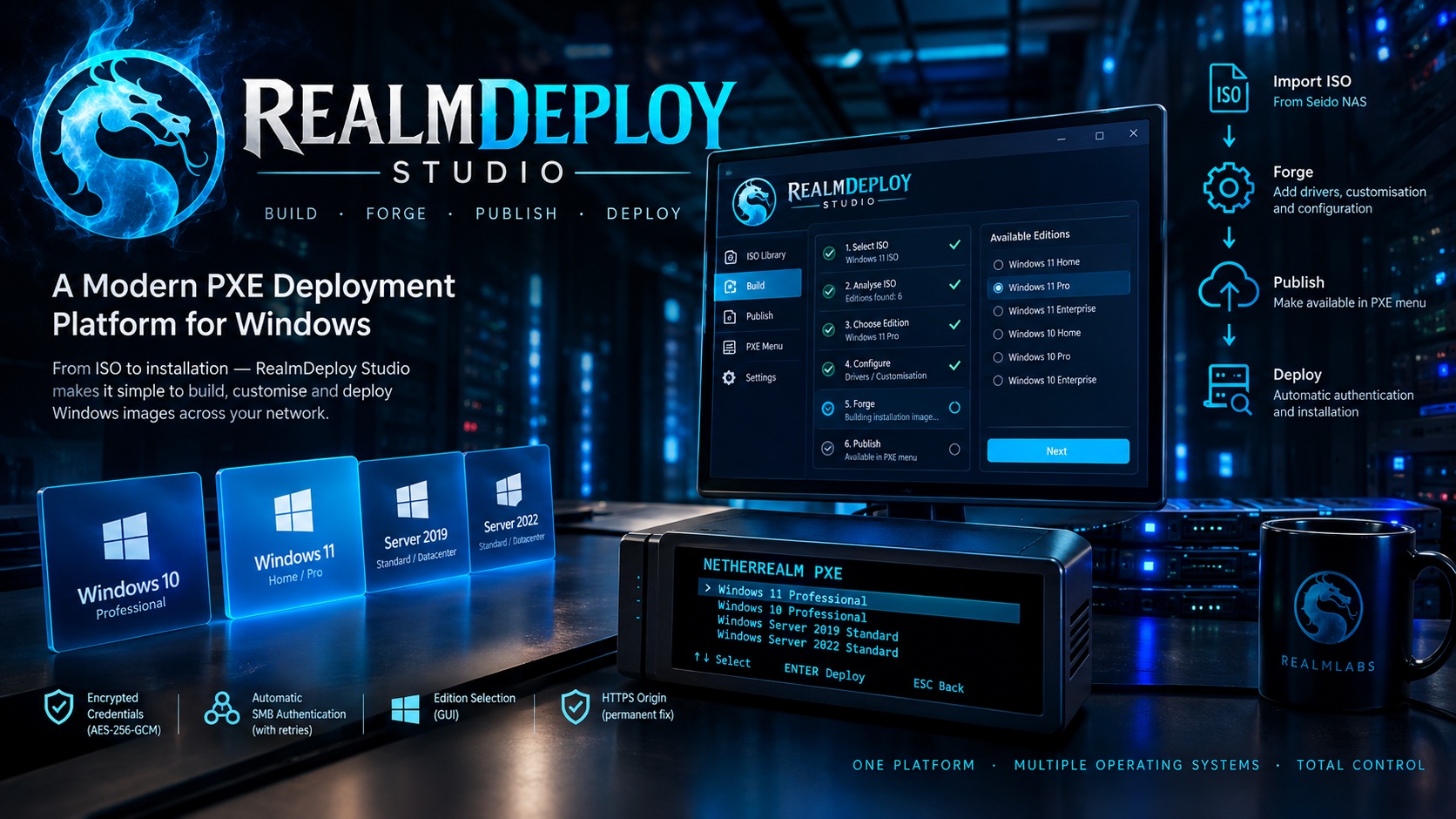

Windows 10 and Windows 11 case study and development diary — created by Paul Huckle. Windows 11 Home and Pro have been validated on virtual and physical hardware, and Windows 10 Pro has now passed automated deployment testing on Hyper-V.
Why RealmDeploy Studio?
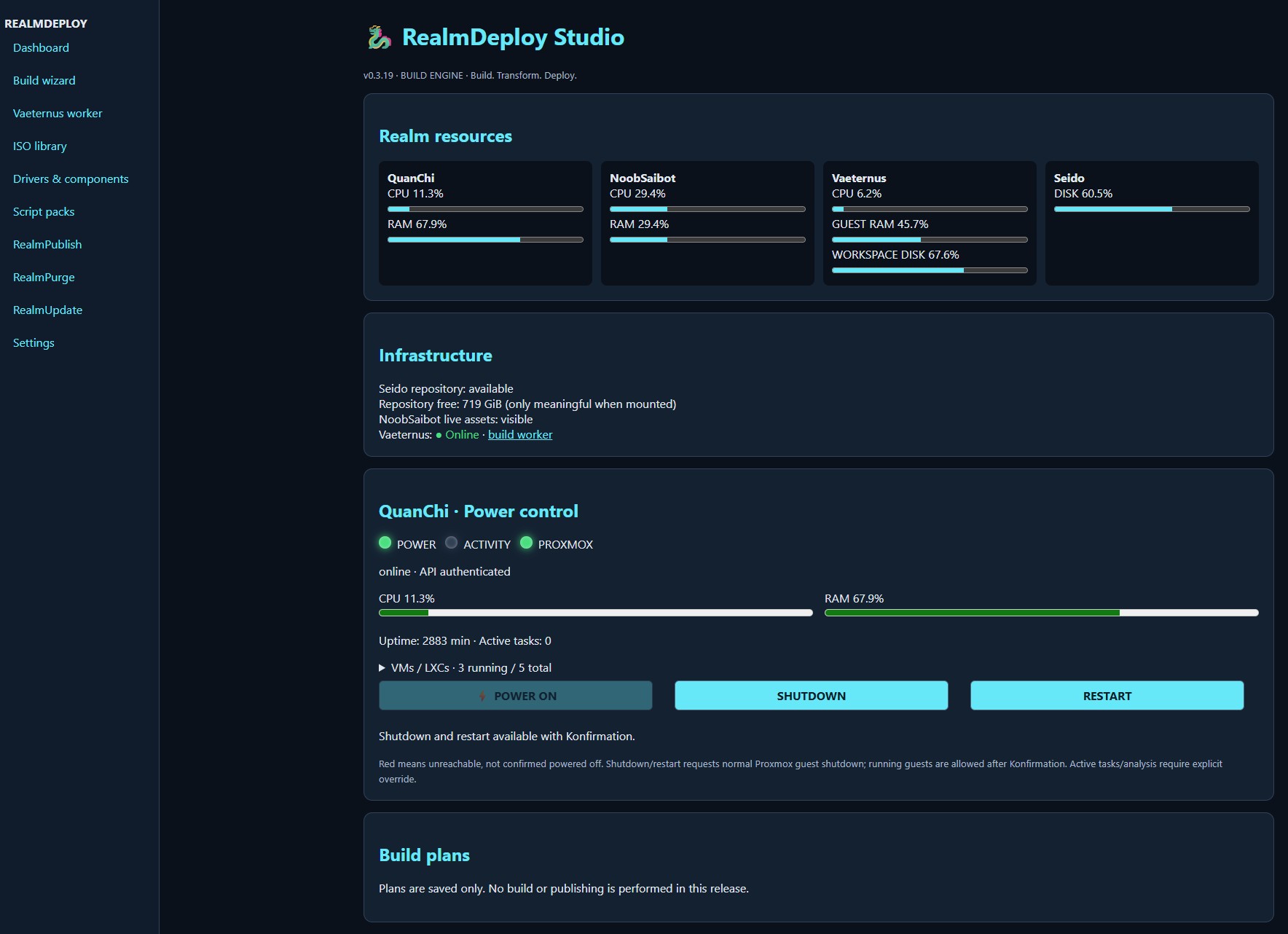
After building a Raspberry Pi PXE environment, I found myself repeatedly switching between PowerShell, DISM, SSH and network shares. The goal became a single web interface for preparing, validating and eventually publishing Windows deployment images. Not because I needed another project, but because I could.
A personal touch: Mortal Kombat and the four realms
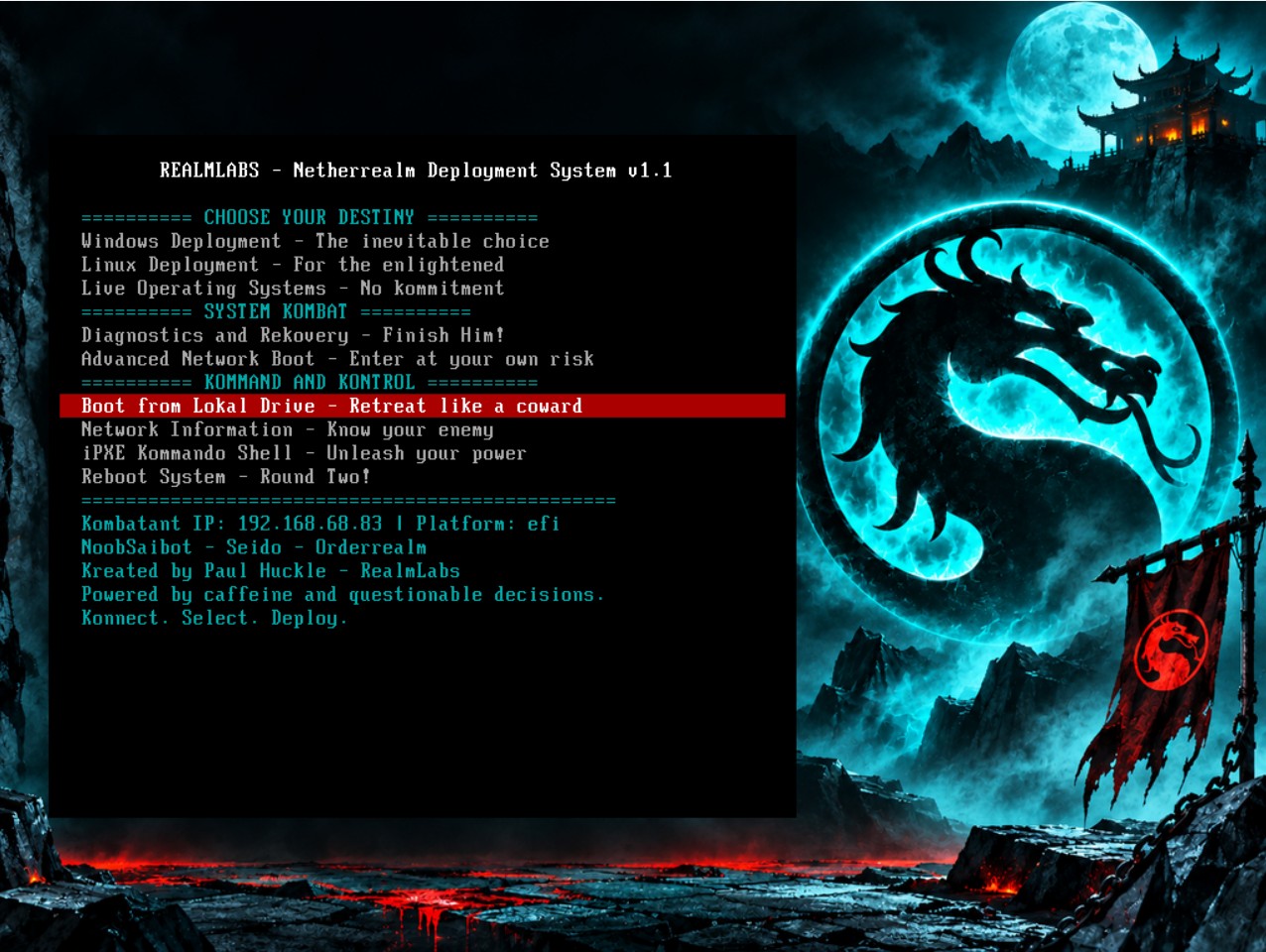
Mortal Kombat is a personal favourite of mine, so I chose to theme my home lab around its characters and realms. That is why my computers and servers have names such as QuanChi, NoobSaibot, Vaeternus and Seido. I carried the same inspiration into my custom Netherrealm PXE boot interface, including the deliberate K spellings and the familiar “FINISH HIM?” and “FLAWLESS VICTORY” messages. The theme is my own personal choice, not a technical requirement or an official affiliation with the franchise.
- NoobSaibot: Raspberry Pi orchestration, web interface and PXE.
- QuanChi: Proxmox hypervisor and power management.
- Vaeternus: Windows build worker.
- Seido: central ISO and deployment repository.
v0.1–v0.2: Building the foundations
The initial Studio introduced a repository browser and web interface. Proxmox integration followed, with power controls, CPU and memory monitoring and guest status. An upgrade issue revealed that copying application files was not enough: the Docker image also needed rebuilding. Version verification became part of the upgrade process.
v0.3.0: Bringing Windows into the loop
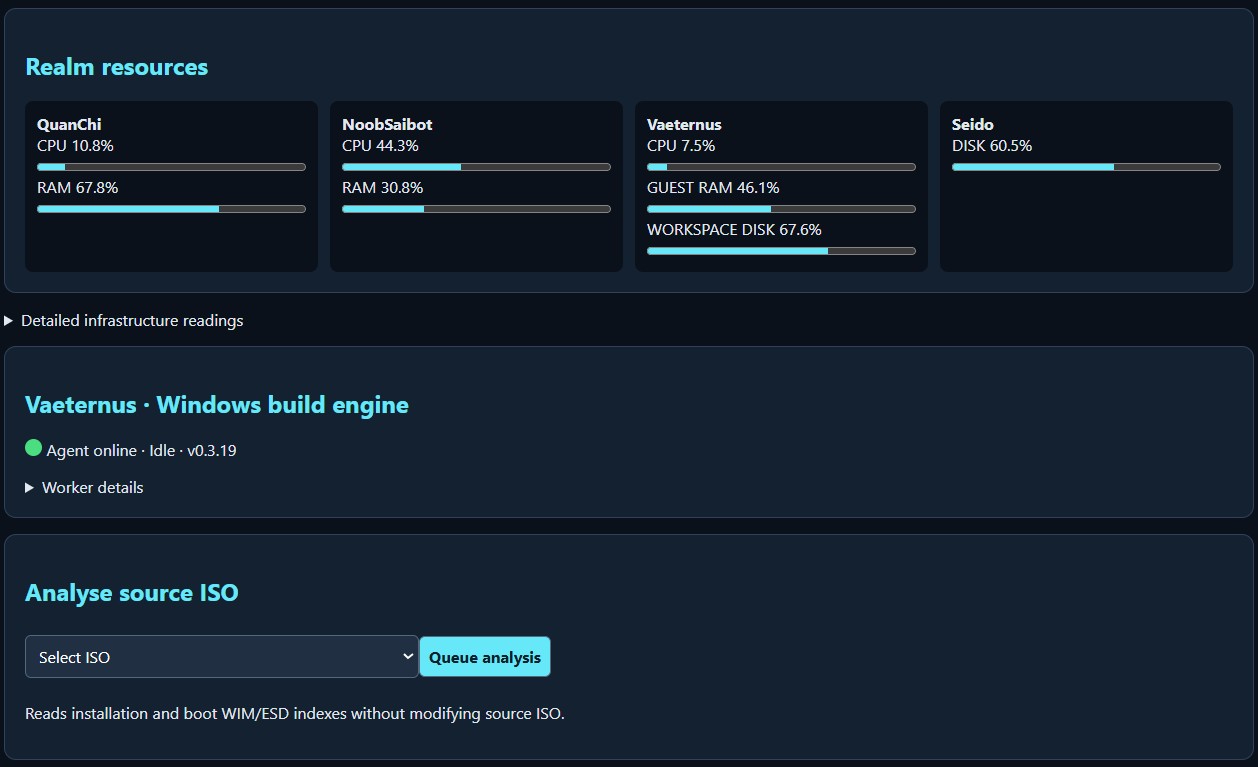
A PowerShell worker on Vaeternus polls Studio for ISO analysis jobs. It reads the ISO library on Seido, copies media to a Windows workspace, calculates SHA-256 and inspects installation and boot images using Windows tooling. The first authentication attempt returned HTTP 401; retrieving the active container token resolved it. The token was then stored using Windows DPAPI and a scheduled task configured to start the worker at boot. A reboot confirmed automatic reconnection.
When storage becomes the bottleneck
The first unattended analysis failed because the 5.68 GiB ISO required more workspace than the 7.45 GiB available on C:. Investigation also revealed that QuanChi’s LVM thin pool was 98.4% full. Retired guests were removed and the pool extended by 12 GiB. An obsolete storage reference in old Debian snapshots required configuration cleanup. Local pool utilisation fell to 70.93% before further disk expansion.
Vaeternus received a 100 GiB NFS-backed virtual build disk, formatted as NTFS, and its system disk was expanded by 20 GiB. The new SATA disk required a full VM power cycle. Windows Recovery was relocated to a 2 GiB partition to allow C: to grow to 124.89 GiB. BitLocker protection was temporarily suspended for the operation. The worker’s scheduled task was updated to use the new D: workspace.
v0.3.1: Progress and Kontrol
The next release introduced measured ISO transfer progress, stage logs, cancellation and abandoned-job recovery. It also included a Wake-on-LAN helper based on the previously successful etherwake command. The helper still needs live verification.
On 14 November 2026 the first complete Windows 11 ISO analysis finished successfully. The transfer took 2 minutes 7 seconds, the SHA-256 stage 11 minutes 53 seconds, and the displayed total was 871 seconds. The checksum stage is a clear optimisation opportunity. The successful result was a major milestone: the preparation steps previously performed manually were now orchestrated through Studio.
Lessons and next steps
Raw diagnostic JSON should not dominate the interface. Completed jobs should show readable image details and edition selection, with logs and diagnostics available on demand. Long-running operations also need independent heartbeats so a healthy worker is not mistaken for an abandoned job.
Next: improve checksum progress and performance, introduce a controlled WIM build workflow, validate output and eventually publish to PXE with rollback. These features are planned, not yet completed. The existing live deployment environment remains separate from experimental builds.
v0.3.2: The WIM Forge — performance breakthrough
By calculating SHA-256 during the ISO transfer instead of performing a separate full-file read, the reported Windows 11 analysis time dropped from 14 minutes 31 seconds to 2 minutes 55 seconds. That is a saving of 11 minutes 36 seconds, or 79.9%, on the same environment. The release also introduces cleaner analysis results and single-edition WIM export; the export still awaits its first live test.
The first successful WIM Forge build
The first Windows 11 Pro export completed in approximately 35 minutes using maximum compression and the NFS-backed Windows workspace. During the build the destination WIM initially appeared empty, while the worker sustained approximately 1.76 logical CPU cores of processing and process I/O averaged 36.5 MB/s reads and 25.1 MB/s writes. These counters did not identify the destination file specifically, but confirmed ongoing activity. The experience highlighted the need for native DISM progress, output size reporting and live CPU/RAM telemetry for QuanChi and NoobSaibot. Fast compression will be benchmarked against this initial result. The resulting install.wim measured 5.93 GiB, compared with the 5.68 GiB source ISO. Independent Get-WindowsImage inspection confirmed a single Windows 11 Pro image at index 1, with an uncompressed image size of 23,175,273,005 bytes (21.58 GiB). This confirms readable image metadata and the intended edition; deployment and boot validation remain outstanding.
v0.3.3: Fast Forge and a false failure
Native DISM export with XPRESS compression reached 100% after 12 minutes 39 seconds of job elapsed time, producing a 6.39 GiB WIM. Studio incorrectly marked the job as failed despite reporting exit code zero. Manual inspection confirmed DISM reported successful completion, stderr was empty, and Get-WindowsImage returned Windows 11 Pro at index 1 with the same reported uncompressed size as the earlier maximum-compression export. Compared with the 35-minute maximum-compression job, this is approximately 64% less elapsed time for 7.8% more storage, although the fast job did not complete Studio’s final validation and hashing stages. The next release must correct exit-code handling and retain explicit output validation. The Vaeternus diagnostics panel will also become collapsible.
v0.3.4: Recovery without rebuilding
The existing-build validation workflow successfully recovered the Fast Forge export, reporting 100% completion in 16 minutes 12 seconds, an output SHA-256 and deployment image index 1. The original WIM was retained rather than exported again. Validation duration remains an optimisation opportunity; stage timings need inspection before identifying the bottleneck. The image is staged only and deployment testing remains pending.
Next: RealmUpdate
Repeated manual upgrades have motivated a proposed GUI-based update manager for NoobSaibot and Vaeternus, with independent update services, trusted release packages, backups, active-build protection and rollback. This is planned functionality, not yet implemented.
v0.3.5–v0.3.6 — RealmUpdate: the first GUI-driven upgrade
Version 0.3.5 introduced signed release updates with separate host-side installers. An operator-owned RSA key pair was generated, public keys provisioned to NoobSaibot and Vaeternus, and the private key transferred to Windows with matching SHA-256 hashes. The Pi uses a persistent user-level systemd timer; Vaeternus uses a separate scheduled task. Releases are stored centrally on Seido in Sektor/OS/RealmDeploy.
Version 0.3.6 was deliberately a small trial release. After signing the ZIP and worker, the operator submitted the package through RealmUpdate. The interface initially reported queued, then reported complete with Studio v0.3.6 and Worker 0.3.6, displaying FLAWLESS VICTORY — both versions confirmed. This was the first successful GUI-driven upgrade of both components without manual installation during the update. Rollback, rejection of invalid signatures and post-upgrade build regression testing remain to be exercised.
v0.3.7–v0.3.8 — RealmSign and the first RealmForge build
The next automatic upgrade exposed a Windows worker handover bug: the host reached v0.3.7, but the Windows helper aborted with Old worker still running and misleadingly returned exit code zero. The version safety interlock prevented another update. Stopping the worker and rerunning the existing signed update recovered v0.3.7. A patched helper was subsequently installed, and the operator reported v0.3.8 installed using the new local RealmSign graphical signing workflow. RealmSign keeps the private key local and generates both signatures in memory.
The first RealmForge compatibility build completed in 29 minutes 4 seconds, using Fast compression. The Studio history reported FLAWLESS VICTORY, deployment image index 1, and SHA-256 hashes for both install.wim and the experimental boot.wim. Both images remained staged in the Vaeternus workspace. This confirms successful artifact generation, not yet successful installation on unsupported hardware. The next milestone is a controlled deployment test before publishing to live PXE.
v0.3.9 — Publishing the forged image
RealmPublish extended the build pipeline from Vaeternus to Seido and NoobSaibot. The Windows worker transferred and verified the installation and boot WIMs, while a separate Pi-side helper registered the PXE menu. Initial testing on a Shuttle exposed an iPXE handover problem; switching UEFI clients to the universal SNP loader restored access without per-MAC rules. The first published image reached stock Windows Setup but encountered driver problems.
v0.3.10 — Netherrealm returns
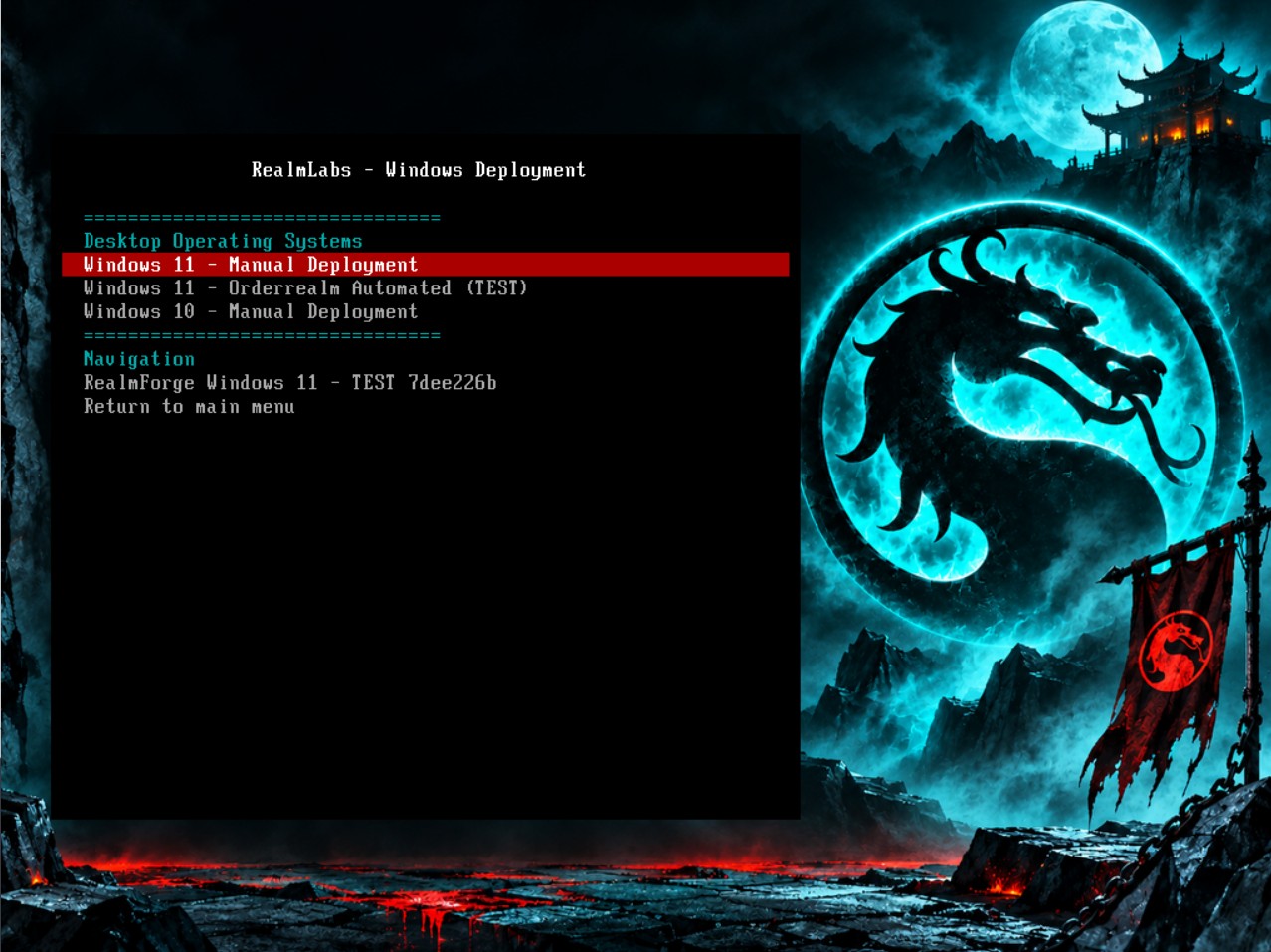
Rather than start again with stock WinPE, we reused the existing driver-enhanced Netherrealm boot image. Installing wimtools on NoobSaibot allowed us to inspect image index 2 and extract the original controller. The new publishing process customises a copy of that image, preserving the original deployment environment. The controller now targets the published Seido WIM at index 1, retaining computer naming, disk selection and the FINISH HIM confirmation. The previous problematic specialise finalisation block was deliberately excluded from this test.
sudo apt install -y wimtools
wimlib-imagex dir /opt/netboot/assets/WinPE/x64/sources/boot-automated.wim 2
The publishing worker completed its transfer in 18 minutes 17 seconds. PXE registration is a separate stage, and the relevant Pi user timer is realmpublish.timer. This highlighted a dashboard flaw: transfer completion must not be confused with deployment readiness.
Hyper-V — the first successful end-to-end deployment
A disposable Generation 2 Hyper-V VM was created with an external virtual switch, an 80 GB dynamic VHDX and Secure Boot disabled. An initial 8 GB RAM allocation failed because of host resource availability; reducing the VM to 4 GB and two virtual CPUs resolved that issue. The VM successfully booted the RealmForge v0.3.10 Netherrealm interface and authenticated to Seido using the local read-only pxeboot account.
Windows Setup initially reported that no images were available. DISM confirmed that the published WIM was accessible and contained Windows 11 Home at index 1. The controller was still supplying the generic Pro installation key. Removing the key entirely produced another Setup error; replacing it with the matching generic Home installation key allowed installation to proceed. No image rebuild or retransmission was required.
The installation subsequently reached Windows, as confirmed during live testing. FLAWLESS VICTORY! This proves the tested path from forged image through NAS publication, PXE, custom WinPE and Windows installation. It does not yet establish unattended domain joining or compatibility across every physical machine. Windows Home cannot join the ORDERREALM Active Directory domain.
v0.3.11 — RealmPackage and dashboard refresh
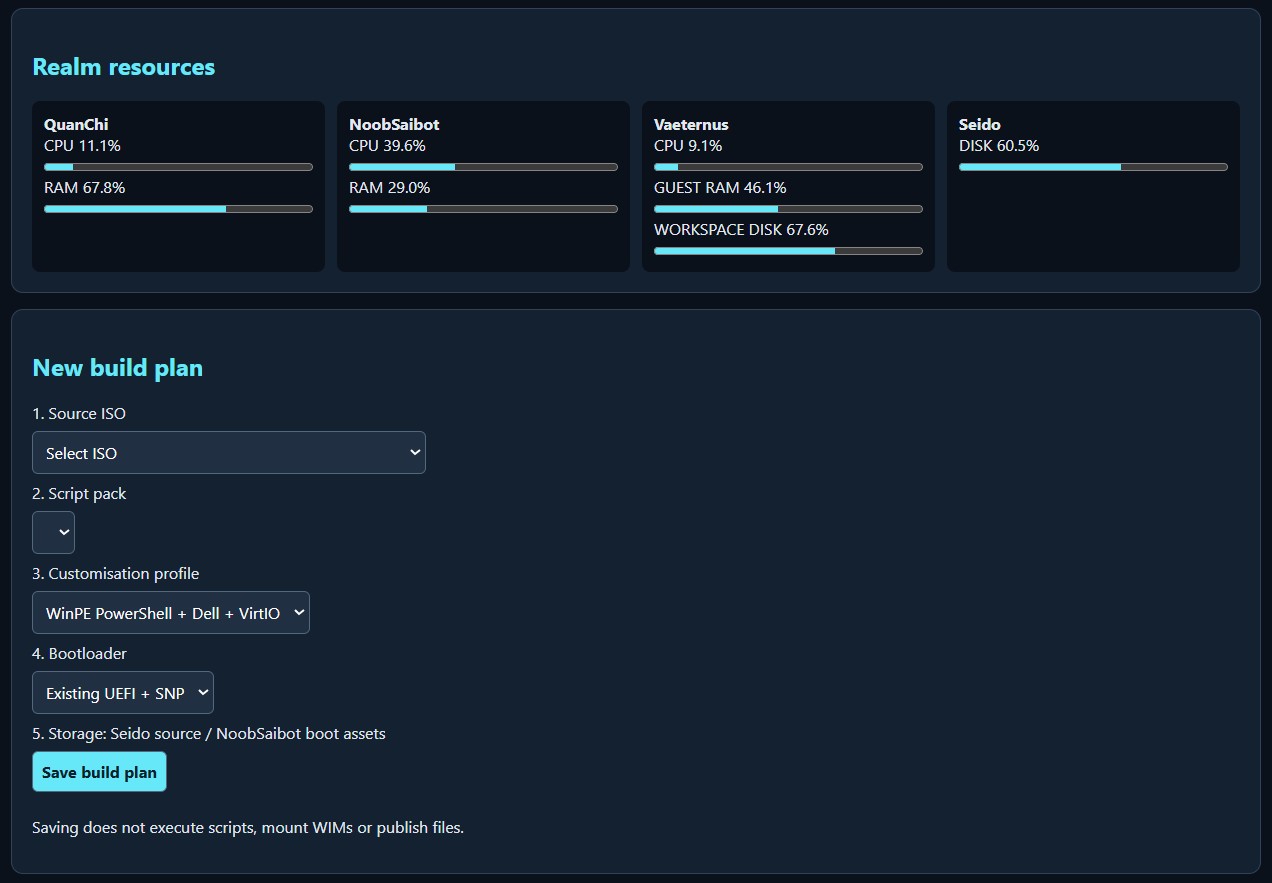
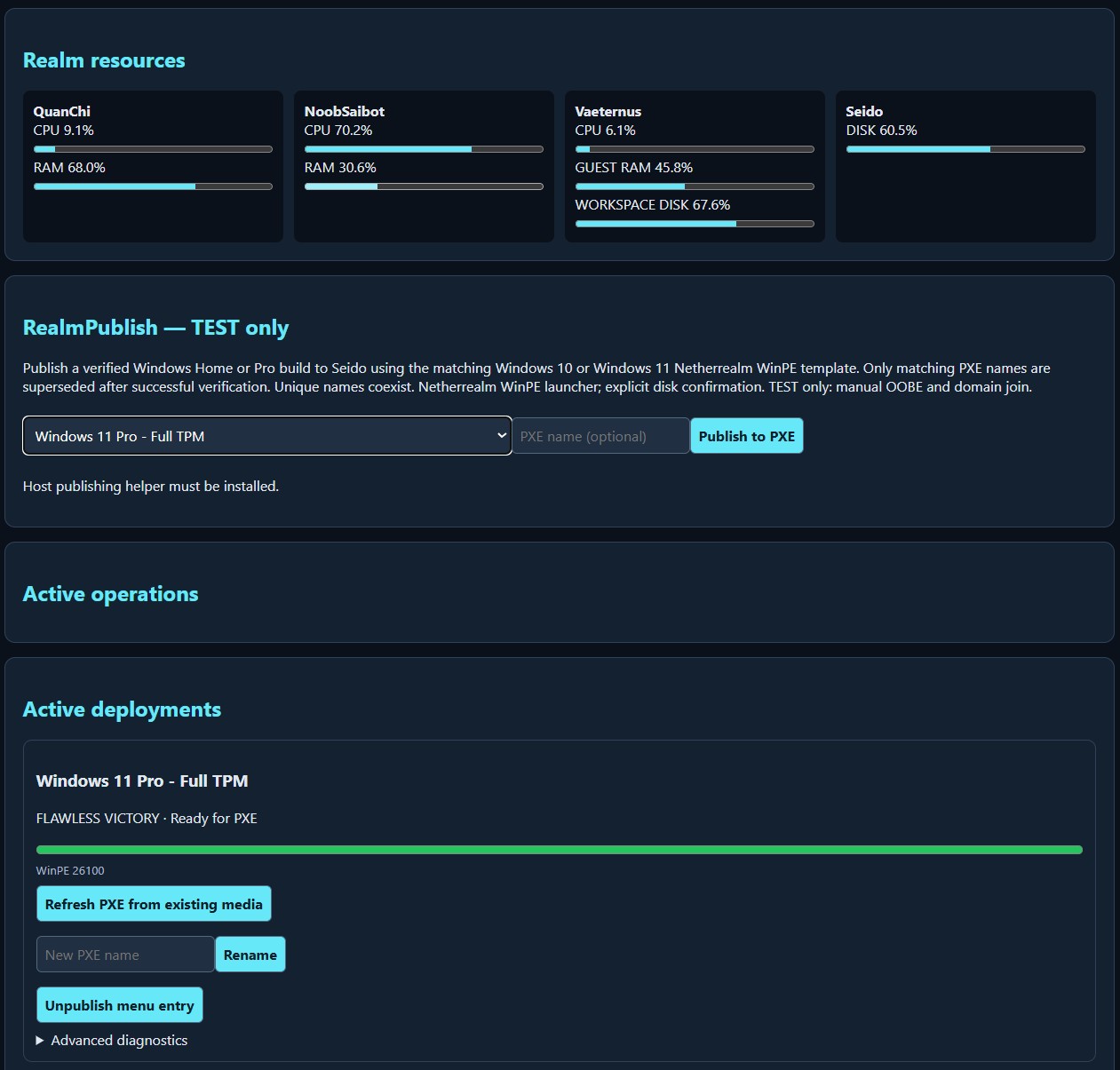
The next release introduces edition-aware product-key handling, refreshing PXE from existing published media, resource widgets for NoobSaibot, QuanChi, Vaeternus and Seido, clearer job history and a global progress indicator. RealmPackage introduces a single-file signed update format intended to replace separate signature uploads. The release remains pending live validation. Automated release signing, automatic SMB password injection and automatic installation of the improved Windows updater remain outstanding. The signing private key must remain separate from distributed releases.
v0.3.11 – Refreshing PXE without rebuilding Windows
The Studio upgrade initially left the published WinPE controller on v0.3.10. The RealmPublish timer was healthy and the installed controller was already v0.3.11, but the existing boot WIM needed refreshing. Refreshing deployment 7dee226b regenerated the boot image using the existing installation media. A subsequent Hyper-V boot confirmed the new controller version. No new Forge build was required.
v0.3.12 – RealmCredentials
RealmCredentials introduced a dedicated HTTPS settings interface, encrypted credential storage using AES-256-GCM, an SMB connection test and automatic authentication using a restricted local Seido account. Credentials are retained independently of release packages. The generated WinPE image necessarily contains recoverable authentication material, so access to the PXE assets must be restricted. No passwords or private signing keys are included in this article.
The initial HTTPS form failed with an Origin mismatch. Diagnostics showed that the browser submitted a null Origin despite reporting a same-origin request. The certificate was valid for the server IP but self-signed, and establishing certificate trust alone did not resolve the error. Changing the Referrer-Policy in credentials_web.py from no-referrer to same-origin resolved the form submission while preserving strict origin validation.
sed -i "s/'Referrer-Policy':'no-referrer'/'Referrer-Policy':'same-origin'/" app/credentials_web.py
docker compose build studio
docker compose up -d --force-recreate studio
The GUI subsequently confirmed the SMB connection and saved the credentials. Refreshing the existing PXE deployment injected them into the new boot WIM.
Automatic authentication: the first live test
Hyper-V successfully loaded v0.3.12 and attempted automatic authentication. The initial attempt failed, as did the manual fallback with Windows system error 53. Subsequent ping tests confirmed connectivity to both the NAS and PXE server. Manual SMB mapping then succeeded. After removing the existing Z: mapping and relaunching the controller, automatic authentication succeeded as well. This verified that the injected credentials worked, although cold-boot reliability remained unresolved. Network startup timing and existing drive mappings were identified as possible contributing factors, not conclusively isolated causes.
ipconfig /all
ping 192.168.68.20
ping 192.168.68.30
net use Z: \\192.168.68.20\Sektor /user:SEIDO\pxeboot *
net use Z: /delete /y
powershell.exe -NoProfile -ExecutionPolicy Bypass -File X:\Windows\System32\RealmForge-Deploy.ps1
v0.3.13 – Stability update
The final release of the session retained the working authentication implementation and added SMB port readiness checks, connection retries, existing drive mapping detection and the permanent HTTPS referrer-policy fix. Manual authentication remains available as a fallback. The existing installation WIM and Netherrealm PXE loader remain unchanged; only the published boot image needs refreshing. Release checks were reported as passing, but a fresh cold-boot deployment remains to be validated.
One PXE platform, multiple Windows editions
The longer-term architecture is now clear: analyse an ISO in Studio, select its edition, Forge the installation image and publish it through the shared Netherrealm PXE loader. Windows 10 and Windows Server releases are planned targets for the same workflow, with compatible WinPE and edition-specific deployment profiles still requiring validation. Automatic Windows Home installation without the earlier product-key workaround also remains to be verified.
Release signing still requires the trusted RealmSign workflow. A raw ZIP is not a signed RealmPackage, and uploading it into the signed-package field resulted in an invalid package size error. Seamless signed single-file updates remain an outstanding improvement.
v0.3.14 – Edition accuracy and repository management
A fresh Hyper-V installation succeeded but installed Home rather than the intended Pro edition. The Forge job record showed source index 1 and the exported image identified itself as Windows 11 Home (Core). The publish job recorded the matching output hash. This established that the worker and deployment pipeline processed the submitted edition correctly; the observed GUI refresh resetting the selection was the leading explanation, rather than a Windows Setup edition substitution.
The next release addresses selection preservation, explicit edition confirmation, named PXE entries, retirement of the legacy Windows menu, one current menu entry per edition, and controlled cleanup of retired media. The computer name is entered before disk confirmation, with automatic disk selection and a choice to override it when multiple disks are present. These changes require live acceptance testing before being treated as proven.
A note on virtual machine memory: The dashboard reports Vaeternus memory from the Proxmox host perspective. In this environment, the Windows VM tends to retain its allocated RAM at host level, even when Windows itself reports available memory inside the guest. Consequently, a near-100% host-side reading does not necessarily indicate guest memory exhaustion. The displayed 100.5% also highlights a reporting discrepancy to investigate; guest-level memory telemetry would provide a more useful indication of actual Windows memory pressure.
Flawless Victory – Windows 11 Pro
On 15 November 2026, the fresh v0.3.14 build and Hyper-V deployment successfully installed Windows 11 Pro, as confirmed during live testing. This is an important regression milestone following the earlier unintended Home deployment. Both Home and Pro have now been successfully deployed through RealmDeploy Studio. Further acceptance testing remains necessary for repository replacement, purge operations and other operating systems.
Physical hardware validation and Windows 10
Live testing subsequently confirmed successful Windows 11 Home and Pro installations on both Hyper-V and physical Shuttle hardware. Custom PXE deployment renaming also worked. The first Windows 10 Pro Forge build completed in 19 minutes and 39 seconds using Fast compression. The exported WIM reported Windows 10 Pro, Professional edition, x64, version 10.0.19041.3803 and deployment index 1, with an output SHA-256 recorded. Windows 10 publishing and installation testing remain pending.
v0.3.15 – Separating image creation from PXE publishing
The successful Windows 10 Pro build exposed another architectural restriction: RealmPublish only offered legacy compatibility builds containing a staged boot WIM. The Windows 10 job had correctly requested source index 6, exported Professional edition to deployment index 1 and completed without errors, but had no hardware bypasses or staged boot WIM.
Version 0.3.15 separates publishing eligibility from hardware compatibility settings. The intended workflow transfers and verifies the installation WIM, then generates the deployment controller using the enhanced WinPE template on NoobSaibot. This removes the requirement to generate a separate experimental boot WIM on Vaeternus. The release also introduces guest-level Windows memory and workspace disk telemetry, and improves forwarding of requested edition metadata to the worker.
Live testing confirmed that the existing Windows 10 Pro build became available for publishing after the upgrade, without repeating the 19-minute Forge operation. Publishing was initiated successfully. PXE menu appearance and a completed Windows 10 installation remain to be confirmed. Windows Server support is a future milestone, rather than a validated capability of this release.
Guest-level resource monitoring in action
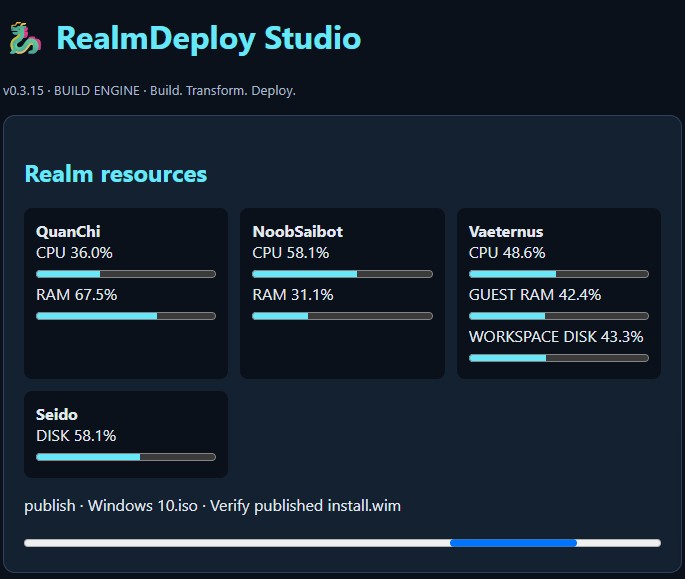
The v0.3.15 dashboard now shows actual Vaeternus guest RAM usage of 42.4% and workspace disk utilisation of 43.3% during Windows 10 publishing verification. This demonstrates the improvement over the earlier host-side memory reading of 100.5%, which did not accurately represent memory pressure inside Windows. The dashboard continues to show QuanChi, NoobSaibot and Seido resource utilisation alongside the active publishing stage.
Windows 10 source-media correction: Subsequent testing revealed that the earlier ISO labelled Windows 10 was not the intended source media. I replaced it with the correct ISO and completed a fresh Windows 10 Pro build in 19 minutes and 37 seconds. The earlier build and publishing observations therefore do not establish a successful Windows 10 deployment. The fresh build encountered an Origin mismatch when submitting the publishing request, and the publishing selector still listed historical builds that had been purged or unpublished. Both issues remain under investigation.
Conclusion: Windows 11 — Flawless Victory
RealmDeploy Studio has achieved its first end-to-end goal: building, publishing and installing Windows 11 Home and Pro over the network, on both Hyper-V and physical Shuttle hardware. The project remains a home-lab development platform, not a production-ready deployment product.
Windows 10 testing subsequently reached PXE and Windows Setup, exposing a mismatch between the Windows 11 boot environment and Windows 10 installation media. A separate Windows 10 WinPE template is now being prepared with matching 19041 optional components. Servicing and end-to-end testing are still in progress. Windows 10 and Windows Server will be covered in future updates once validated.
Windows 10: the missing EFI bootloader
After adding the matching Windows 10 ADK optional components and applying KB5136493, the separate WinPE template reported build 19041.7850. RealmPublish v0.3.17 successfully regenerated the Windows 10 PXE image with that template. Windows 11 was also regression-tested after refreshing its deployment and successfully booted into Windows.
Windows 10 Pro Setup applied the 19045.3803 installation image, but the Hyper-V VM returned to PXE. Inspection confirmed a GPT disk, a 260 MB FAT32 EFI partition, a valid BCD store and the installed Windows bootloader source files. BCDBoot reported success despite leaving both EFI boot manager files absent. Its verbose output indicated that it had selected newer EX boot binaries which were missing from the older installation image, alongside a recovery-store creation warning.
Manually copying the installed Windows boot manager to the EFI Microsoft Boot directory and the standard EFI fallback path, then placing the virtual hard disk first in the firmware boot order, allowed Setup to resume and complete. This demonstrates a successful Windows 10 installation with manual intervention, not yet a fully automated deployment. The next development milestone is automatic boot-file validation and repair or compatible installation-media servicing. Version 1.00 remains reserved for the fully validated release.
FLAWLESS VICTORY — Windows 10 automated deployment
My first attempt to resolve the bootloader mismatch was to service a separate copy of the Windows 10 installation WIM with KB5136493. The servicing stack installed, but the cumulative update failed with DISM error 14099 (0x80073713). I abandoned that approach without modifying the published installation image.
Instead, I rebuilt the original Windows 10 WinPE 19041.3803 template using the matching Windows 10 ADK optional components: WMI, NetFX, Scripting, PowerShell, StorageWMI and DismCmdlets, including their en-GB language packages. I configured 512 MB of scratch space and confirmed that BCDBoot remained at version 19041.1.
After verifying the rebuilt WIM with wimlib, I backed up the newer template, installed the compatibility template and refreshed the existing Windows 10 Pro deployment through RealmPublish. The generated PXE image correctly reported build 19041.3803. No changes to the installation WIM were required.
The subsequent fresh Windows 10 deployment succeeded without the manual EFI repair previously required. This validates the older WinPE compatibility approach on the Hyper-V test platform. Windows 11 had already passed its own deployment tests using its separate WinPE template.
This is a major milestone for RealmDeploy Studio, but not yet the public release. The older Windows 10 WinPE lacks newer boot security updates, so compatibility selection and security implications still need addressing before version 1.00. For now, both Windows generations have demonstrated automated deployment in the lab.
v0.3.19 — RealmPublish refinement
I changed the publishing identity from OS edition to the friendly PXE name, allowing multiple Windows 11 Pro configurations to coexist. The updated interface also removes internal identifiers from the main deployment labels.
Preserving the known-good baseline — backup and disaster recovery
With Windows 10 and 11 working, I froze the development baseline on 16 November 2026. Rather than introduce another application release, I backed up the actual running installations on NoobSaibot (Linux/Pi) and Vaeternus (Windows worker) to Seido. The Studio directory was only 644 KB, whereas the PXE tree occupied approximately 21 GB.
RealmDeploy/Backups/KnownGood-2026-11-16/
  NoobSaibot/
    realmdeploy-studio.tar.gz
    netboot.tar
    system-config.tar.gz
    SHA256SUMS.txt
  Vaeternus/
    RealmDeploy/
    WinPE/
    WinPE10/
    WinPE10-Legacy/
    RealmDeploy-Update.xml
    RealmDeploy-VaeternusWorker.xml
    ADK-Versions.txt
Linux backup
With build, publish and update jobs idle, I checked that the NAS was mounted, archived the complete Studio directory (including configuration and state), the PXE tree and the relevant system configuration. The PXE archive is uncompressed because WIM files are already compressed. The following commands reproduce the procedure; replace the example paths with the actual local paths.
mountpoint -q /mnt/nas || exit 1
BACKUP=/mnt/nas/RealmDeploy/Backups/KnownGood-2026-11-16/NoobSaibot
sudo mkdir -p "$BACKUP"
sudo chmod 700 "$BACKUP"
sudo tar -czpf "$BACKUP/realmdeploy-studio.tar.gz" \
  -C "$HOME/Downloads" realmdeploy-studio
sudo tar -cpf "$BACKUP/netboot.tar" -C /opt netboot
sudo tar -czpf "$BACKUP/system-config.tar.gz" \
  /etc/systemd/system /etc/netboot-proxy.conf \
  /etc/fstab /etc/samba/smb.conf "$HOME/.config/systemd/user"
cd "$BACKUP"
sudo tar -tzf realmdeploy-studio.tar.gz >/dev/null &&
sudo tar -tf netboot.tar >/dev/null &&
sudo tar -tzf system-config.tar.gz >/dev/null &&
sudo sha256sum *.tar* | sudo tee SHA256SUMS.txt
Windows backup
From elevated PowerShell, I copied the worker installation and the ADK/WinPE working directories, excluding temporary workspaces, mount directories and the failed servicing experiment. I exported both scheduled tasks and recorded the installed ADK versions. The NAS path below is illustrative.
$Backup = "\\NAS\Share\RealmDeploy\Backups\KnownGood-2026-11-16\Vaeternus"
New-Item -ItemType Directory -Force -Path $Backup
robocopy C:\RealmDeploy "$Backup\RealmDeploy" /E /R:2 /W:2 /XD Workspace
if ($LASTEXITCODE -ge 8) { throw "Worker backup failed" }
foreach ($Folder in @("WinPE","WinPE10","WinPE10-Legacy")) {
    robocopy "D:\RealmDeploy\$Folder" "$Backup\$Folder" /E /R:2 /W:2 /XD Mount
    if ($LASTEXITCODE -ge 8) { throw "Backup failed: $Folder" }
}
foreach ($Task in @("RealmDeploy-Update","RealmDeploy-VaeternusWorker")) {
    Export-ScheduledTask -TaskName $Task |
        Set-Content "$Backup\$Task.xml" -Encoding Unicode
}
Get-ItemProperty HKLM:\Software\Microsoft\Windows\CurrentVersion\Uninstall\*,HKLM:\Software\WOW6432Node\Microsoft\Windows\CurrentVersion\Uninstall\* |
    Where-Object DisplayName -match "Assessment|Deployment Kit|Windows PE" |
    Select-Object DisplayName,DisplayVersion |
    Out-File "$Backup\ADK-Versions.txt"
The original ISO library and published installation WIMs remain on the NAS; this is a host recovery backup, not an independent backup of the NAS itself. Both hosts’ backups were completed. The backup archives contain sensitive configuration and must be restricted to authorised administrators. The private signing key belongs in a separate protected backup, and the trusted public PEM should also be retained separately for Linux RealmUpdate recovery. Windows DPAPI credentials must be recreated after reinstalling Windows.
Recovery pack 1 — Linux / Raspberry Pi
RealmDeploy-Linux-Recovery.zip contains install.sh and README.txt. On a fresh Debian or Raspberry Pi OS host, recreate the original hostname, user/UID, IP address, interface and NAS mount. Install Docker Engine and the Compose plugin and grant the original account Docker access. Extract the ZIP locally and run as the original non-root user:
bash install.shEnter the mounted NoobSaibot backup directory and type RESTORE when prompted. The installer checks the original host identity, NAS mount and archive checksums, refuses to overwrite an existing installation, installs supporting packages, extracts Studio and netboot, restores the PXE proxy configuration, recreates the netboot.xyz container, starts Studio and configures RealmPublish and the proxy service. RealmUpdate is optional and requires the trusted public PEM.
Docker itself is a prerequisite, not installed by the script. The netboot container is recreated using the latest image because the original digest was not captured. Samba accounts, fstab, unrelated services and WOL require manual restoration if needed; do not blindly overwrite the new operating system configuration with the archived system files.
Recovery pack 2 — Windows
RealmDeploy-Windows-Recovery.zip contains Install.cmd, Install.ps1 and README.txt. Recreate the original Windows 11 worker hostname and install the ADK Deployment Tools and WinPE add-on using the recorded versions. Configure NAS access in Windows Credential Manager under the same Windows account that will run the worker. Verify access to both the ISO library and the repository. Extract the ZIP and run Install.cmd as administrator.
Supply the Vaeternus backup UNC path, local NTFS workspace, RESTORE confirmation, worker token from the restored Studio configuration and the Windows account password (not the PIN). The installer copies the worker and update scripts, recreates the DPAPI-protected token, registers the worker startup task and on-demand update task, and starts the worker. It deliberately does not restore stale update requests or the old DPAPI token. Restore the backed-up WinPE working directories manually if further image servicing is required.
Recovery validation checklist
- Confirm NAS access, available storage and archive checksums.
- Check Studio, Docker, RealmPublish, the PXE proxy and both PXE menus.
- Check the worker heartbeat and run an ISO analysis job.
- Verify both Windows 10 templates and the Windows 11 template, then refresh and test a deployment on disposable hardware.
- Check signed update functionality separately before enabling routine updates.
These two small recovery packs are intended for my existing lab topology, not universal installers. They restore the backed-up application rather than bundling the large WinPE files. Neither has yet been proven on a clean target machine, so a complete disaster recovery rehearsal remains outstanding. The legacy Windows 10 WinPE is retained for isolated compatibility testing, not Internet exposure. I have kept the recovery packs private alongside the backups and reserved version 1.00 for the final validated release.
Development diary continues as new milestones are verified.