
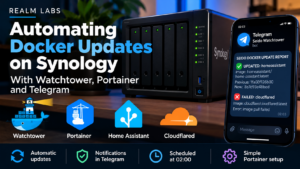

I run quite a few Docker services on my Synology NAS, Seido. Portainer makes them easy to manage, but I was still checking for image updates, pulling the latest release and recreating containers manually. I wanted that routine task handled automatically — at a sensible time, with Telegram telling me only when something changed or failed.
The result: Watchtower checks my selected containers every night at 02:00 UK time. It updates those with newer images, keeps my existing volume mounts and configuration, and sends me exception-only Telegram notifications. This guide documents the working setup, including the troubleshooting steps that actually mattered.
What Watchtower does — and what it doesn’t
Watchtower compares a running container image with the image available in its registry. Where there is a change, it pulls the newer image, stops the old container and recreates it with its existing Docker configuration. This is image updating, not the same as checking GitHub release notes or guaranteeing that the upgraded application will work. There is no built-in database migration safety net or automatic rollback.
Maintenance caveat (October 2026): the original containrrr/watchtower project was archived in December 2025 and is no longer maintained. I’m documenting the version that worked in my lab, not recommending unattended updates for critical production systems. A Docker-socket-mounted updater has broad control over Docker; use trusted images, backups and selective labels. See the archived upstream repository.
1. Deploy Watchtower as a Portainer stack
In Portainer, go to Stacks → Add stack, call it watchtower, and paste the Compose file below. It includes my real schedule and report template, but replaces credentials with environment variables.
services:
  watchtower:
    image: containrrr/watchtower:1.7.1
    container_name: watchtower
    hostname: seido-watchtower
    restart: unless-stopped
    environment:
      TZ: Europe/London
      WATCHTOWER_SCHEDULE: "0 0 2 * * *"
      WATCHTOWER_CLEANUP: "true"
      WATCHTOWER_LABEL_ENABLE: "true"
      WATCHTOWER_INCLUDE_STOPPED: "false"
      WATCHTOWER_REVIVE_STOPPED: "false"
      WATCHTOWER_ROLLING_RESTART: "true"
      WATCHTOWER_NOTIFICATION_URL: "telegram://${TELEGRAM_BOT_TOKEN}@telegram?chats=${TELEGRAM_CHAT_ID}"
      WATCHTOWER_NOTIFICATION_REPORT: "true"
      WATCHTOWER_NO_STARTUP_MESSAGE: "true"
      WATCHTOWER_NOTIFICATION_TEMPLATE: |
        {{- if .Report -}}
          {{- with .Report -}}
            {{- if or .Updated .Failed }}
        SEIDO DOCKER UPDATE REPORT
              {{- range .Updated }}

        UPDATED: {{ .Name }}
        Image: {{ .ImageName }}
        Previous image: {{ .CurrentImageID.ShortID }}
        New image: {{ .LatestImageID.ShortID }}
              {{- end }}
              {{- range .Failed }}

        FAILED: {{ .Name }}
        Image: {{ .ImageName }}
        Error: {{ .Error }}
              {{- end }}
            {{- end -}}
          {{- end -}}
        {{- end -}}
    volumes:
      - /var/run/docker.sock:/var/run/docker.sock
Under Environment variables in Portainer, add TELEGRAM_BOT_TOKEN (your BotFather token) and TELEGRAM_CHAT_ID (the numeric ID of your personal or group chat). Don’t put the actual bot token between the ${...} braces; the braces in Compose refer to the variable’s name. Start a private conversation with your bot by sending /start before testing. Never publish your token.
The expression 0 0 2 * * * is Watchtower’s six-field cron schedule: 02:00 each day. The Europe/London timezone keeps it aligned with UK local time. Use a fixed schedule instead of WATCHTOWER_POLL_INTERVAL; don’t set both. WATCHTOWER_CLEANUP=true removes superseded images, so it is not a substitute for retaining a rollback image or backup.
With WATCHTOWER_LABEL_ENABLE=true, nothing is updated until I explicitly label that container. WATCHTOWER_NO_STARTUP_MESSAGE=true suppresses the ‘Watchtower started’ Telegram message, and the report template produces an empty message when there are no updated or failed containers. For changes, it reports the image name and old/new image IDs. Watchtower 1.7.1 does not reliably offer application version numbers in its report template, particularly when the image is tagged latest.
2. Opt in individual services
The whole point is selective updating. Add the label below inside the service definition in its Portainer stack, then update that stack without forcing an image re-pull just for the label change:
labels:
  - "com.centurylinklabs.watchtower.enable=true"
Containers created outside Portainer stacks can be labelled when recreated via Duplicate/Edit → Labels. Labels aren’t generally editable on an already-running container. For anything managed by Compose, edit the Compose YAML so redeployment doesn’t wipe the label.
Homepage — the first test
Homepage was the first non-critical application I enabled. This is the simplified Compose example; replace the host configuration path with your own:
services:
  homepage:
    image: ghcr.io/gethomepage/homepage:latest
    container_name: homepage
    restart: unless-stopped
    environment:
      - HOMEPAGE_ALLOWED_HOSTS=*
    ports:
      - "4000:3000"
    volumes:
      - /YOUR/PERSISTENT/PATH/homepage:/app/config
      - /var/run/docker.sock:/var/run/docker.sock:ro
    labels:
      - "com.centurylinklabs.watchtower.enable=true"
I deliberately kept its configuration in a persistent bind mount. Our first manual Watchtower run found a newer Homepage image and recreated the container successfully: Failed=0 Scanned=1 Updated=1.
Home Assistant Container — automated Core image updates
This was particularly useful. A Home Assistant OS VM includes Supervisor-managed updates, whereas Home Assistant Container makes the Docker host responsible for pulling and replacing Home Assistant Core images. With Watchtower, that particular maintenance difference is less of a chore. It doesn’t make Container equivalent to HA OS: it does not add the Supervisor, HA OS, its app management or host OS upgrades. Those remain genuine differences. See Home Assistant’s installation comparison.
My migrated Home Assistant Compose configuration is below. This replaces only the container; the existing /config mount holds integrations, automations and dashboards. Back up /config before upgrading, especially if you use custom integrations.
services:
  homeassistant:
    image: homeassistant/home-assistant:latest
    container_name: homeassistant
    network_mode: host
    restart: unless-stopped
    environment:
      TZ: Europe/London
    volumes:
      - /YOUR/PERSISTENT/PATH/homeassistant:/config
    labels:
      - "com.centurylinklabs.watchtower.enable=true"
I hit a useful snag when converting an older standalone Home Assistant installation to a stack: an already-cached ghcr.io/home-assistant/home-assistant:stable image reported version 2025.12.3, while my homeassistant/home-assistant:latest image reported 2026.10.3. The older image threw a device-registry migration NotImplementedError against the existing configuration. Checking image labels and returning to the image that matched my working installation resolved it. The lesson: never assume an image tag cached locally is current, and do not delete .storage/core.device_registry to work around a version mismatch.
docker image inspect homeassistant/home-assistant:latest \
  --format '{{index .Config.Labels "org.opencontainers.image.version"}}'
I also made sure there was only one Home Assistant container using the configuration folder. After confirming the new stack was working, I removed the old, stopped container with docker rm OLD_CONTAINER_NAME — not its bind-mounted configuration folder.
Cloudflared — because I could
I’d already proved it worked on Homepage and Home Assistant, so I added my Cloudflare Tunnel connector too. Here --no-autoupdate is intentional: updates to the Docker image are Watchtower’s job. This can briefly interrupt traffic through the tunnel, so it’s a choice for my homelab rather than something I’d roll out blindly to a business-critical endpoint.
services:
  cloudflared:
    image: cloudflare/cloudflared:latest
    container_name: cloudflared
    restart: unless-stopped
    command: tunnel --no-autoupdate run --token ${CLOUDFLARE_TUNNEL_TOKEN}
    labels:
      - "com.centurylinklabs.watchtower.enable=true"
Add CLOUDFLARE_TUNNEL_TOKEN as a Portainer stack environment variable. Use the actual token only in Portainer, never in a published article.
3. Verify the labels and force a safe check
After updating the three application stacks, I verified their labels from an SSH session on Seido:
for c in homepage homeassistant cloudflared; do
  echo -n "$c: "
  docker inspect "$c" --format '{{index .Config.Labels "com.centurylinklabs.watchtower.enable"}}'
done
All three returned true. A non-disruptive one-off test uses a temporary Watchtower container in monitor-only mode:
docker run --rm \
  -v /var/run/docker.sock:/var/run/docker.sock \
  containrrr/watchtower:1.7.1 \
  --run-once \
  --label-enable \
  --monitor-only
My result was Session done Failed=0 Scanned=3 Updated=0. Because this is monitor-only, Updated=0 means no updates were applied; it doesn’t by itself prove no newer images are available.
One gotcha: I initially tried docker exec watchtower /watchtower --run-once --label-enable --monitor-only. That inherited the existing rolling-restart setting and failed with Rolling restarts is not compatible with the global monitor only flag. Using a fresh one-off container avoided that conflict. It also left my scheduled Watchtower running undisturbed.
For a real update of a specific approved container, omit monitor-only and name the container explicitly. This can stop and recreate the service, so only run it once you’ve got a backup and are happy with downtime:
docker run --rm \
  -v /var/run/docker.sock:/var/run/docker.sock \
  containrrr/watchtower:1.7.1 \
  --run-once --label-enable homepage
4. Telegram: useful messages, not daily noise
I wanted an alert only if Watchtower updated something or failed. No nightly ‘nothing happened’ message. My template reports the affected container, image reference, previous image ID, new image ID, or failure error. A successful startup isn’t an update report, so I disabled startup notifications too.
If Telegram responds Bad Request: chat not found, verify that you’ve started the bot and supplied the numeric chat ID, not the bot’s own ID. If you see Forbidden: the bot can't send messages to the bot, you’re trying to message a bot account. My first test hit exactly that.
To check the bot directly, send your new bot /start and use the following on the Docker host. It prompts for the token without printing it; inspect the message.chat.id in the response. Don’t post the JSON publicly if it contains personal details.
read -rsp "Telegram bot token: " TOKEN; echo
curl -s "https://api.telegram.org/bot${TOKEN}/getUpdates" | python3 -m json.tool
unset TOKEN
A direct Telegram API test confirmed the bot and chat worked. That validates delivery, but a real Watchtower update or failure is still needed to validate the custom report rendering end to end.
5. What I deliberately left on manual updates
I have other containers on Seido, but I didn’t give Watchtower blanket permission. MariaDB and WordPress stay under controlled maintenance: WordPress can update its own core and plugins internally, but a Docker image update is a separate operation. I also left Portainer, my custom Node applications and the MQTT/Node-RED side alone. Plex and other stateful services deserve their own backup-and-upgrade decision.
Watchtower sees image changes, not whether Home Assistant integrations, WordPress plugins or databases are healthy afterwards. In particular, major application changes can break configurations even if Docker reports a successful recreation.
The result
Three containers opted in: Homepage, Home Assistant and Cloudflared. One nightly 02:00 check. Telegram messages only when there’s an update or a failure. The nice part isn’t saving a couple of clicks; it’s removing a routine maintenance task while still being selective about what is allowed to change.
If you’re replicating this, treat the configuration as a worked homelab example. Verify the image, keep persistent mounts backed up, don’t expose tokens in Compose files you publish, and remember that the original Watchtower repository is archived. The convenience is real — but it’s not a replacement for proper change control.